Let me tell you about the moment I decided to take control of my AI usage.
It was 11 PM on a Tuesday. I was in the middle of debugging a complex React component, bouncing between ChatGPT and Claude, when both services hit me with rate limits within the same hour. I was paying nearly $50 a month between the two subscriptions, and I still couldn't get unlimited access when I actually needed it.
That night, I went down the rabbit hole. A developer friend had mentioned running AI models locally on his gaming PC – "complete privacy, no limits, no monthly fees after the initial setup," he said. I was skeptical. Wouldn't that require some kind of supercomputer?
Turns out, not really.
Three months later, I've cancelled both my AI subscriptions. I'm running models that are genuinely competitive with the paid services, completely free and private, on a desktop I built for under $2,000. My data never leaves my machine. I can generate as many responses as I want at 3 AM without hitting any limits. And honestly? The quality is better than I expected.
This guide is everything I wish I'd known when I started. I'll walk you through the hardware you actually need, the software that makes this surprisingly easy, and the specific models that deliver the best results in 2026. No corporate fluff, no affiliate-driven recommendations, just real advice from someone who's been through the learning curve.
Why Running AI Locally Makes Sense in 2026
Before we dive into the technical stuff, let's talk about why you might want to do this in the first place. Because honestly, cloud AI services are pretty good. They're convenient, they're always updated, and they require zero setup.
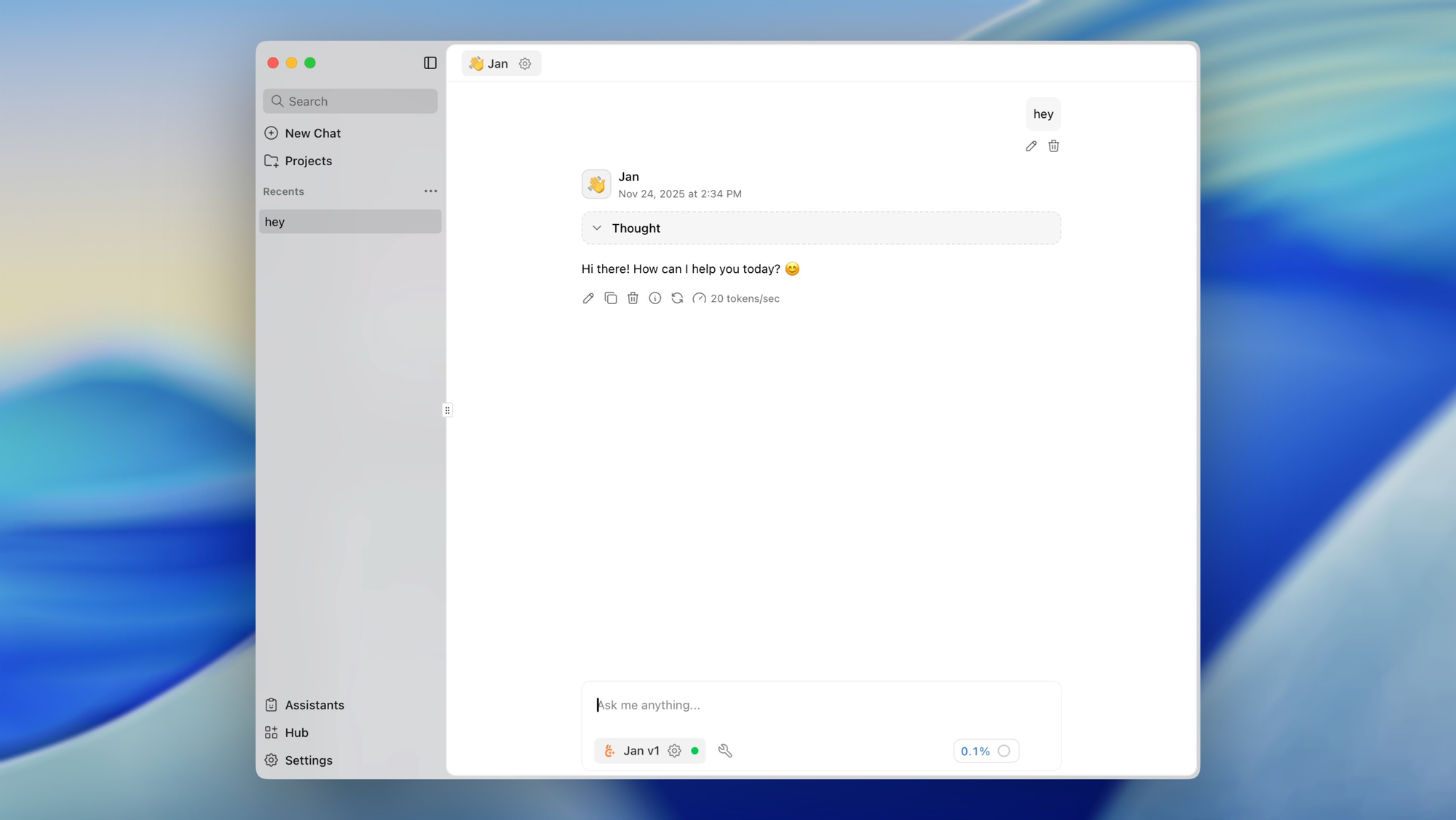
But they also have some real drawbacks that are worth considering.
- Privacy is the big one. When you use ChatGPT or Claude through their web interfaces, your prompts are processed on remote servers. For casual conversations, that's probably fine. But if you're working with sensitive business data, personal information, medical questions, or proprietary code, sending that data to third-party servers might not be something you're comfortable with. When you run AI locally, your data never leaves your machine. Period.
- Cost adds up faster than you think. I was paying $20/month for ChatGPT Plus and $20/month for Claude Pro. That's $480 a year. Over three years, that's nearly $1,500, more than enough to build a capable local AI rig. And unlike subscriptions, hardware doesn't expire. My GPU will still work in five years; I just won't be paying monthly for the privilege of using it.
- Rate limits are genuinely frustrating. If you've ever hit the usage cap on Claude during a productive coding session, you know what I mean. Local models don't care how many prompts you send. You can hammer them with requests all day long, and they'll keep responding.
- Offline capability is underrated. I travel a fair amount, and internet on planes is still terrible. Having a fully functional AI assistant that works without any connection is genuinely useful.
Now, I want to be upfront about the tradeoffs too. Local models are generally not quite as capable as the absolute frontier models like GPT-5 or Claude Opus. The setup requires some technical comfort. You'll need to manage updates yourself. And there's an upfront hardware investment.
But for a lot of use cases, coding assistance, writing help, research, brainstorming, document analysis, local models have gotten good enough that the difference barely matters in practice.
Understanding What Actually Matters: VRAM Is King
If there's one thing I want you to take away from this entire guide, it's this: VRAM (Video RAM) is the single most important factor for running AI locally.
Think of VRAM as your model's workspace. The entire model needs to fit into VRAM to run at full speed. If it doesn't fit, the system has to offload parts to regular RAM, which is dramatically slower — we're talking 10x or more. If it still doesn't fit, it offloads to your hard drive, and at that point you might as well go make coffee between responses.
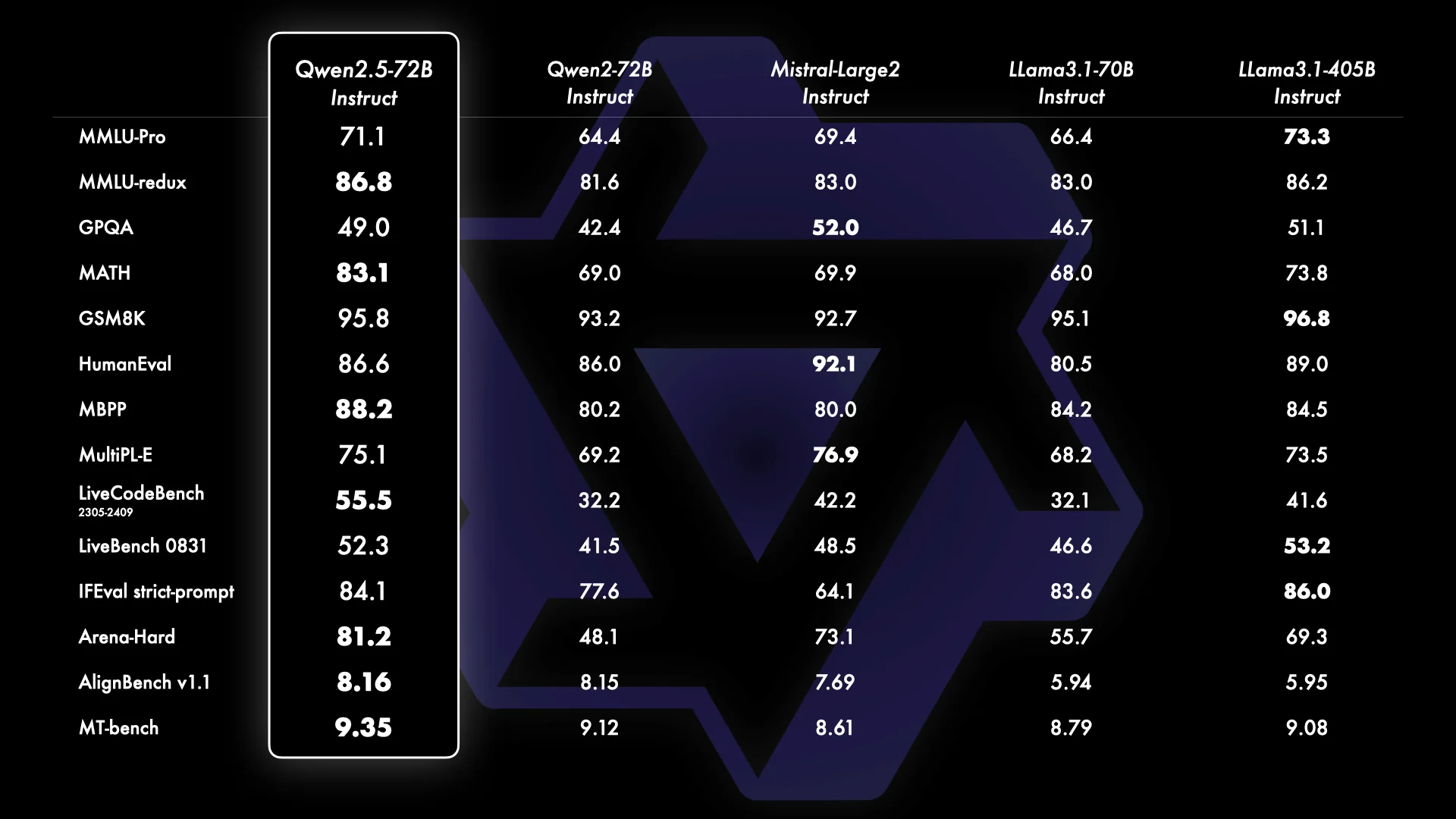
Here's the practical reality in 2026:
- With 8GB VRAM, you can comfortably run 7B parameter models. These are surprisingly capable for their size and handle most everyday tasks well.
- With 12GB VRAM, you open up 13B models and have more headroom for larger context windows on 7B models. This is the sweet spot for budget builds.
- With 16GB VRAM, you can run some 30B models with quantization and have plenty of room for 13B models with full context.
- With 24GB VRAM, you enter serious territory. This handles 33B-70B models with quantization, and you can run smaller models with massive context windows.
- With 32GB VRAM, you're at the bleeding edge of consumer hardware. The new RTX 5090 sits here, and it can handle even larger models comfortably.
The reason I'm emphasizing this is that a lot of beginners make the mistake of focusing on other specs — CPU speed, system RAM, storage speed — when VRAM is what actually gates your capabilities. A mediocre CPU with a great GPU will outperform an amazing CPU with a weak GPU every time for AI workloads.
The 2026 GPU Buying Guide: What to Actually Buy
Let me break this down by budget, because that's how most people actually make decisions.
Budget Tier: $200-400
If you're just getting started and want to test the waters, the RTX 3060 12GB is your best friend. Yes, it's a last-generation card, but that 12GB of VRAM is what matters. You can find these used for around $200-250, and they'll comfortably run 7B models at 40-50 tokens per second.
The RTX 4060 Ti 16GB is another interesting option in this range if you can find it around $350-400. That extra 4GB of VRAM over the 3060 opens up larger models, and the newer architecture is more efficient.
One card I'd avoid in this tier is the RTX 4060 8GB. The performance is fine, but 8GB of VRAM is already feeling tight in 2026, and you'll outgrow it quickly.
Mid-Range Tier: $500-800
This is where things get interesting. The used RTX 3090 is, in my opinion, one of the best values in local AI right now. These 24GB monsters were $1,500+ at launch, but you can find them used for $600-800 in early 2026. That 24GB of VRAM is the same as the RTX 4090, and while the 3090 is slower, VRAM capacity is often the limiting factor anyway.
If you want something newer with warranty, the RTX 4070 Ti Super 16GB at around $700-800 offers good performance and enough VRAM for most use cases. It won't handle the largest models, but it's a solid all-around choice.
High-End Tier: $1,000-2,000
The RTX 4090 24GB remains the go-to for serious local AI work if you don't need the absolute latest. Despite being from the previous generation, its 24GB of VRAM and excellent performance make it highly capable. Used prices have come down to around $1,200-1,400 since the 5090 launch.
The RTX 5090 32GB is the new flagship, and that 32GB of GDDR7 memory is genuinely impressive. With memory bandwidth of 1.79 TB/s (nearly double the 4090), it handles large models significantly better. It runs 70B quantized models comfortably and even allows experimentation with larger models. At $1,999 MSRP, it's expensive, but if you're doing this professionally, it's worth consideration.
Testing shows the RTX 5090 delivers roughly 25-35% faster inference than the 4090 for most workloads, with some benchmarks showing up to 70% improvements on specific models. Whether that justifies the price premium depends on your usage intensity.
What About AMD and Apple?
AMD GPUs have come a long way. The RX 7900 XTX offers 24GB of VRAM at a lower price than NVIDIA equivalents. However, and this is important, software support still lags behind. Most tools are optimized for NVIDIA's CUDA first, and while AMD support through ROCm has improved dramatically, you'll occasionally run into compatibility issues or need to troubleshoot more.
If you're comfortable with Linux and don't mind occasionally debugging driver issues, AMD can be a great value. If you want things to just work, stick with NVIDIA.
Apple Silicon is actually surprisingly good for local AI. The M-series chips use unified memory, which means your system RAM effectively becomes VRAM. A Mac Studio with 64GB or 128GB of unified memory can load models that would require multiple GPUs on a PC. The tradeoff is speed — Apple Silicon generates tokens more slowly than equivalent NVIDIA hardware, often 15-20 tokens/second compared to 50+ on an RTX 4090. But if you need to run the absolute largest models and can tolerate slower speeds, it's a legitimate option.
The Rest of Your System: What Else You Need
While VRAM is king, the rest of your system still matters.
Software Setup: Getting Started with Ollama
Alright, let's actually get this running. I'm going to walk you through the easiest path first, which is using Ollama.
Ollama is an open-source tool that handles all the complexity of running local models. It manages downloads, optimizes settings for your hardware, and provides a simple interface for interacting with models. It's what I'd recommend for anyone just getting started.
Step 1: Install Ollama
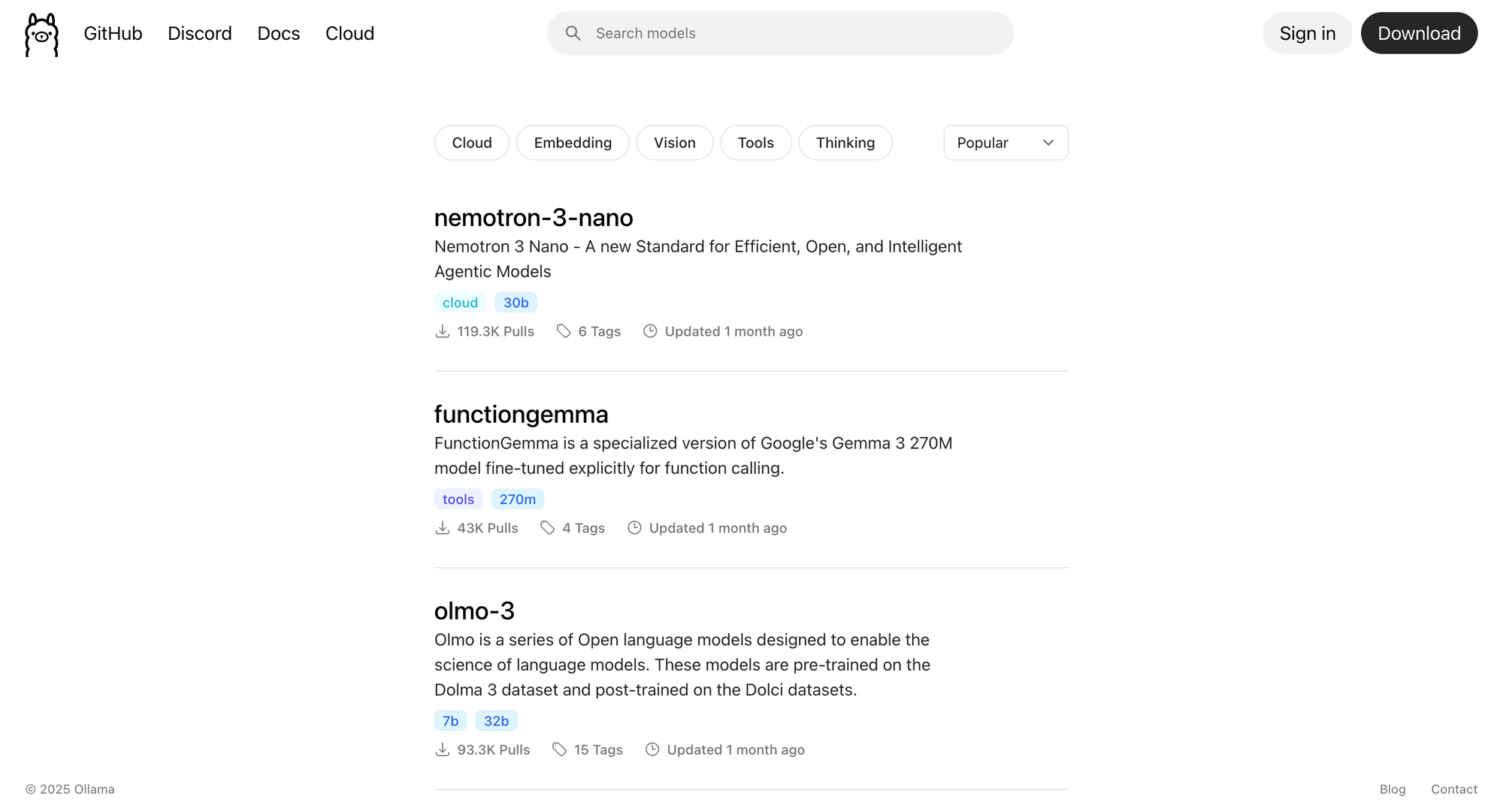
Head to ollama.com and download the installer for your operating system. The installation is straightforward — just run the installer and follow the prompts. On Mac and Linux, you can also install via terminal:
For Mac: brew install ollama
For Linux: curl -fsSL https://ollama.com/install.sh | sh
Step 2: Run Your First Model
Once Ollama is installed, open a terminal and type:
ollama run llama3.2
That's it. Ollama will automatically download the model (about 4GB for the 8B version) and start an interactive chat session. You can start typing prompts immediately.
Step 3: Experiment with Different Models
Ollama supports dozens of models. Here are some I'd recommend trying:
For general chat: ollama run llama3.3 — Meta's latest is excellent all-around.
For coding: ollama run qwen2.5-coder:32b — This has become my daily driver for programming help. It's genuinely impressive.
For reasoning: ollama run deepseek-r1:32b — If you have the VRAM, the DeepSeek reasoning models are remarkably capable.
For smaller systems: ollama run phi4 — Microsoft's Phi-4 punches way above its weight for its size.
Alternative: LM Studio for a Visual Interface
If you prefer a graphical interface over the command line, LM Studio is excellent. It provides a ChatGPT-like experience with a nice chat interface, model management, and configuration options.
Download it from lmstudio.ai, install it, and you'll be presented with a model browser. You can search for models, download them with a click, and start chatting through the interface.
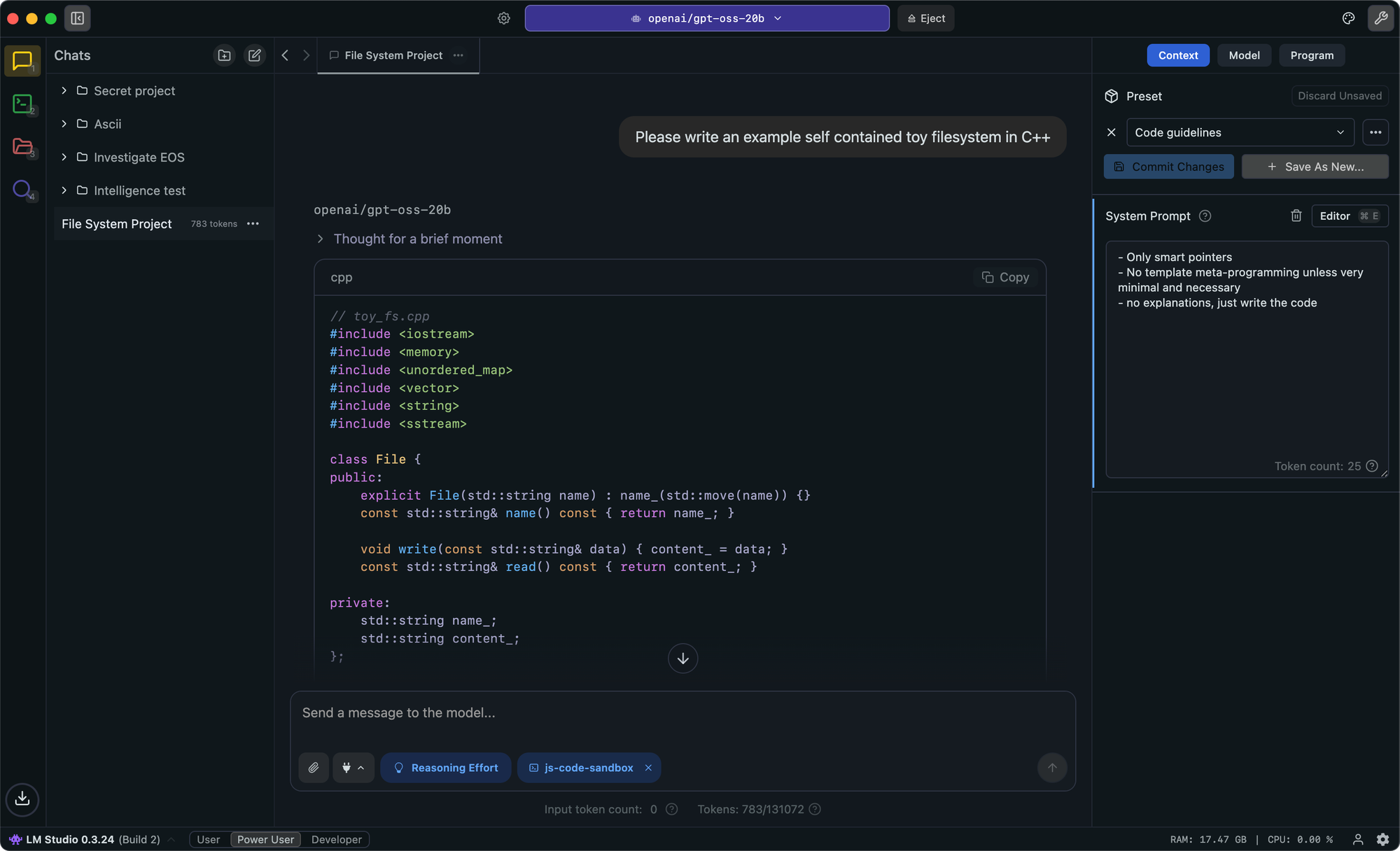
LM Studio is particularly good for beginners because it shows you real-time information about VRAM usage, token generation speed, and other metrics. It helps you understand what's happening under the hood without requiring command-line knowledge.
One nice feature is that LM Studio can also expose a local API that's compatible with the OpenAI format. This means if you have applications or scripts that work with the OpenAI API, you can point them at LM Studio instead and run everything locally.
Understanding Quantization
Here's something that confused me when I started: how can a 70 billion parameter model fit on a consumer GPU? The answer is quantization, and understanding it will help you make better choices about which models to download.
Quantization is essentially compression for AI models. Instead of storing each weight as a precise floating-point number (which takes 16 or 32 bits), quantization rounds those numbers to use fewer bits — typically 8, 5, or 4 bits.
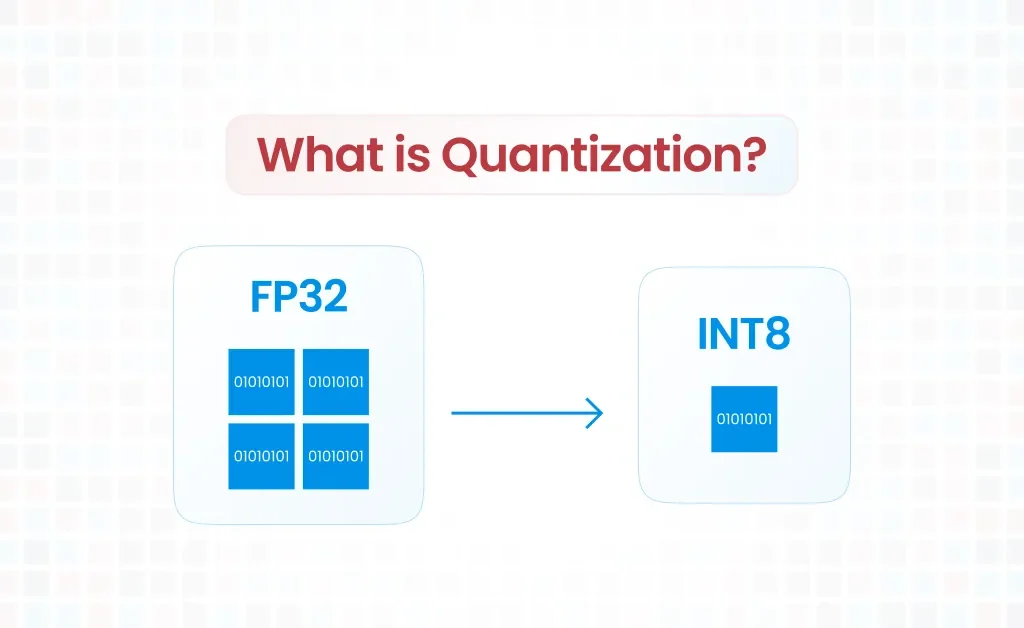
The naming convention looks intimidating but is actually straightforward. When you see something like "Q4_K_M," here's what it means:
Q4 means 4-bit quantization — each weight uses only 4 bits instead of 16. K indicates it uses the "K-quant" method, which is smarter about which parts of the model to compress more aggressively. M means "medium" — there are also S (small) and L (large) variants with different tradeoffs.
In practice, here's what I recommend:
Here's a concrete example: A 70B parameter model at full precision requires about 140GB — impossible on consumer hardware. But quantized to Q4_K_M, that same model needs only about 35-40GB. With an RTX 4090's 24GB, you can run a 70B Q3 quantized model, though you're pushing limits. With an RTX 5090's 32GB, you can run 70B Q4 models comfortably.
The Best Open-Source Models to Run in 2026
The open-source model landscape has exploded, and honestly, keeping track of what's good is a full-time job. Let me save you some research.
For General Conversations and Writing
Llama 3.3 70B is probably the best all-around open-source model right now. It's genuinely competitive with GPT-4 for most tasks. If you have the VRAM for it (24GB+ with quantization), this should be your default.
Llama 3.2 8B is excellent if you're VRAM-constrained. It's remarkably capable for its size and runs great on 12GB cards.
Qwen 2.5 72B from Alibaba is another top-tier option, especially strong for multilingual tasks. If you work in multiple languages, Qwen might actually be better than Llama.
For Coding
Qwen 2.5 Coder 32B has become my daily driver for programming assistance. It handles complex codebases well, understands context effectively, and generates clean, working code more often than not.
DeepSeek Coder V3 is another excellent choice, particularly for complex algorithmic problems.
Code Llama 34B remains solid if you're already in the Llama ecosystem.
For Reasoning and Complex Problems
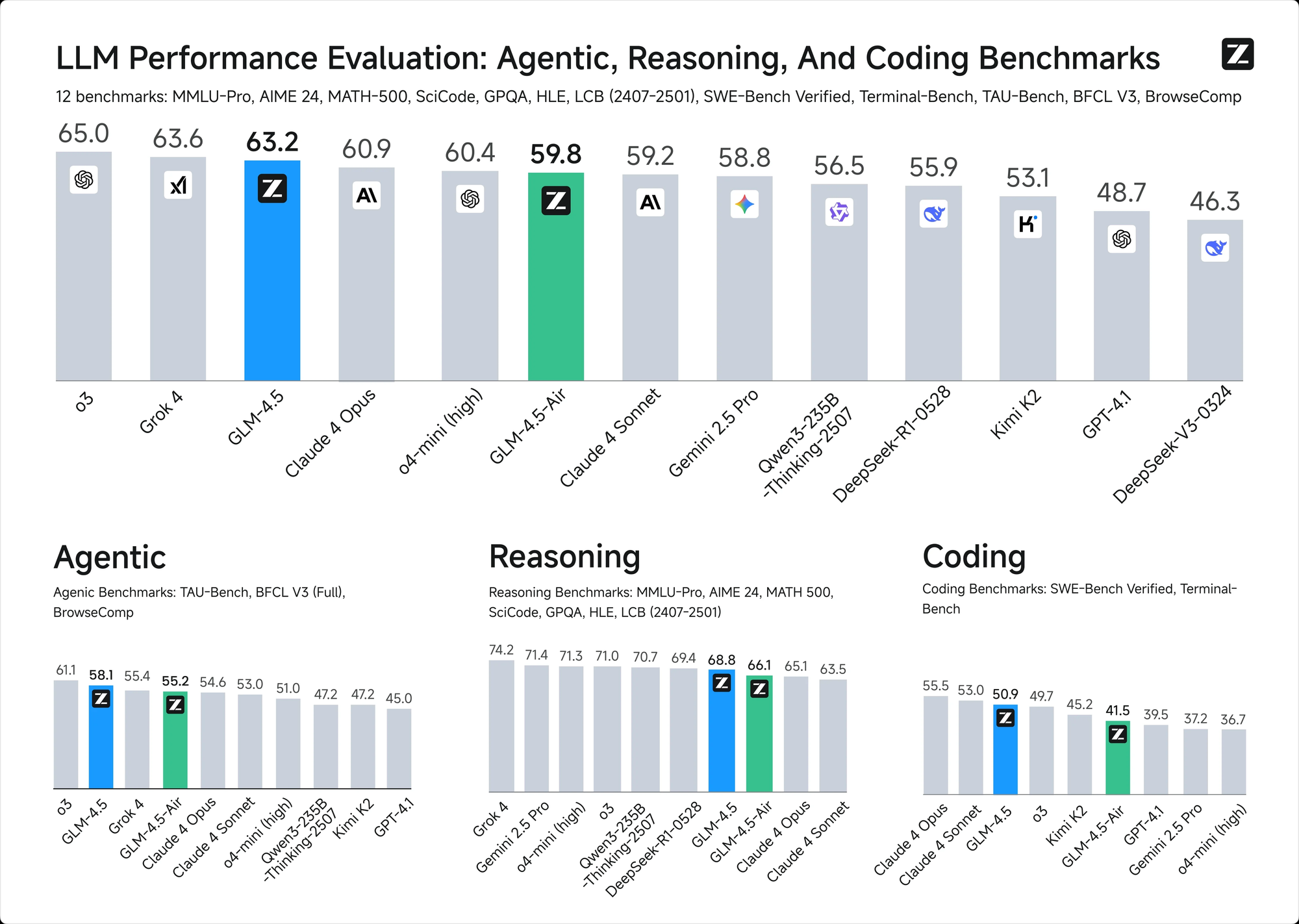
DeepSeek R1 and its distilled variants have changed the game for local reasoning models. The full model is massive (671B parameters), but the distilled versions like DeepSeek-R1-Distill-Qwen-32B capture much of the reasoning capability in a runnable package.
These reasoning models show their "thinking" process, which is both educational and helpful for understanding how they arrive at answers.
For Limited Hardware
Phi-4 from Microsoft is shockingly good for its size. If you only have 8GB of VRAM, this should be your first try.
Gemma 3 from Google offers good quality in smaller packages, with the 9B version being particularly efficient.
Qwen 3 0.6B is incredibly small but still useful for basic tasks. It can run on phones and extremely limited hardware.
Setting Up a ChatGPT-Like Interface with Open WebUI
Ollama and LM Studio work great, but if you want something that really feels like ChatGPT with conversation history, multiple chats, document upload, and a polished web interface – Open WebUI is what you want.
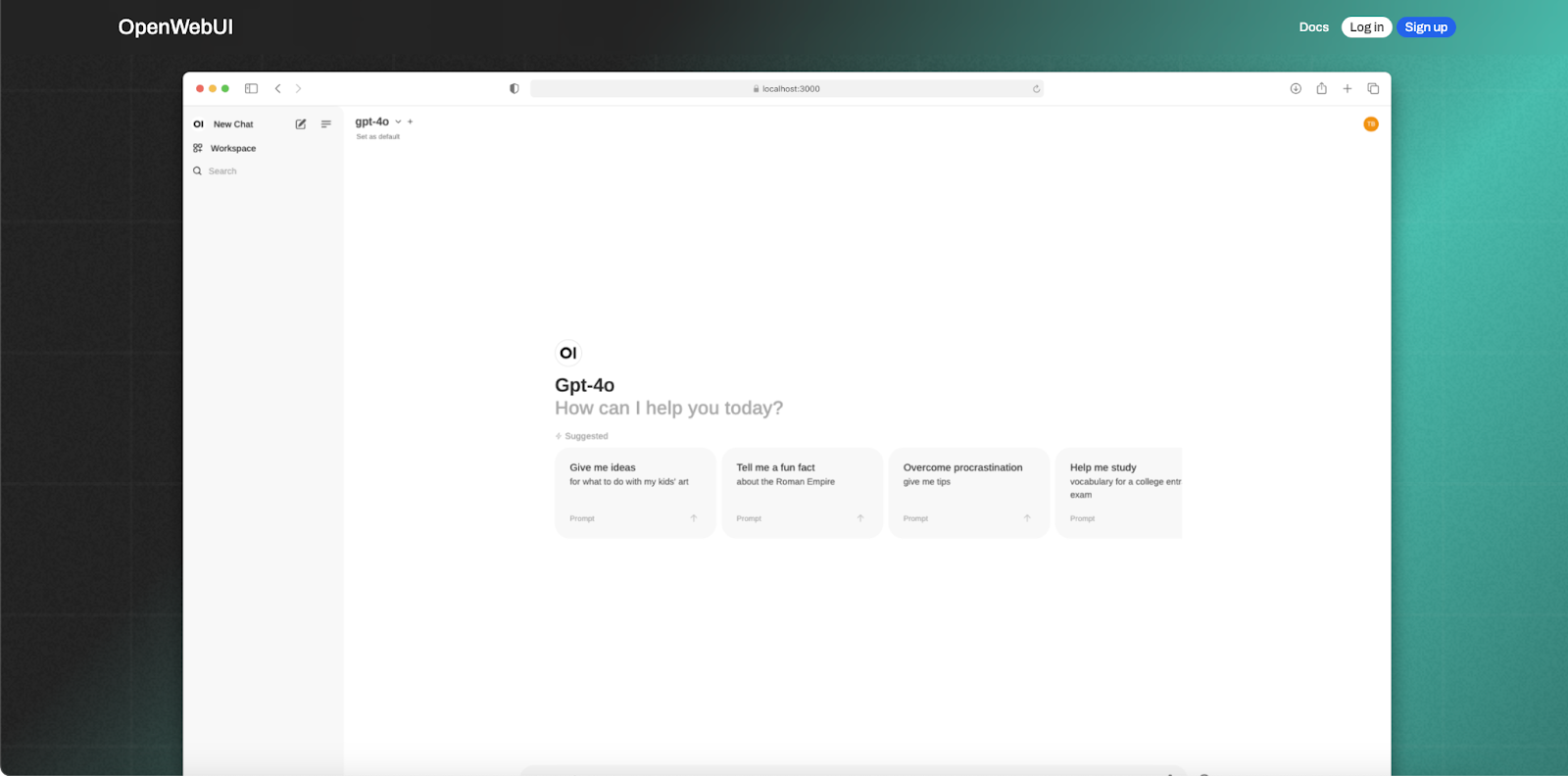
Open WebUI is a self-hosted web interface that connects to Ollama and provides a full-featured chat experience. Here's how to set it up:
If you have Docker installed (which I recommend for this):
docker run -d -p 3000:8080 --add-host=host.docker.internal:host-gateway -v open-webui:/app/backend/data --name open-webui --restart always ghcr.io/open-webui/open-webui:main
Then open your browser to localhost:3000, create an account, and you're done. Open WebUI will automatically detect your Ollama installation and list available models.
The interface supports conversation history, markdown rendering, code syntax highlighting, image upload (for multimodal models), document analysis (for RAG workflows), and even voice input. It's genuinely polished and makes local AI feel professional.
Practical Tips I Learned the Hard Way
After months of running local AI, here are some things I wish I'd known earlier:
- Start with smaller models. I made the mistake of immediately trying to run 70B models on my first day. They worked, but slowly, and I didn't know enough to troubleshoot effectively. Start with 7B or 8B models, get comfortable, then scale up.
- Monitor your VRAM usage. Use tools like nvidia-smi (for NVIDIA) or GPU-Z to see what's actually happening. Understanding your utilization helps you make informed decisions about which models and quantizations to use.
- Context length matters. Models can only "remember" a certain amount of conversation. If you're having long conversations and the model seems to lose track, you've probably exceeded the context window. Either start a new conversation or use a model with longer context.
- Temperature affects output significantly. Temperature controls randomness. Lower values (0.1-0.3) give more consistent, focused responses. Higher values (0.7-1.0) give more creative, varied outputs. Experiment to find what works for your use case.
- Keep models you use frequently. Downloading multi-gigabyte models every time is annoying. Figure out the 2-3 models you use most and keep them available.
- Update your GPU drivers. I know this sounds obvious, but newer drivers often include optimizations for AI workloads. Keep them current.
Real-World Performance: What to Actually Expect
Let me set realistic expectations, because nothing is worse than investing in hardware and being disappointed.
For comparison, cloud services typically deliver somewhere around 30-60 tokens per second depending on load and tier. Local models are absolutely competitive.
Quality-wise, the best local models are genuinely good. Llama 3.3 70B can handle complex coding problems, write coherent long-form content, and maintain context over extended conversations. Is it as good as GPT-5 or Claude Opus at their best? Probably not quite. Is it good enough for 90% of what I actually need? Absolutely.
Frequently Asked Questions
What's the minimum hardware I need to run AI locally?
You can technically run AI on almost any modern computer, but for a practical experience, I'd recommend at least 8GB of VRAM (like an RTX 3060 12GB or RTX 4060 Ti 16GB), 16GB of system RAM, and a modern quad-core CPU. This lets you run 7B-13B models comfortably. For larger models, you'll need more VRAM — 24GB gets you into 70B territory with quantization.
How does local AI quality compare to ChatGPT or Claude?
The top local models like Llama 3.3 70B are genuinely competitive with GPT-4 and Claude Sonnet for most tasks. They're excellent at coding assistance, writing, analysis, and general conversation. Where cloud services still have an edge is on the absolute frontier of reasoning capability and on specialized knowledge that may be more current. For everyday use, most people won't notice a significant quality gap.
Is my data really private when running locally?
Yes. When you run models locally, your prompts and responses never leave your machine. The model weights are downloaded once and run entirely on your hardware. There's no internet connection required during inference. Your conversations exist only on your computer.
How much can I realistically save compared to subscriptions?
If you're currently paying $20-50/month for AI subscriptions, you're spending $240-600 per year. A capable local setup costs $1,200-2,500 upfront but then has zero ongoing costs. You break even in 2-4 years, and then it's essentially free forever. If you're a heavy user hitting rate limits, the value proposition is even stronger.
Can I run AI locally without a dedicated GPU?
You can, but it's slow. Modern CPUs can run smaller models (1B-7B) using llama.cpp, but expect 1-5 tokens per second compared to 30-50 on a GPU. It works for occasional use but becomes frustrating for regular use. The exception is Apple Silicon Macs, where the unified memory architecture provides GPU-like performance for AI tasks.
What about AMD GPUs? Can I use those?
Yes, AMD support has improved significantly. ROCm (AMD's answer to CUDA) now works well with most local AI tools. The RX 7900 XTX with 24GB VRAM is a legitimate option at a lower price than NVIDIA equivalents. However, you may encounter more compatibility issues and need to do more troubleshooting. If you're comfortable with that, AMD is a good value. If you want things to just work, NVIDIA is safer.
How do I choose between different quantization levels?
Q4_K_M is the default recommendation for most people — it offers the best balance of quality and efficiency. Use Q5_K_M if you have extra VRAM and want slightly better quality. Use Q8_0 for maximum quality when VRAM isn't a constraint. Use Q3_K or Q2_K only if you need to squeeze a model into limited VRAM and can tolerate some quality loss.
Can I fine-tune or train my own models locally?
Training from scratch requires massive hardware beyond consumer reach. However, fine-tuning existing models is possible on high-end consumer hardware (RTX 4090 or better). Tools like LoRA allow efficient fine-tuning with reasonable VRAM requirements. This is an advanced topic, but yes, it's achievable locally.
Will local AI get better over time?
Absolutely. Open-source models improve rapidly — what I'm running today is dramatically better than what was available even a year ago. Hardware efficiency also improves with each generation. Investing in a solid local setup now positions you to benefit from these improvements.
Is this legal? Do I need any licenses?
The models I've recommended (Llama, Qwen, Mistral, DeepSeek) are released under open licenses that permit personal and often commercial use. Always check the specific license for any model you use, but for personal use, you're generally fine. The tools (Ollama, LM Studio) are also open-source or free for personal use.
What if I run into problems?
The local AI community is incredibly helpful. The r/LocalLLaMA subreddit is an excellent resource with active discussions about hardware, software, and model recommendations. The Ollama and LM Studio GitHub repositories have active issue trackers. And honestly, most problems have been solved by someone else — a quick search usually turns up the answer.
Can I use local AI for commercial projects?
It depends on the model's license. Llama 3 and most Mistral models have permissive licenses that allow commercial use. Some models have restrictions. Always check the specific license, and if you're building a product, consider having a lawyer review it.
How do I keep my models updated?
Ollama makes this easy — just run ollama pull model-name to update to the latest version. For LM Studio, check the model library periodically for new releases. The open-source community moves fast, and newer versions often bring meaningful improvements.
The Bottom Line
Running AI locally in 2026 is more accessible than it's ever been. The hardware is capable, the software is mature, and the models are genuinely good. If you value privacy, hate subscription fees, or just want the freedom to use AI without limits, building a local setup is absolutely worth it.
My recommendation for most people: start with a used RTX 3090 (about $700) or an RTX 4060 Ti 16GB (about $400), install Ollama, and try running Llama 3.2 8B. Spend a week using it for your normal tasks. If you love it, consider upgrading to better hardware. If it doesn't work for you, you've learned something and can sell the GPU without much loss.
The future of AI isn't just in the cloud. It's also right here, on our own machines, under our own control. And honestly? That feels pretty great.
Have questions or want to share your local AI setup? The community at r/LocalLLaMA is incredibly welcoming to newcomers. Drop by and say hi.
Related Articles
 Dani
Dani
 Dani
Dani
 Mark
Mark