I check Gmail probably forty times a day. Maybe more. It's the hub where work happens, where projects get discussed, where half my life gets coordinated through back-and-forth threads that somehow never seem to end.
For years, that's all Gmail was to me: a place for email. I'd open it, process messages, close it, and move on. The sidebar on the right? I barely noticed it. Those little icons seemed like clutter — just Google pushing more products I didn't need.
Then one day, out of mild frustration with my overflowing inbox and the constant feeling that I was forgetting things, I clicked one of those sidebar icons. The one that looked like a lightbulb.
A familiar panel slid open. It was Google Keep — the same note-taking app I occasionally used on my phone — but now it was right there, alongside my email. My notes, my lists, my random ideas from months ago, all accessible without switching tabs.
That small discovery changed how I work. Not dramatically, not overnight, but in the quiet way that actually sticks. Let me tell you how.
The Gmail Sidebar I'd Been Ignoring for Years
If you use Gmail on desktop — and about two billion people do — you've probably noticed that slim strip of icons running down the right side of your screen. It's been there for years, quietly waiting to be useful.
That sidebar holds Google Calendar, Google Tasks, Google Contacts, and Google Keep. Depending on your settings, it might also include Google Voice, Google Maps, and various third-party add-ons. Most people either ignore it entirely or actively wish it would go away.
I was firmly in the "ignore it" camp. The sidebar seemed like classic Google ecosystem bloat — another attempt to make me use more Google products when all I wanted was to read my email and move on with my day.
But here's what I didn't realize: that sidebar isn't just a marketing gimmick. It's actually a productivity feature hiding in plain sight. Specifically, the Keep integration solves a problem I didn't even know I had.
The problem is context switching. Every time an email triggers a thought — a follow-up I need to do, an idea worth exploring, a question I want to think about later — I used to either leave the email unread (turning my inbox into a chaotic to-do list), star it (creating a different kind of chaos), or open another app to capture the thought (which I rarely did because it felt like too much effort).
Keep in the Gmail sidebar eliminates that friction. One click, and I'm capturing thoughts without ever leaving my inbox.
How Google Keep Actually Works Inside Gmail
Let me walk you through the basics, because the setup is almost embarrassingly simple.
When you're in Gmail on your desktop browser, look at the right edge of your screen. You should see a narrow vertical bar with small icons. If you don't see it, look for a tiny arrow at the bottom right corner of your screen — that's the "Show side panel" button.
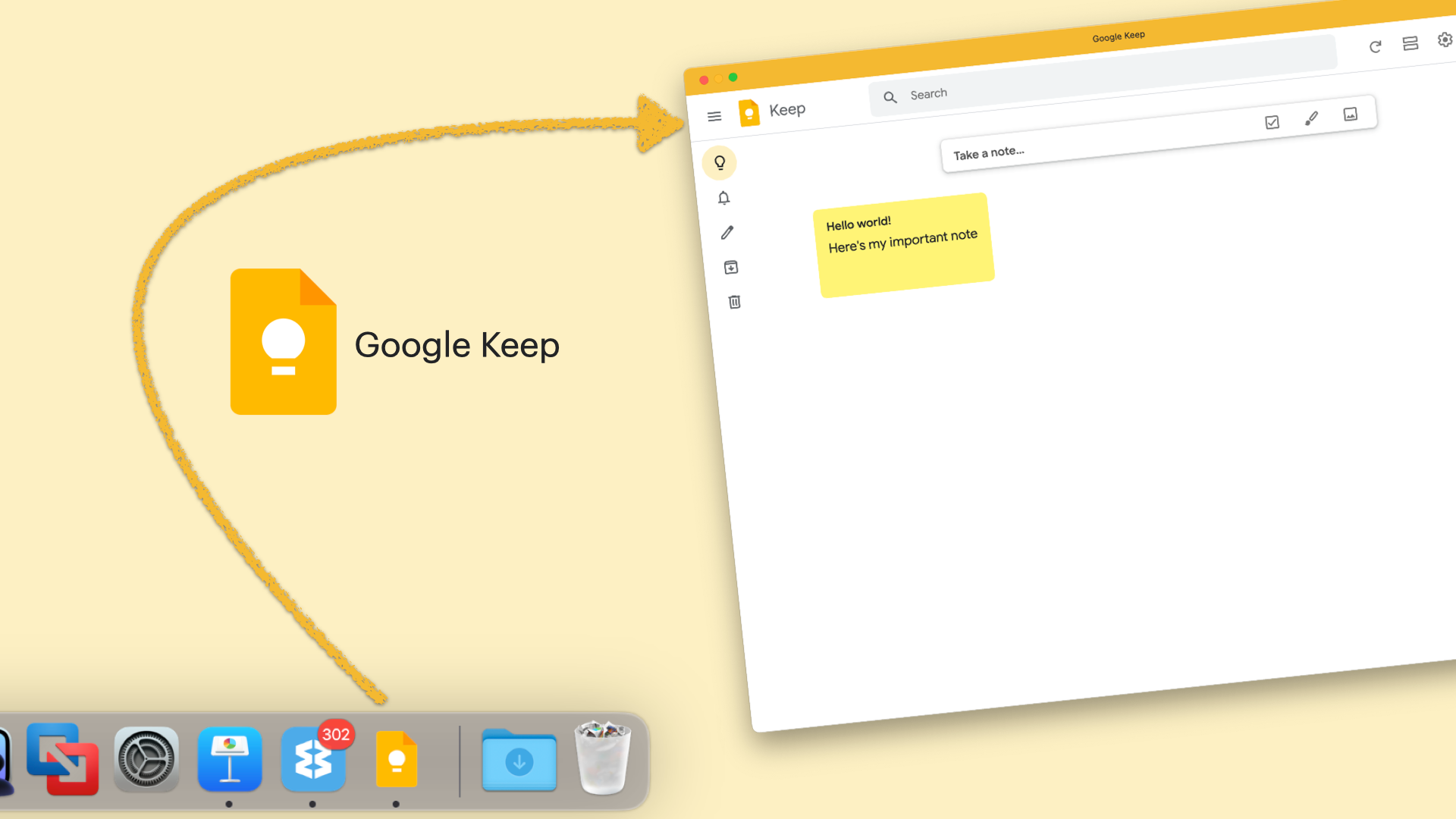
Once the sidebar is visible, find the lightbulb icon. That's Google Keep. Click it, and a panel slides open showing all your existing notes. If you've never used Keep before, it'll be empty — ready for you to start fresh.
From here, you can create new notes, view existing ones, search through your notes, and even edit them without opening Keep in a separate tab. Everything syncs automatically with the Keep app on your phone, the Keep website, and anywhere else you access your Google account.
The magic isn't in the features — Keep has always had these capabilities. The magic is in the placement. Having note-taking one click away from your email changes when and how you capture information.
The Workflow That Changed Everything
Before I discovered Keep in Gmail, my process for handling email was messy. An email would arrive with important information. I'd think "I should remember this" or "I need to follow up on this later." Then I'd either leave it unread, star it, snooze it, or — most often — do nothing and hope my brain would remember.
My brain, predictably, did not remember.
Now my workflow is different. When I'm reading an email and something triggers a thought, I click the Keep icon without hesitation. A note panel opens. I type whatever I need to capture — sometimes just a few words, sometimes a longer summary. Then I close the panel and continue processing my inbox.
The key insight is that I'm not asking Keep to do too much. I'm not building a complex system with folders and tags and elaborate hierarchies. I'm just capturing thoughts at the moment they occur, in the context where they occur.
Here's a specific example. Last week, I got a long email thread about a project with multiple decisions buried across a dozen replies. Instead of rereading that thread every time I needed to reference it, I opened Keep, created a note titled "Project X Decisions," and pulled out the key points: deadlines, who's responsible for what, open questions.
That note took maybe three minutes to create. It's saved me at least an hour of re-reading since.
The Email Link Workaround You Need to Know
There's one frustrating limitation with Keep in Gmail: you can't directly save an email to Keep. There's no "send to Keep" button, no drag-and-drop functionality, no automatic attachment. Considering both products are made by Google, this feels like an obvious missed opportunity.
But I've developed a workaround that's become second nature.
When I want to connect a note to a specific email, I open the email, copy its URL from my browser's address bar, and paste that link into my Keep note. Gmail gives every email a unique URL, so the link takes me directly back to that specific message whenever I need it.
My typical format looks like this: I write a brief summary of the key points in my own words, then drop the Gmail link at the bottom of the note. This gives me the best of both worlds — a scannable note with the context I need, plus a direct path back to the original conversation if I need full details.
This approach works especially well for ongoing projects. As email threads evolve and decisions get made, I update my Keep note with the latest information. The note becomes a living document that's always more useful than re-reading the entire thread.
Why This Works Better Than My Old System
Before Keep, my default response to important email information was copying it somewhere else. I'd paste content into a dedicated note-taking app, add it to a task manager, or drop it into a document.
The problem with that approach is friction. Every extra step made it less likely I'd actually capture the information. Opening a separate app, deciding where the note belongs, formatting it properly — by the time I'd done all that, I'd often forgotten why I wanted to save it in the first place.
Using Keep directly in Gmail eliminates most of that friction. I don't have to decide where something belongs. I don't have to context-switch. I don't have to maintain a complex organizational system. I just capture the thought and move on.
There's also less duplication and cleanup involved. When I used to copy entire emails into other apps, I'd end up with massive notes full of unnecessary details. With Keep in Gmail, I'm naturally more selective. I summarize key points rather than copying everything. The notes are shorter, more useful, and far easier to scan later.
Throughout the day, Keep becomes what I call a lightweight scratchpad. I draft replies there when I need to think before responding. I outline meeting agendas based on email discussions. I capture ideas triggered by messages that have nothing to do with the original topic. All without leaving Gmail.
The Google Tasks Connection That Makes This Even Better
Here's something that took my Keep usage to another level: Google finally connected Keep reminders to Google Tasks.
For years, these two apps existed in frustrating isolation. You could set a reminder in Keep, but it wouldn't show up in Tasks. You could create a task in Tasks, but it had no connection to your notes in Keep. It felt like Google's left hand didn't know what its right hand was doing.
That changed in late 2025. Now, when you set a reminder on a Keep note, it automatically syncs with Google Tasks. The reminder appears in your Tasks list, in your Google Calendar, and anywhere else Tasks is integrated.
Why does this matter? Because when I'm in Gmail and I check the Tasks panel in the sidebar, I can see my Keep reminders sitting right there alongside my other to-dos. If I complete the task in Tasks, it's automatically marked done in Keep. I don't have to manage two separate systems.
This turns Keep from a simple note-taking app into the front end of my entire Google productivity stack. I capture thoughts in Keep (often from within Gmail), set reminders, and those reminders flow through to everywhere I need them.
The workflow is beautifully simple. I see an email that requires follow-up. I open Keep, jot down what I need to do, hit the reminder icon, and set a date. That reminder now lives in Tasks, shows on my Calendar, and will ping me when the time comes. I didn't have to leave Gmail to set any of this up.
How I Organize Notes Without Going Crazy
One valid criticism of Google Keep is that it lacks sophisticated organizational tools. There are no folders, no nested hierarchies, no complex tagging systems. If you're coming from something like Notion or Evernote, Keep can feel almost primitive.
But here's the thing: that simplicity is actually the point.
I've tried elaborate productivity systems. I've built databases and linked notes and created category hierarchies that looked beautiful and made me feel organized. And I've abandoned every single one of them because the maintenance overhead eventually became more work than the system saved.
Keep's simplicity forces a different approach. Instead of organizing upfront, I rely on a few lightweight tools that Keep does provide.
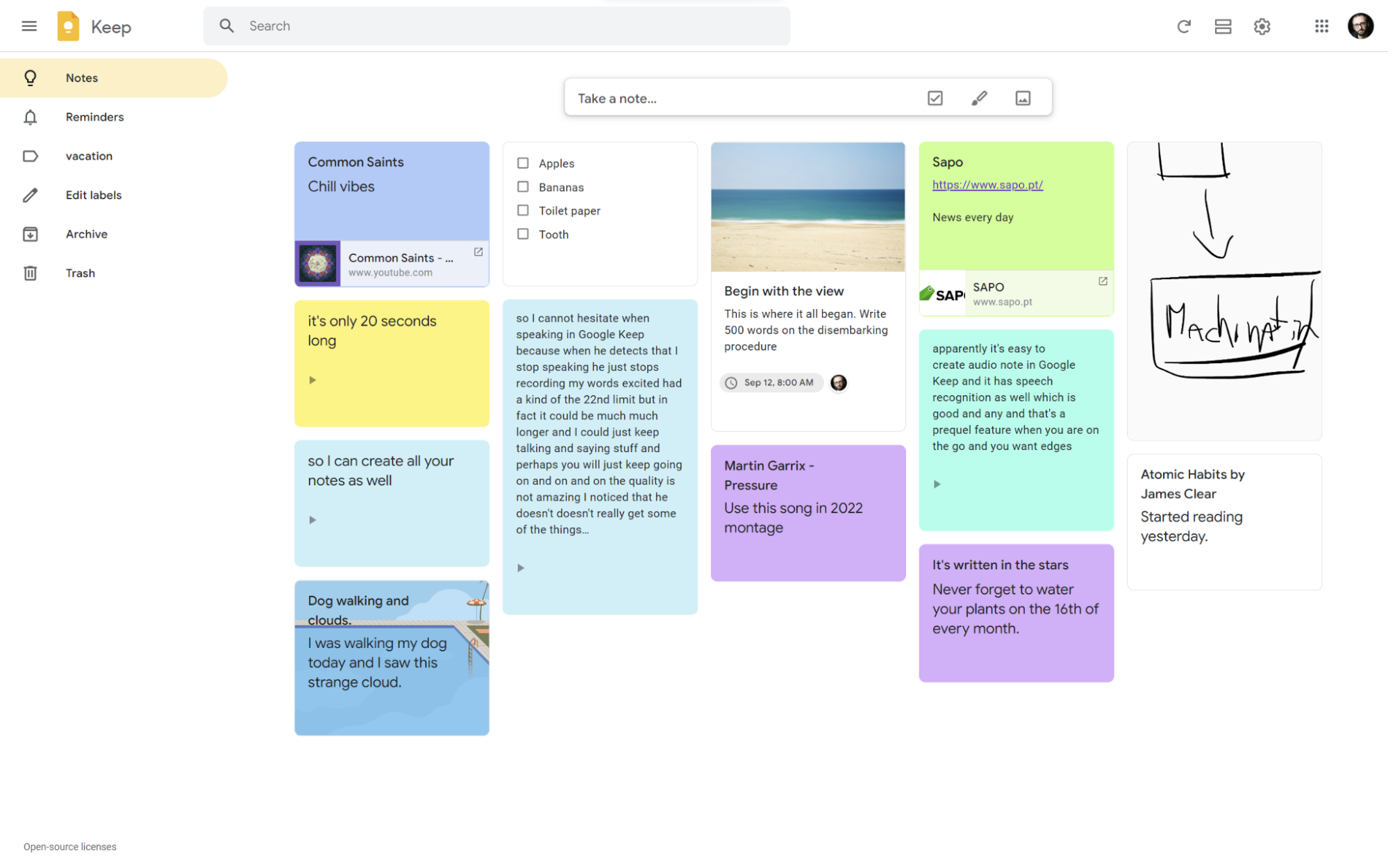
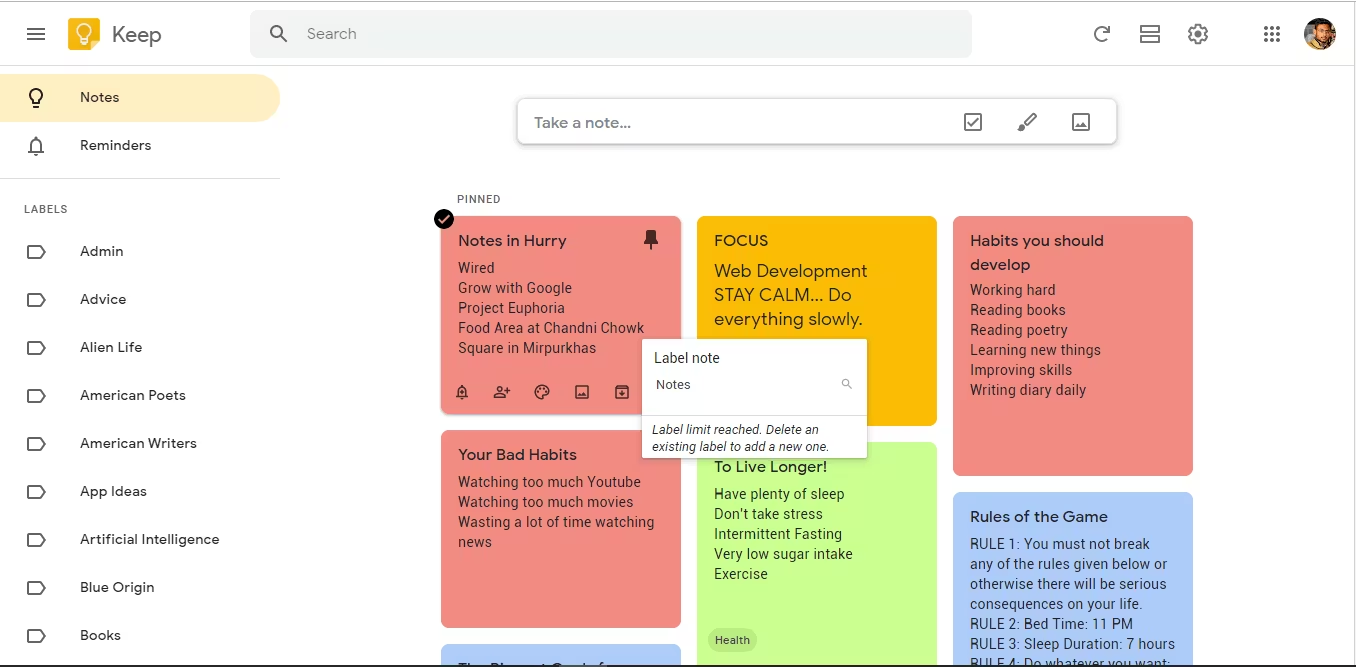
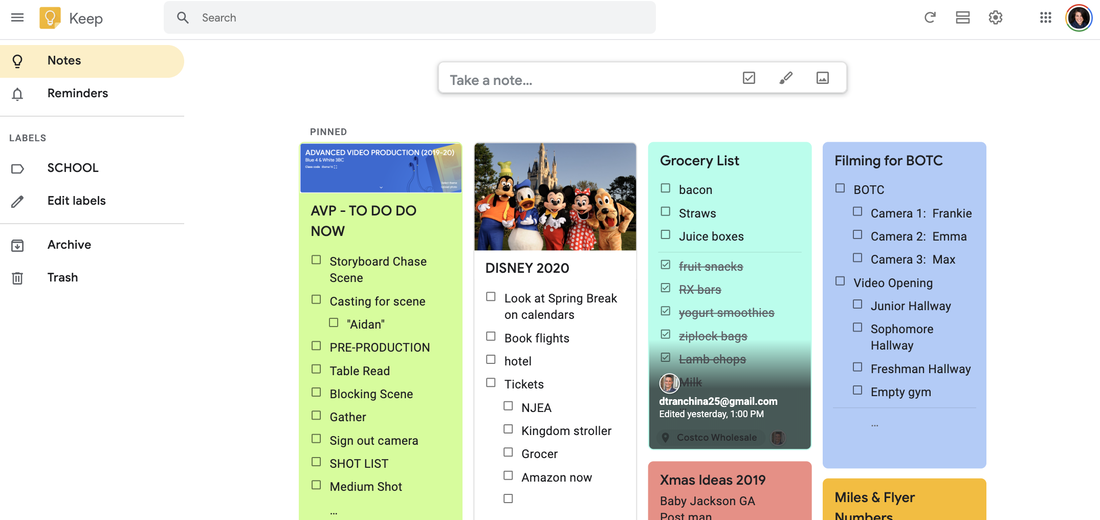
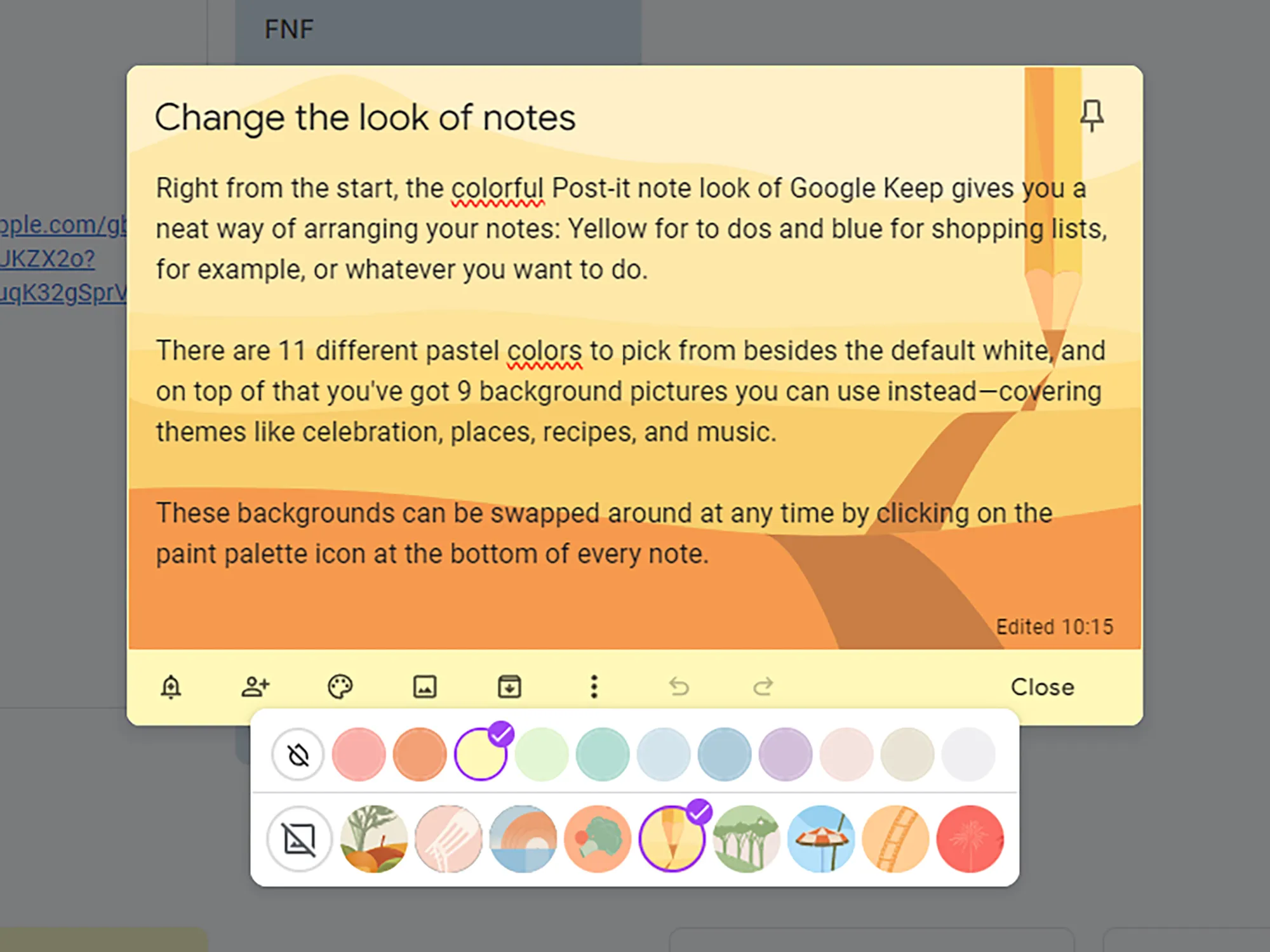
Color coding is more powerful than it sounds. I assign colors to different types of notes: blue for work projects, yellow for quick tasks, green for personal stuff, red for urgent items. This creates instant visual separation without requiring any thought. I can glance at my Keep and immediately see what's what.
Labels function like flexible tags. I have a handful — "Work," "Personal," "Projects," "Reference" — and I apply them loosely. I don't stress about perfect categorization. The labels are there to narrow down searches when I need to find something specific.
Pinned notes stay at the top of my Keep board. Anything I'm actively working on gets pinned so it doesn't get buried under new captures. When I'm done with it, I unpin and let it drift down into the archive of older notes.
Search handles everything else. Keep's search is actually quite good — it finds text in notes, text extracted from images (Keep has built-in OCR), and even handwritten content. When I need to find something old, I search for it rather than browsing through folders.
This system won't satisfy everyone. If you need complex project management or long-form document creation, Keep isn't the right tool. But for capturing thoughts quickly and finding them later, this simple approach works remarkably well.
The Limitations You Should Know About
I want to be honest about where this setup falls short, because it's not perfect for everyone.
The biggest limitation is structure. Keep doesn't offer folders, nested notes, or advanced organization beyond labels and colors. If your notes start piling up by the hundreds, the simplicity that made Keep attractive can start feeling limiting. You end up relying heavily on search, which works but isn't the same as browsing a well-organized hierarchy.
The sidebar itself can feel cramped. The panel is narrow by design — it's meant to sit alongside your email, not take over the screen. For quick notes and short lists, that's fine. But when I'm writing something longer or trying to think through complex ideas, I often find myself opening Keep in a full browser tab instead.
There's no deeper email integration beyond what I've described. You can't attach an email to a note automatically. You can't convert an email into a Keep note with one click. You can't see related notes when viewing a specific email. Given that Google owns both products, these seem like obvious features that simply don't exist.
Keep also lacks some features that power users expect from note-taking apps. There's no Markdown support, no internal linking between notes, no canvas or whiteboard view, and no offline editing on desktop (though the mobile apps work offline). If you're used to tools like Obsidian or Notion, Keep will feel basic.
Despite these limitations, I've stuck with this system because I'm not asking Keep to replace a full-featured note-taking app. I'm using it for a specific purpose: capturing thoughts quickly while I'm in Gmail, without breaking my flow. For that narrow use case, it's excellent.
Advanced Tricks I've Discovered
After using Keep in Gmail daily for months, I've picked up some techniques that aren't immediately obvious.
OCR for image text is surprisingly useful. When someone sends me a screenshot or a scanned document embedded in an email, I save the image to Keep (using the browser's save function and then uploading, or through the Keep Chrome extension). Then I click the three-dot menu on the note and select "Grab image text." Keep extracts the text and makes it searchable and copyable. It works on handwritten notes too, though accuracy varies.
Checklists that reset make recurring tasks manageable. Instead of creating new notes for weekly tasks, I maintain master checklists that I uncheck and reuse. My "Weekly Admin" checklist has items like "Review expenses," "Update project status," and "Check calendar for next week." When I complete them, I uncheck everything and the list is ready for next week.
Collaborative notes work for shared projects. Any Keep note can be shared by adding collaborators via their email address. I use this for shared shopping lists with family and project notes with colleagues. Everyone can view and edit in real time, and changes sync instantly.
The Chrome extension adds capture options everywhere. The Google Keep Chrome extension lets me save web pages, images, and selected text to Keep from anywhere on the web — not just Gmail. I use it to capture reference material, save articles I want to read later, and clip snippets from research.
Voice notes sync from mobile. When I'm away from my desk and want to capture a thought, I use Keep's voice memo feature on my phone. The recording syncs instantly and is available in my Gmail sidebar when I'm back at my computer. Keep even transcribes the audio automatically.
Who This Setup Is (and Isn't) For
Let me be direct about who will benefit most from using Keep inside Gmail.
This setup works great if you spend significant time in Gmail on desktop and often have thoughts or follow-ups triggered by emails. It works if you prefer simplicity over complex systems and want something that requires zero maintenance. It works if you're already in the Google ecosystem and value tools that sync seamlessly across devices.
It's also good for people who've tried elaborate productivity systems and found them too heavy. Keep's lightweight approach is a feature, not a limitation, if you've burned out on organizing your organizational system.
This setup probably isn't for you if you need sophisticated note organization with folders and hierarchies, if your note-taking needs extend well beyond quick captures into long-form writing or project management, or if you work primarily in tools outside the Google ecosystem.
It's also not ideal if you're looking to replace a dedicated note-taking app entirely. Keep in Gmail works best as a supplement — a capture tool that feeds into whatever other systems you use — rather than as your complete note-taking solution.
How to Get Started Today
If you want to try this workflow, here's how to begin.
First, make sure the Gmail sidebar is visible. Look at the right edge of your Gmail window. If you see icons for Calendar, Tasks, and Keep, you're set. If not, click the small arrow at the bottom right to show the side panel.
Click the Keep icon (the lightbulb) to open the panel. If you've used Keep before, your existing notes will appear. If not, you'll see an empty board ready for new notes.
Start small. The next time an email triggers a thought — anything you want to remember or follow up on — click over to Keep and capture it. Don't worry about perfect organization. Just write down what you're thinking.
After a week, review what you've captured. You'll start noticing patterns in what you save and how you want to find it later. That's when you can introduce simple organization like color coding or a few labels.
The key is not to overthink it. Keep's value comes from its simplicity and accessibility. The moment you start building elaborate systems, you're fighting against the tool's fundamental design.
FAQ
What is Google Keep in Gmail?
Google Keep is Google's free note-taking app, accessible directly from Gmail's right sidebar. When you click the lightbulb icon in the sidebar, a panel opens showing all your Keep notes. You can create new notes, edit existing ones, and search your notes without leaving Gmail. Everything syncs automatically with the Keep mobile app and website.
How do I enable Google Keep in Gmail?
Google Keep should be available by default in Gmail's sidebar. If you don't see the sidebar, click the small arrow at the bottom right of your Gmail window labeled "Show side panel." Once the sidebar is visible, click the lightbulb icon to open Keep. If you don't see Keep in your sidebar, you may need to enable it in Gmail settings under "Apps in Gmail."
Can I save an email directly to Google Keep?
Unfortunately, no. There's no built-in "Send to Keep" button in Gmail. The workaround is to copy the email's URL from your browser's address bar and paste it into a Keep note. This creates a clickable link back to the original email. You can add your own summary or key points above the link for quick reference.
Does Google Keep sync across devices?
Yes. Google Keep syncs automatically across all devices where you're signed into your Google account. Notes created in the Gmail sidebar appear instantly on the Keep mobile app (iOS and Android) and the Keep website (keep.google.com). Changes made anywhere sync everywhere.
What's the difference between Google Keep and Google Tasks?
Google Keep is a note-taking app for capturing thoughts, ideas, lists, and images. Google Tasks is a task management app focused on to-do lists with due dates. As of late 2025, reminders set in Keep automatically sync with Tasks, so you can capture notes in Keep and have the reminders appear in Tasks. Both are accessible from Gmail's sidebar.
Is Google Keep free to use?
Yes. Google Keep is completely free for anyone with a Google account. There are no premium tiers or paid features. The full functionality is available in Gmail's sidebar, the mobile apps, and the web interface.
Can I use Google Keep offline?
The Keep mobile apps (iOS and Android) work offline — you can view, create, and edit notes without an internet connection, and changes sync when you reconnect. However, the Gmail sidebar version requires an internet connection since it runs within your browser.
How do I organize notes in Google Keep?
Keep offers several organizational tools: color coding (assign colors to notes for visual separation), labels (create tags like "Work" or "Personal" to categorize notes), pinning (keep important notes at the top), and archive (remove completed notes from the main view without deleting them). There are no folders, so organization relies on these features plus search.
Can I collaborate on Google Keep notes?
Yes. Any note can be shared by clicking the collaborator icon and adding people via their email addresses. Collaborators can view and edit the note in real time. This works well for shared shopping lists, project notes, or any content that needs input from multiple people.
Does Google Keep have OCR (text extraction from images)?
Yes. When you add an image to a Keep note, you can click the three-dot menu and select "Grab image text." Keep will extract text from the image and make it searchable and copyable. This works on screenshots, photos of documents, and even handwritten notes (with varying accuracy).
Will using Keep in Gmail slow down my inbox?
Not noticeably. The Keep panel is lightweight and only loads when you click to open it. It doesn't run in the background or affect Gmail's performance. The sidebar itself takes minimal resources.
Can I hide the Gmail sidebar if I don't want it?
Yes. Click the small arrow at the bottom right of Gmail to hide the side panel entirely. You can show it again anytime by clicking the same arrow. You can also customize which apps appear in the sidebar through Gmail settings.
Final Thoughts
The Gmail feature that earned a permanent spot in my workflow turned out to be hiding in plain sight for years. That's both frustrating and reassuring — frustrating because I spent years without it, reassuring because it was always there waiting for me to notice.
What makes Keep in Gmail work isn't any single feature. It's the placement. Having note-taking one click away from email removes just enough friction that I actually use it. The thoughts that used to slip away — the follow-ups I'd forget, the ideas that would disappear — now get captured because capturing them is easy.
This setup won't replace a full-featured note-taking app, and it's not trying to. Its value lies in how seamlessly it fits into the workday. What once felt like a useless sidebar has become one of the most consistently useful parts of how I work.
If you've been ignoring Gmail's sidebar the way I did, give the Keep icon a click. You might discover exactly what I did: a small change that makes a surprising difference.
Related Articles
 Dani
Dani
 Dani
Dani
 Dani
Dani