On January 8, 2026, Google unveiled a suite of AI features for Gmail powered by Gemini 3, their latest AI model. The rollout started immediately in the United States with English language support, and Google plans to expand to other languages and regions "in the coming months." The announcement covers five main features, though they're not all available to everyone or in the same way. Let me break them down.
AI Overviews: Your Inbox Gets the Google Search Treatment
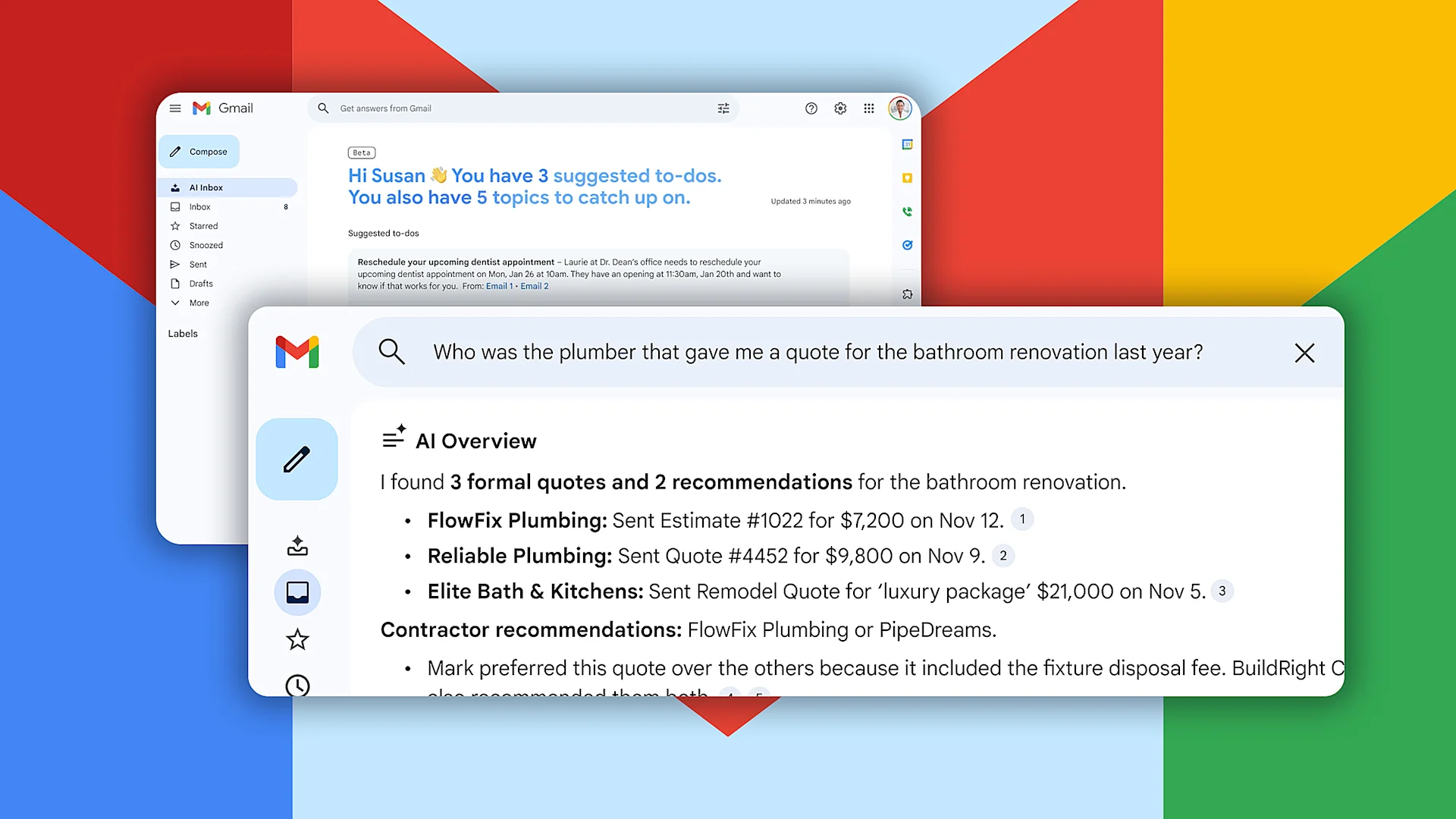
Remember when Google added AI Overviews to search results — those AI-generated summaries that appear at the top of your search instead of just links? Gmail now has the same thing.
There are two versions of this feature, and they work quite differently.
The first is conversation summaries. When you open a long email thread with dozens of back-and-forth replies, Gmail will now automatically generate a summary of the key points at the top. Instead of scrolling through 47 messages to figure out what everyone decided about the project timeline, you get a bulleted recap.
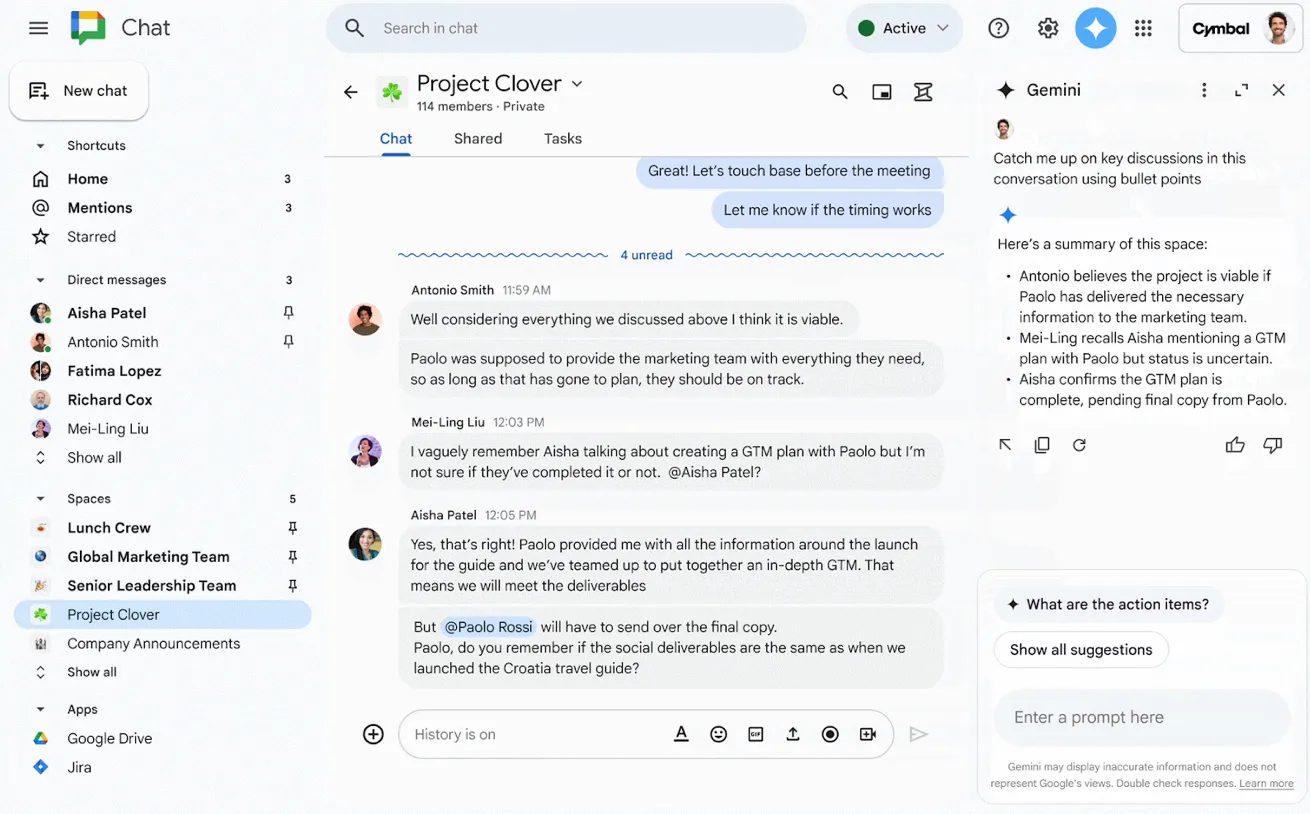
I've been testing this for a day, and honestly? It's useful. Those marathon email chains where decisions get buried under "sounds good to me" replies and off-topic tangents are genuinely easier to parse with a summary. The AI does a reasonable job of identifying what actually matters versus what's just noise.
The second version is more ambitious: you can now ask your inbox questions in natural language. Instead of trying to remember the exact keywords that will surface that one email from eight months ago, you can type something like "Who was the plumber that gave me a quote for the bathroom renovation last year?" and Gmail will search your entire inbox, analyze the relevant messages, and generate an answer.
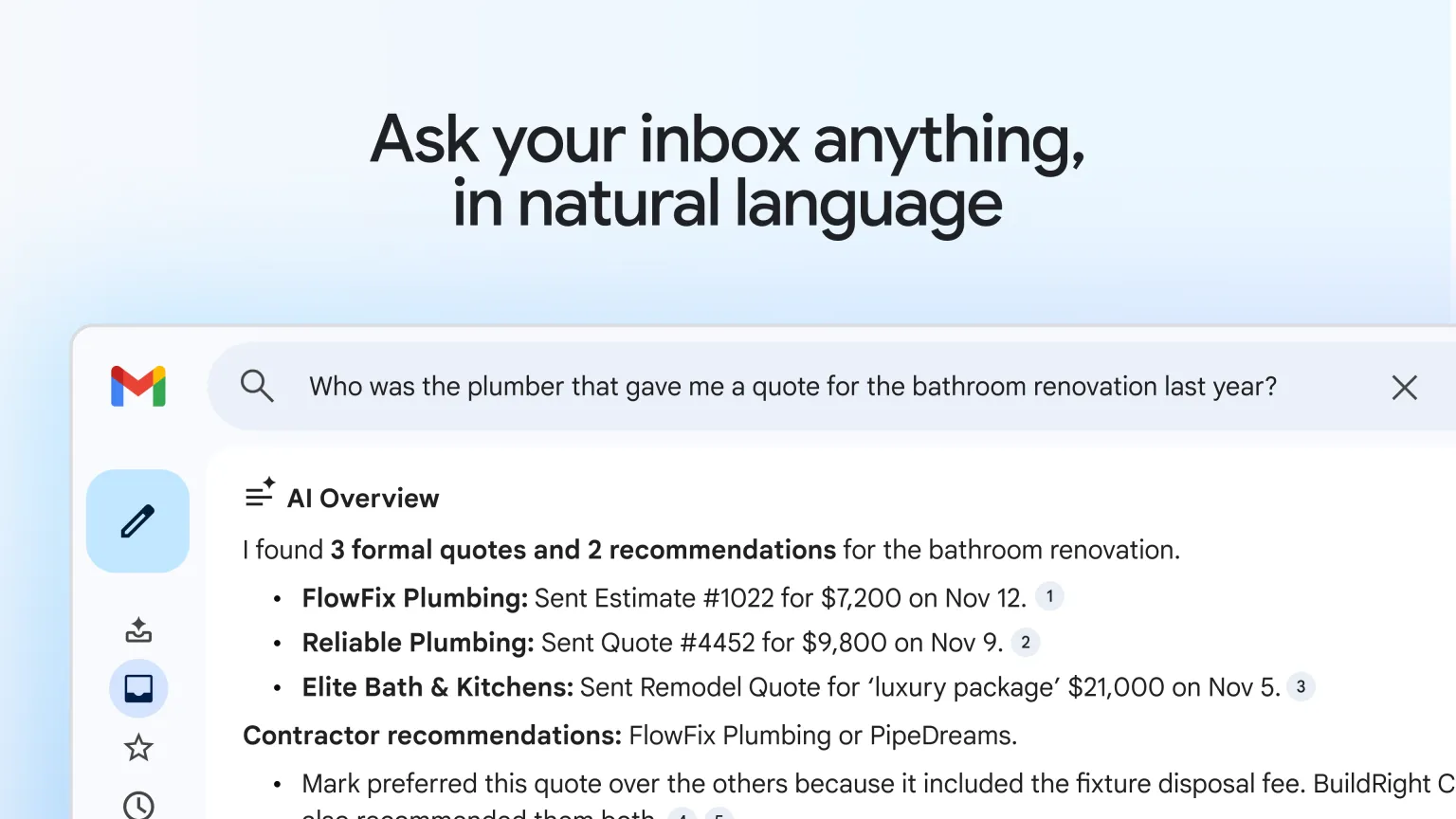
Google demonstrated this with queries about shoe sizes from past orders, utility bill amounts, and vacation purchases. The AI doesn't just find the email — it extracts and summarizes the specific information you're looking for.
Here's the catch: conversation summaries are rolling out free to everyone, but the natural language inbox search is only available to Google AI Pro ($20/month) and Ultra ($250/month) subscribers. If you're not paying, you can see thread summaries but can't ask your inbox questions.
Whether that paywall is worth it depends entirely on how you use email. If you're drowning in messages and constantly searching for buried details, the natural language search could genuinely save hours. If you mostly deal with recent emails and rarely dig through archives, you probably don't need it.
Help Me Write: Gmail's Answer to Writer's Block
If you've ever stared at a blank email compose window, struggling to find the right words for a delicate situation, Help Me Write is designed to solve that problem.
The feature lets you prompt Gmail to draft emails from scratch or polish existing drafts. You describe what you want to say, and the AI generates a full email you can edit before sending. There are also refinement options like Formalize (make it sound more professional), Elaborate (add more detail), and Shorten (get to the point).
This isn't entirely new — Help Me Write has existed for paid subscribers for a while. What's new is that it's now rolling out free to everyone.
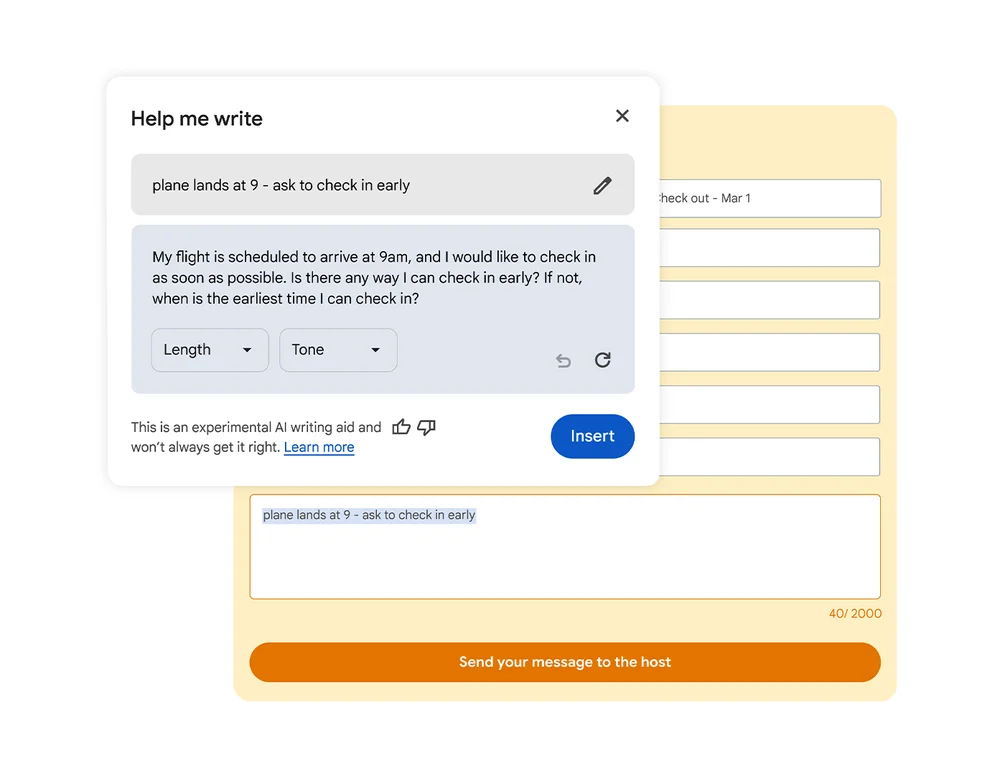
I have mixed feelings about this one. On one hand, it's genuinely helpful for routine emails where the content matters less than just getting something sent. "Write a polite follow-up about the invoice I sent last week" produces something perfectly serviceable in seconds.
On the other hand, important emails probably shouldn't be written by AI. The ones where tone and nuance matter — delivering bad news, negotiating, expressing genuine gratitude — deserve your actual voice, not a generated approximation of professional politeness.
Google is also promising an update next month that will bring "better personalization" by incorporating context from your other Google apps. The idea is that the AI will learn how you write and produce drafts that sound more like you. Whether that makes it better or creepier depends on your perspective.
Suggested Replies: Smart Replies Get Smarter
If you've used Gmail for a while, you're probably familiar with Smart Replies — those short suggested responses that appear at the bottom of emails. "Sounds good!" "Thanks!" "Will do!"
Suggested Replies is the upgraded version. Instead of generic one-liners, the AI now looks at the context of your conversation and your personal writing style to suggest more relevant, personalized responses.
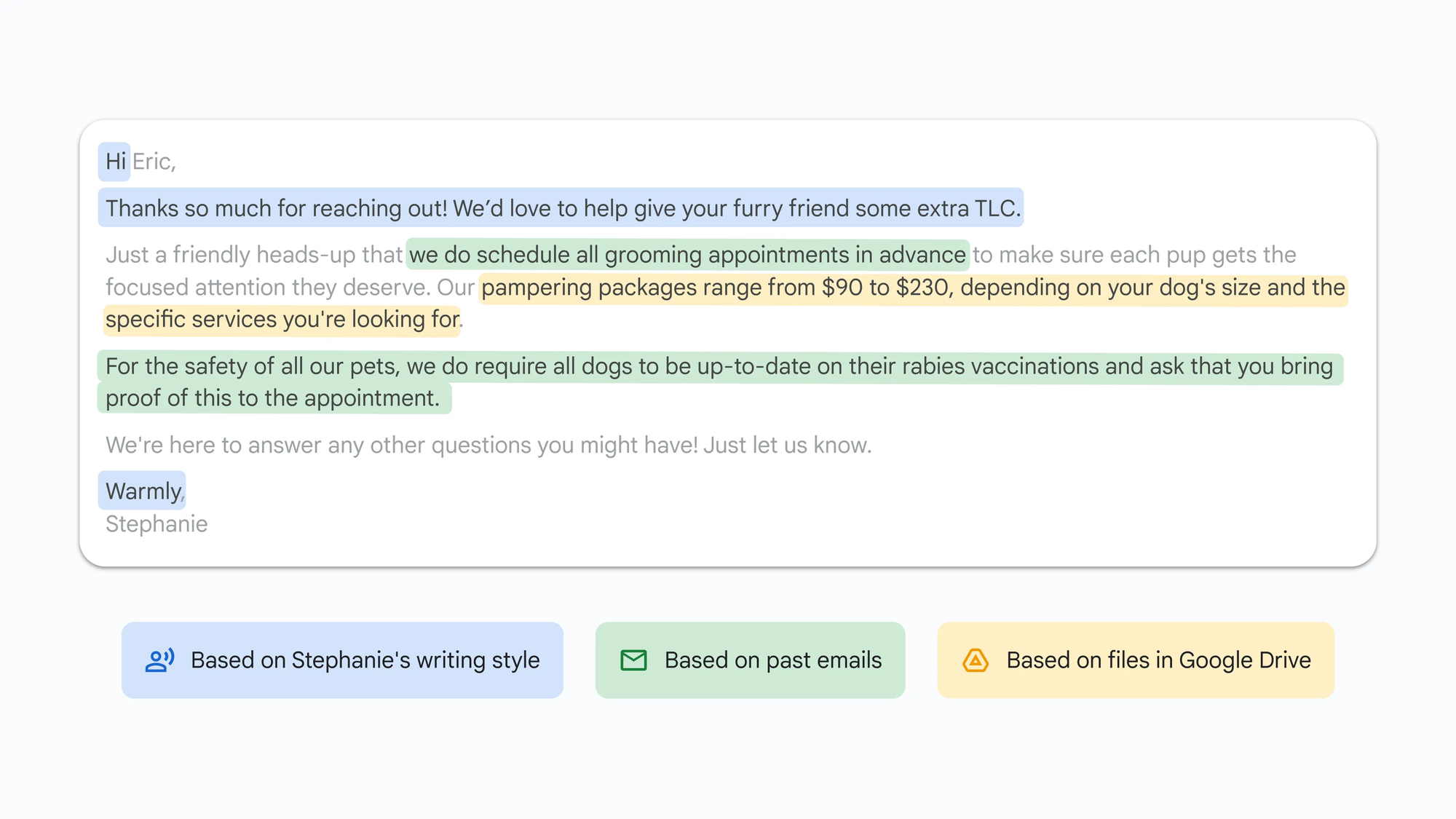
Google's example: your aunt emails asking if she should bring cake instead of pie to the family gathering. Instead of just "Sounds good!" the AI might suggest something like "Cake sounds perfect! See you Saturday."
It's a small upgrade, but it makes the feature noticeably more useful. The suggestions feel less robotic and require less editing before you click send.
Suggested Replies is rolling out free to everyone.
Proofread: Grammar Check Gets an AI Upgrade
Beyond the standard spell-check and grammar underlining, Gmail now offers Proofread — an AI-powered editing feature that analyzes your entire email for tone, style, and clarity.
This goes beyond catching typos. Proofread evaluates whether your message reads professionally, whether the structure makes sense, and whether the tone matches what you're trying to communicate. It's designed for those emails where you want to sound polished but aren't quite sure if you've hit the mark.
The catch: Proofread is only available to Google AI Pro and Ultra subscribers. Free users get the standard grammar checking but not the advanced AI polish.
AI Inbox: The Big One
This is the feature that represents the most significant change to how Gmail works, and it's the one that won't be available for a while.
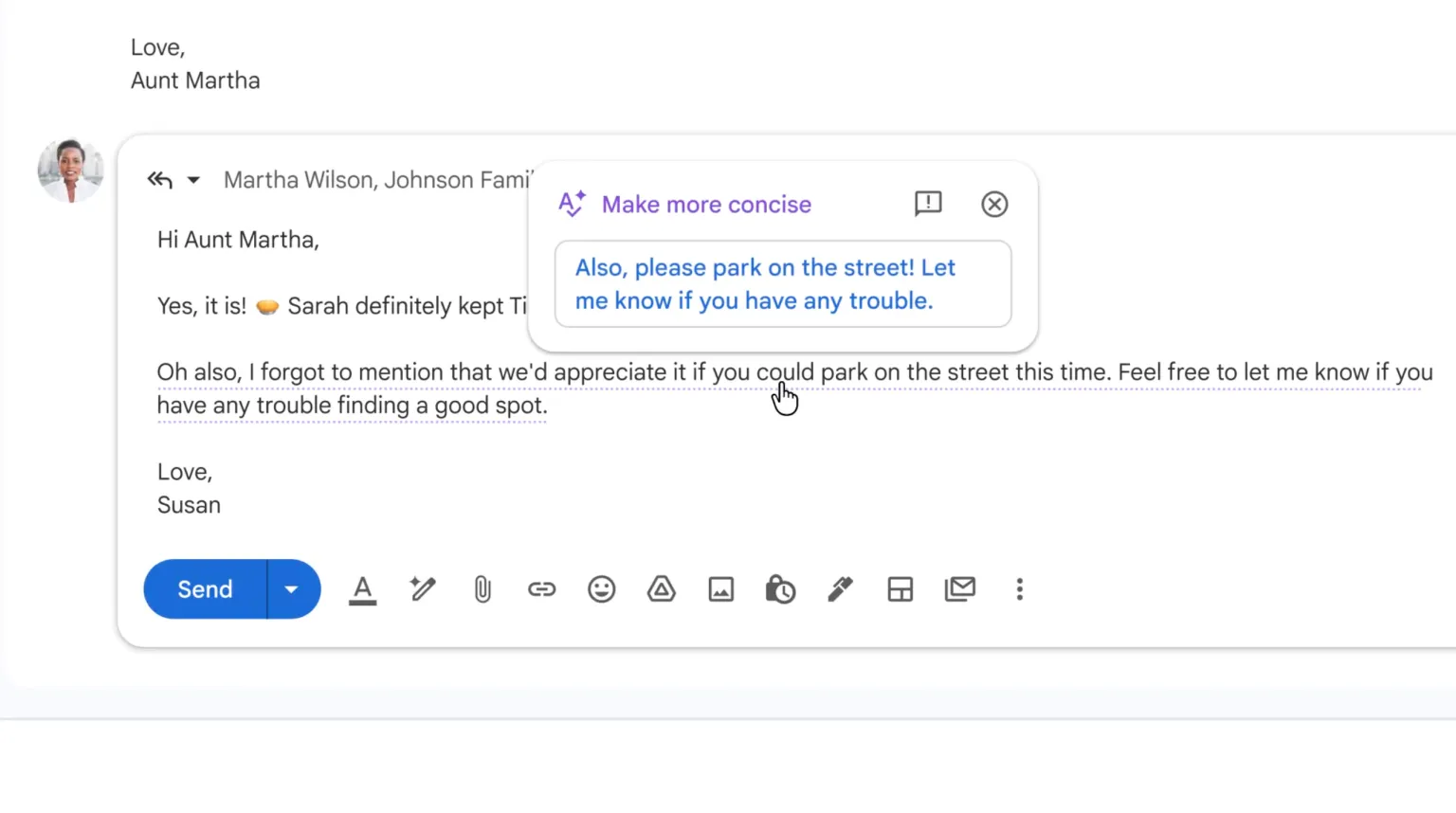
AI Inbox is essentially a completely different way to view your email. Instead of a chronological list of messages, you get a personalized briefing organized by what the AI thinks matters most.
The interface has two main sections. "Suggested to-dos" shows high-priority items that require action — a bill due tomorrow, an appointment that needs confirming, a deadline approaching. The AI identifies these by analyzing your emails and inferring urgency.
"Topics to catch up on" groups related emails into themes. Your Lululemon return status and shirt delivery get bundled under "Purchases." End-of-year statements appear under "Finances." Instead of hunting through individual emails, you get a dashboard of what's happening in your life.
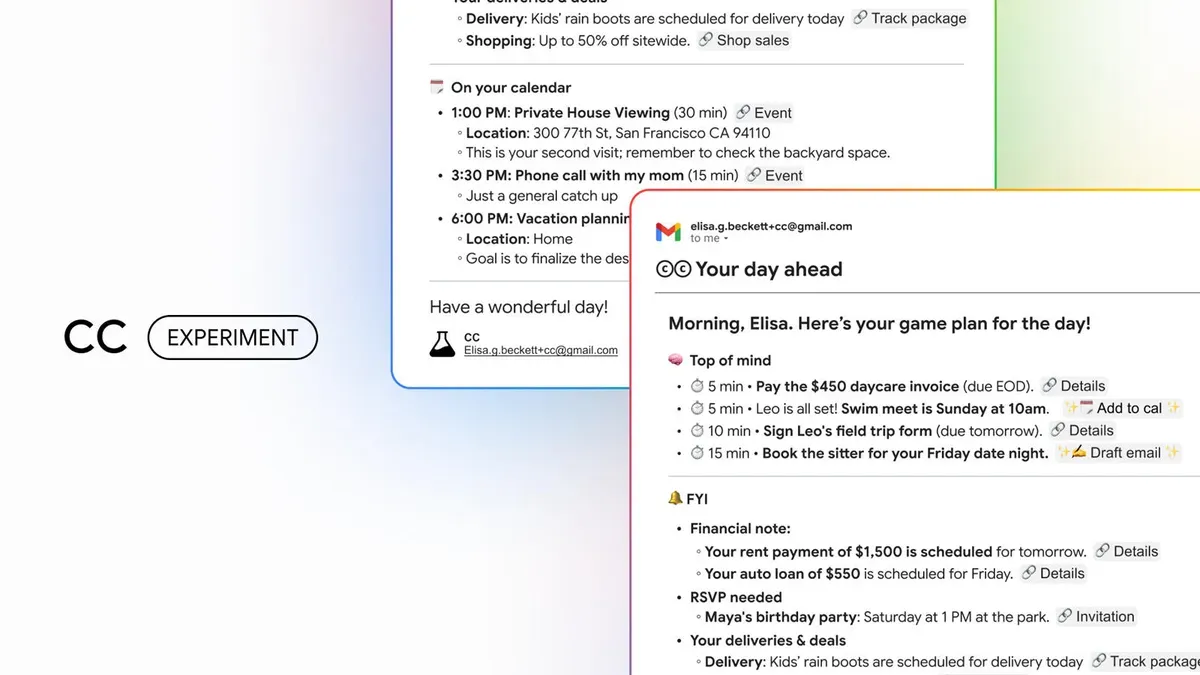
Google describes AI Inbox as "like having a personalized briefing" and positions it as the future of email management. The AI identifies your VIPs based on who you email frequently, who's in your contacts, and relationships it infers from message content. High-stakes items automatically rise to the top.
Here's the reality check: AI Inbox is currently only available to "Trusted Testers" — a small group Google is using to refine the feature before wider release. Broader availability is planned "in the coming months" but there's no specific timeline.
I haven't been able to test AI Inbox personally, so I can't tell you whether it actually works as advertised. The concept is appealing — who wouldn't want their inbox pre-sorted by importance? — but the execution will determine whether it's genuinely helpful or just another AI feature that sounds better in a press release than in practice.
The Privacy Question Everyone's Asking
Let's address the elephant in the room: is Google reading your emails to train AI?
This question has been swirling for months, and the Gmail AI announcement reignited the debate. The short answer is complicated.
Google says they will not use your personal email content to train their foundational AI models. During the press briefing, Google explained that when Gmail connects the dots between your emails to answer a question, "it does that work in a private space dedicated solely to your task. The data is processed to give you an answer, and it never leaves that secure boundary."
The features are powered by Gemini 3, which processes Gmail requests in what Google calls "an isolated, secure privacy architecture." Your emails are analyzed to generate summaries and answers, but that analysis supposedly stays contained and isn't fed back into training future versions of Gemini.
However — and this is important — there's a separate setting called "Smart Features" that has caused confusion. This setting, which exists in two places in Gmail's settings, controls whether Gmail can analyze your email content to provide personalized features like categorization, Smart Compose, and now the new AI features.
Many users have reported being automatically opted into this setting without explicitly agreeing. Google disputes characterizations that they secretly changed anything, but the practical reality is that if you haven't manually adjusted your settings, these features are probably on by default.
There's also a proposed class-action lawsuit in California alleging that Google gave Gemini access to Gmail content without proper user consent. Google has called the claims "misleading," but the legal process will ultimately determine who's right.
My honest take: if you're going to use Gmail, some level of email analysis is inherent to how the service works — spam filtering, categorization, and search all require looking at your content. The question is whether you trust Google's claims about not using that data for AI training. Reasonable people can disagree on that.
How to Turn Off Gmail's AI Features
If you'd rather opt out entirely, you can — but it comes with trade-offs.
To disable the AI features, you need to turn off Smart Features in two separate locations:
On desktop, open Gmail and click the gear icon, then "See all settings." Scroll down until you find "Smart features in Gmail, Chat, and Meet" and uncheck the box. Then scroll further to find "Google Workspace smart features" and click to manage those settings. Turn off both toggles.
On mobile, go to Settings (at the bottom of the inbox menu), select "Data privacy," toggle off "Smart features," then tap into "Google Workspace smart features" and turn off both options there too.

Here's the trade-off: disabling Smart Features doesn't just turn off the new AI stuff. It also disables features you might actually use, including inbox categorization (Primary, Social, Promotions tabs), Smart Compose suggestions, and even basic autocorrect and spell-check. Gmail becomes noticeably more basic.
Google has structured this as all-or-nothing. You can't pick and choose which AI features to keep and which to disable. It's either embrace the Gemini era or turn everything off.
For most users, I'd suggest keeping the features on and paying attention to how they work. If you find yourself annoyed by AI summaries you didn't ask for or suggested replies that miss the mark, you can always disable later. The option isn't going away.
What This Means for How We Use Email
Stepping back from the specific features, Gmail's AI push represents something bigger: a fundamental shift in how Google thinks about email.
For twenty years, email has been essentially static. You get messages, you read messages, you reply to messages. The interface has been refined, but the core experience hasn't fundamentally changed since Gmail launched in 2004.
Google is betting that AI can transform email from a communication tool into what they're calling a "personal, proactive inbox assistant." Instead of you managing your inbox, your inbox manages itself.
Whether that vision appeals to you probably depends on how overwhelmed you feel by email. Google says email volume is "at an all-time high," and their research shows 85% of users find AI most helpful when it leverages their personal content to generate tailored responses. There's clearly demand for something to make email less exhausting.
But there's also something lost when AI mediates your communication. Emails written by AI don't sound like you. Summaries can miss nuance. Automated prioritization might bury something important because the AI didn't understand its significance.
The best approach is probably somewhere in the middle: use the tools that genuinely help, ignore the ones that don't, and stay aware of what's happening behind the scenes.
FAQ
Are Gmail's new AI features free?
Some are free, some require a paid subscription. AI Overview conversation summaries, Help Me Write, and Suggested Replies are free for all users. Natural language inbox search (asking questions about your emails) and Proofread require a Google AI Pro ($20/month) or Ultra ($250/month) subscription. AI Inbox is currently in limited testing with no pricing announced.
When will Gmail AI features be available?
The free features (conversation summaries, Help Me Write, Suggested Replies) started rolling out January 8, 2026 in the United States with English language support. Global availability and additional languages are coming "in the coming months." AI Inbox is in testing with Trusted Testers and will become more broadly available later in 2026.
Does Google use my emails to train AI?
Google says they do not use personal email content to train their foundational AI models. The AI features process your emails in an isolated environment to generate responses, but that data allegedly doesn't leave the secure boundary or get used for model training. However, "Smart Features" settings do allow Google to analyze email content for personalization, and many users were automatically opted in.
How do I turn off Gmail AI features?
Go to Settings → See all settings → scroll to "Smart features in Gmail, Chat, and Meet" and uncheck it. Then find "Google Workspace smart features" and turn off both toggles. On mobile, go to Settings → Data privacy → turn off Smart features in both locations. Note: this also disables inbox categorization, Smart Compose, and autocorrect.
What is AI Inbox in Gmail?
AI Inbox is a new Gmail view that organizes your email into a personalized briefing instead of a chronological message list. It shows "Suggested to-dos" (urgent items requiring action) and "Topics to catch up on" (grouped updates by theme). The AI identifies priorities based on your contacts, email frequency, and inferred relationships. It's currently only available to select testers.
Is Gmail AI available for Google Workspace business accounts?
The initial rollout targets personal Gmail accounts in the US. Google hasn't announced specific timelines for Workspace business accounts, though similar features are expected to come to business users. Workspace admins have additional controls over AI features at the domain level.
How does AI Overviews in Gmail work?
When you open a long email thread, Gmail automatically generates a bulleted summary of key points at the top. For paid subscribers, you can also type natural language questions like "What did John say about the budget?" and Gmail will search your entire inbox, analyze relevant messages, and generate an AI Overview with the answer.
Can Gmail AI write emails for me?
Yes, the Help Me Write feature can draft complete emails from scratch based on your prompts, or polish and refine drafts you've already written. Options include Formalize, Elaborate, and Shorten. Google is adding personalization next month that will incorporate context from your other Google apps to make drafts sound more like how you write.
What's the difference between Smart Replies and Suggested Replies?
Smart Replies were Gmail's original suggested response feature, offering generic short responses like "Thanks!" or "Sounds good!" Suggested Replies is the upgraded version that uses conversation context and your personal writing style to offer more relevant, personalized suggestions that require less editing before sending.
Is there a class-action lawsuit about Gmail AI?
Yes, a proposed class-action lawsuit in California alleges that Google gave Gemini AI access to Gmail, Chat, and Meet content without proper user consent. Google has called the claims "misleading" and says Smart Features have existed for years without secretly changing policies. The legal process is ongoing.
Wrap up
Google's Gmail AI features represent a significant bet on the future of email. Some of these tools will genuinely help people manage overwhelming inboxes. Others will feel intrusive or unnecessary. And the privacy implications deserve ongoing scrutiny regardless of how useful the features turn out to be.
My advice: try the free features and see how they fit your workflow. Pay attention to what's happening with your data. And remember that you can always turn everything off if you decide the old way of doing email worked fine.
The Gemini era of Gmail has arrived whether we asked for it or not. How much of it you embrace is still your choice.
Related Articles
 Dani
Dani
 Mark
Mark
 Dani
Dani