I've been following Google's annual Chrome extension roundups for years, but I have to say — 2025's list hit different. When Hafsah Ismail, Chrome's Product Manager, dropped the official "Favorites of 2025" collection on December 3rd, it was basically a confirmation of what many of us had already noticed: AI isn't just a feature anymore. It's the entire foundation.
"2025 was a landmark year for Chrome extensions," Ismail wrote in the official Chrome blog post. "AI transformed the browser this year, turning Chrome into a proactive assistant."
She's not wrong. But here's the thing — Google's endorsement doesn't automatically mean every extension on this list will work for you. I've spent the past few weeks testing each one, digging through real user reviews, comparing pricing tiers, and honestly assessing what these tools can and can't do.
So let me walk you through all 10 extensions that made Google's cut, organized into the same three categories they used: AI Browsing Companions, Work & Learning Tools, and Creativity & Analysis. I'll give you the real deal — pricing, features, drawbacks, and who each tool is actually best for.
Why AI Dominated 2025's List
Before diving into individual extensions, let's address the elephant in the room. Every single extension on Google's 2025 list incorporates AI in some form. That's not a coincidence.
Think about how browser extensions worked five years ago. You'd install something to block ads, manage passwords, or maybe clip articles to read later. They were utilities — tools that did one specific thing.
Now? The best extensions function more like assistants that understand context. They read what you're reading, watch what you're watching, and offer help before you even ask for it. Some people find this helpful. Others find it creepy. Either way, it's where the industry has landed.
What's notably absent from Google's list this year are privacy-focused extensions and ad blockers — categories that dominated previous roundups. Whether that's because users have shifted priorities or because Google has its own reasons for not promoting tools that block advertising... well, I'll leave that to you to decide.
Now, let's get into each extension.
Category 1: AI Browsing Companions
Google grouped four extensions into what they call "AI browsing companions." These are all-purpose tools designed to sit in your browser and help with everything from summarizing content to drafting emails.
Monica — The Multi-Model Powerhouse
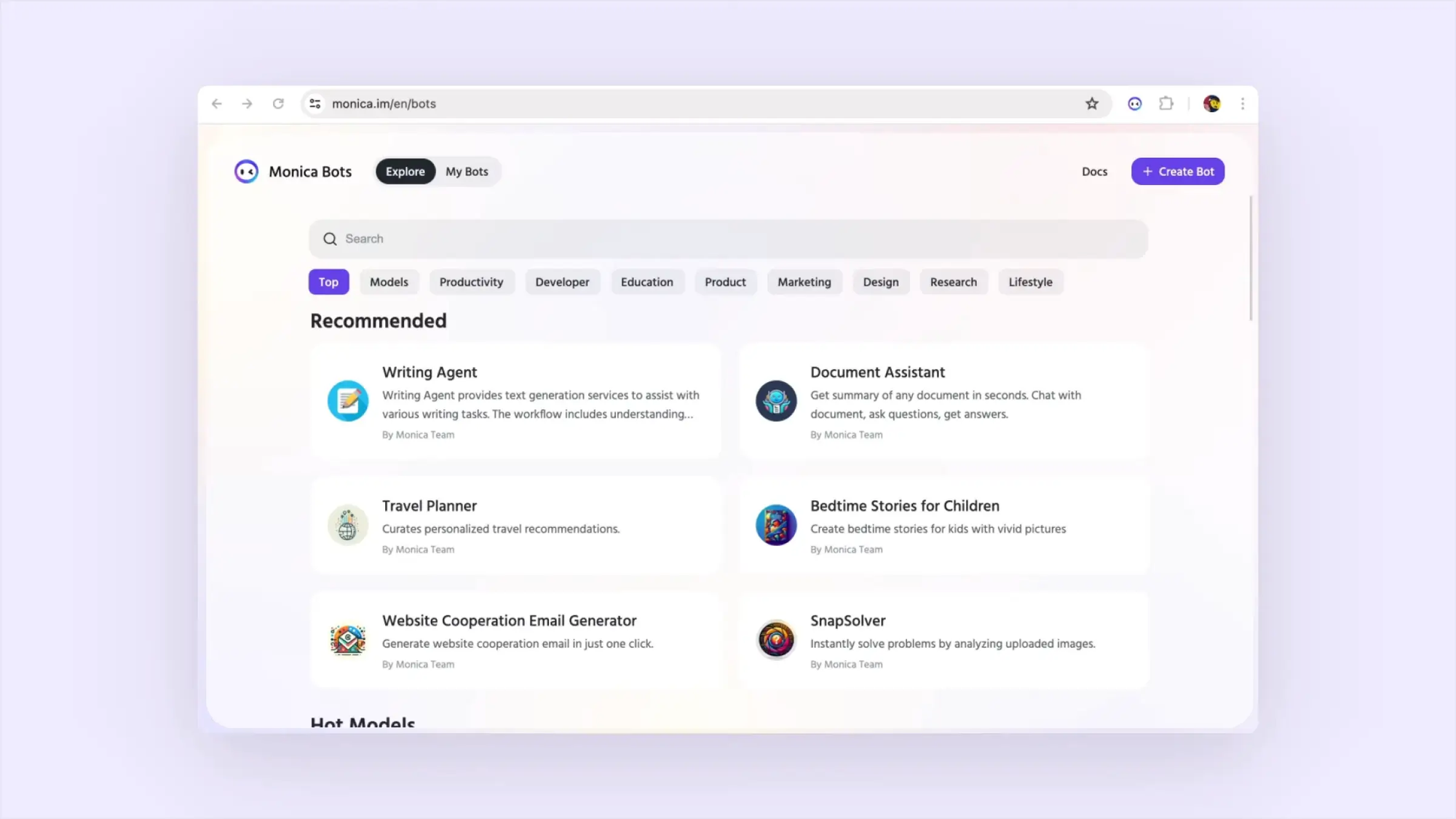
Monica is an AI assistant Chrome extension that gives you access to multiple large language models — including GPT-4, Claude, Gemini, and DeepSeek — all from a single interface. Press Cmd+M (or Ctrl+M on Windows) from any webpage, and a chat window pops up. From there, you can ask questions, summarize pages, translate text, generate content, and work with PDF documents.
Pricing: Monica operates on a freemium model. The free tier gives you daily usage limits — typically enough to test the waters, but you'll hit walls quickly if you're using it for actual work.
Paid plans start at approximately $8.30/month when billed annually ($99/year). That gives you 5,000 daily accesses to basic models and 200 monthly accesses to advanced models like GPT-4.
The Unlimited plan runs about $16.60/month ($199/year) and removes most restrictions on advanced model usage.
What I Actually Think:
Monica's biggest strength is also its most underrated feature: model flexibility. Most AI browser extensions lock you into one specific AI provider. Monica lets you switch between ChatGPT, Claude, Gemini, and others mid-conversation. If one model gives you a mediocre response, you can immediately try another without opening a new tab.
The Chrome extension currently pulls about 9.4 million monthly visits according to web traffic data, making it one of the most popular AI assistants out there. Users on G2 give it a 4.8-star rating, with most praise centering on how the extension integrates into daily workflows — particularly for email drafts and quick translations.
But here's the honest downside: the free version is severely limited. Multiple reviewers mention that Monica's daily credit system can feel restrictive, especially when you're trying to accomplish anything substantial. One G2 reviewer noted that while the extension is "helpful for fast access," the premium upsell becomes aggressive quickly.
Also worth noting — some users report that Monica occasionally produces generic responses, particularly on technical topics. If you're asking about API integrations or code debugging, you might get surface-level answers that require follow-up clarification.
Best For: Content creators, marketers, and professionals who need quick access to multiple AI models without juggling separate subscriptions. Also solid for non-native English speakers who frequently need translation and rephrasing help.
Skip If: You're looking for a completely free solution or you primarily need deep technical assistance.
Sider — The Sidebar That Does Everything

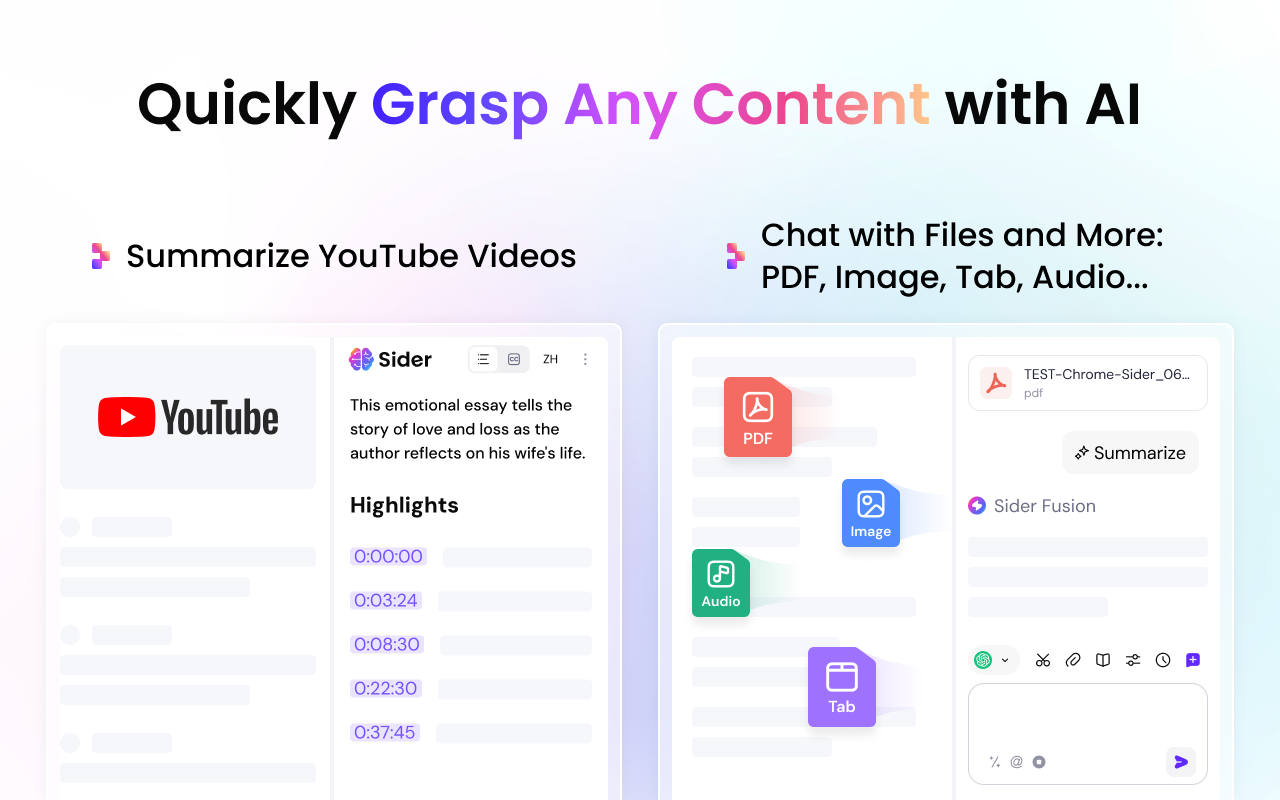
Sider takes a slightly different approach than Monica. Instead of a popup chat window, it opens as a persistent sidebar on the right side of your browser. From there, you can access GPT-4, Claude, Gemini, and other models for chat, summarization, translation, and content generation.
The extension also includes some features Monica doesn't have out of the box — like a YouTube video summarizer that can condense hour-long videos into key points, and a ChatPDF function for working with document files.
Pricing: Sider offers more pricing tiers than most competitors:
The free version includes basic features with significant limitations.
The Starter Plan runs $4.20/month ($50/year) — one of the cheapest paid options in this category.
- The Basic Plan costs $6.70/month ($80/year) with expanded capabilities.
- The Pro Plan hits $12.40/month ($149/year) for advanced users.
- The Unlimited Plan tops out at $16.70/month ($200/year).
There's also a $20/month Pro Subscription option that includes access to additional AI models.
What I Actually Think:
Sider has earned over 40,000 five-star ratings on the Chrome Web Store, and I can see why. The sidebar interface feels less intrusive than popup-style alternatives, and the YouTube summarization feature is genuinely useful if you consume a lot of educational video content.
The "Group AI Chat" feature is clever — you can ask one question and get responses from multiple AI models simultaneously, displayed side by side. It's like having ChatGPT, Claude, and Gemini in a focus group discussion. Useful for comparing perspectives or getting consensus on answers.
The drawbacks? Sider can be resource-intensive. Running multiple AI models in a browser sidebar does strain system memory, particularly on older machines. Several reviewers mention performance lag when using complex features.
There's also a transparency issue worth noting. One Futurepedia reviewer pointed out that Sider's "unlimited" membership ($300) actually has a hidden 1,500 credit limit — information that's only revealed if you click a small question mark icon. That kind of fine print isn't exactly confidence-inspiring.
Finally, Sider requires an active internet connection for virtually all features. There's no offline mode, which limits usefulness for travelers or anyone with unreliable connectivity.
Best For: YouTube-heavy learners, remote workers who attend frequent video calls, and anyone who likes the sidebar UI paradigm. The lower entry-price (starting at $4.20/month) also makes it accessible for students and individual users.
Skip If: You work on an older computer with limited RAM, or you need offline capabilities.
HARPA AI — Automation Meets Intelligence

HARPA AI positions itself differently than Monica or Sider. While those focus on conversation and content generation, HARPA emphasizes web automation alongside AI capabilities. You can chat with pages and PDFs like the others, but you can also set up automated monitoring tasks — tracking price drops on Amazon, watching competitor websites for changes, and triggering workflows through Zapier or Make.com.
Think of it as combining ChatGPT-style AI assistance with robotic process automation (RPA) in a single browser extension.
Pricing: HARPA offers a basic free tier with 10 messages per day on GPT-3.5, plus 50 AI command runs total.
- The S Plan starts at $12/month (billed annually) and includes CloudGPT connection, cloud command storage, and access to more powerful models.
- The S2 Plan adds GPT-4 and Claude 3 models, plus advanced automation features.
There's also an X Plan — a one-time payment option for lifetime access, though it doesn't include recurring AI token credits.
Premium tiers use a "Megatoken" system where 1 Megatoken equals approximately 750,000 words of input text. The pricing can get complex, so I'd recommend reading their pricing page carefully before committing.
What I Actually Think:
HARPA AI is the most technically impressive extension on this list, but it's also the most complicated to use effectively.
The automation capabilities are genuinely powerful. Setting up a monitor to track when a specific product drops below a certain price? That works beautifully. Creating workflows that trigger Zapier zaps when certain conditions are met? Very cool for power users.
But the learning curve is real. HARPA has over 100 pre-built automation commands, and figuring out which ones apply to your use case takes time. The interface looks cluttered until you understand the logic behind it.
HARPA also differentiates itself on privacy. The extension runs locally in your browser and doesn't send data to HARPA's servers unless you explicitly make an AI query. For enterprise users concerned about data security, that's a meaningful distinction.
The Chrome Web Store rating sits at 4.7 stars, with most positive reviews highlighting the automation features. Negative reviews tend to focus on complexity and the pricing structure's learning curve.
One thing I appreciate: HARPA provides a demo period for premium features before requiring payment, so you can actually test whether the advanced capabilities justify the cost.
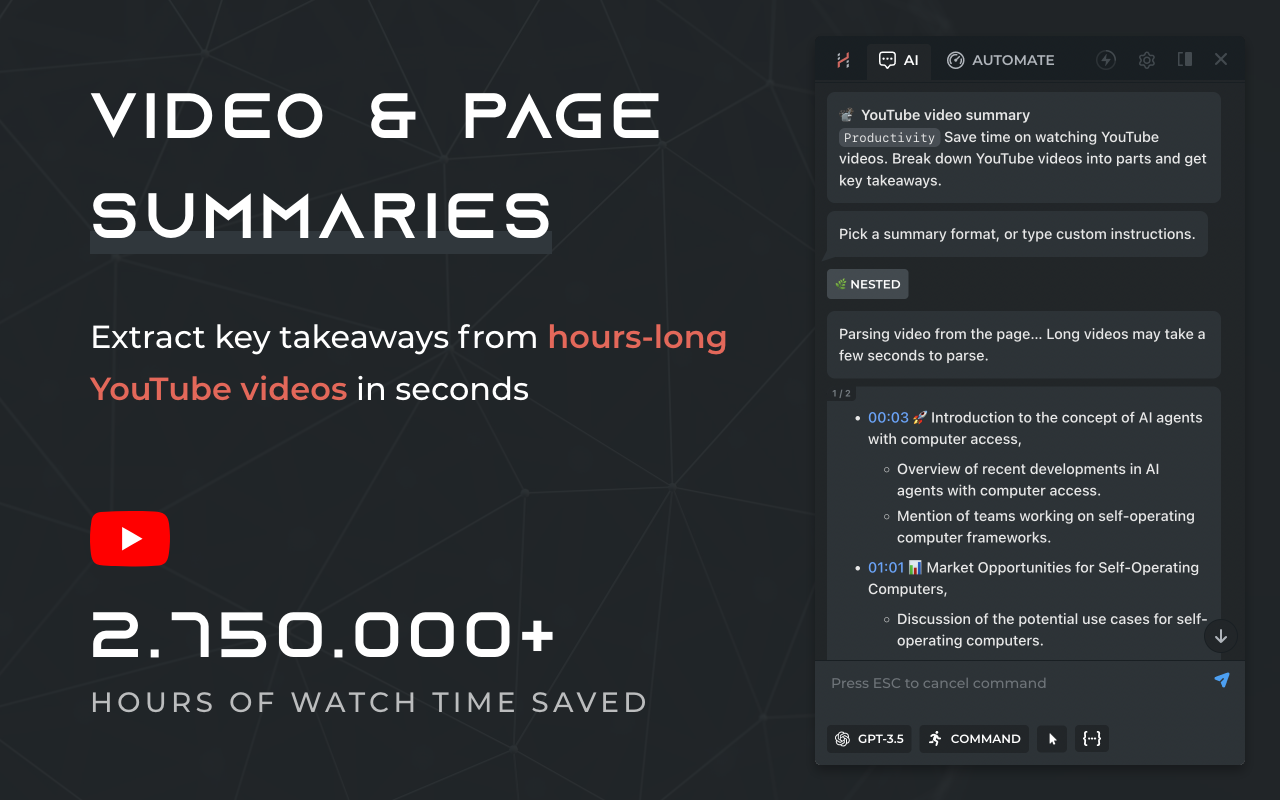
Best For: E-commerce professionals tracking competitor pricing, marketers who need automated data extraction, anyone who values local processing and privacy, and power users comfortable with learning complex tools.
Skip If: You want simple, straightforward AI chat without learning new workflows.
QuillBot — The Writing Specialist
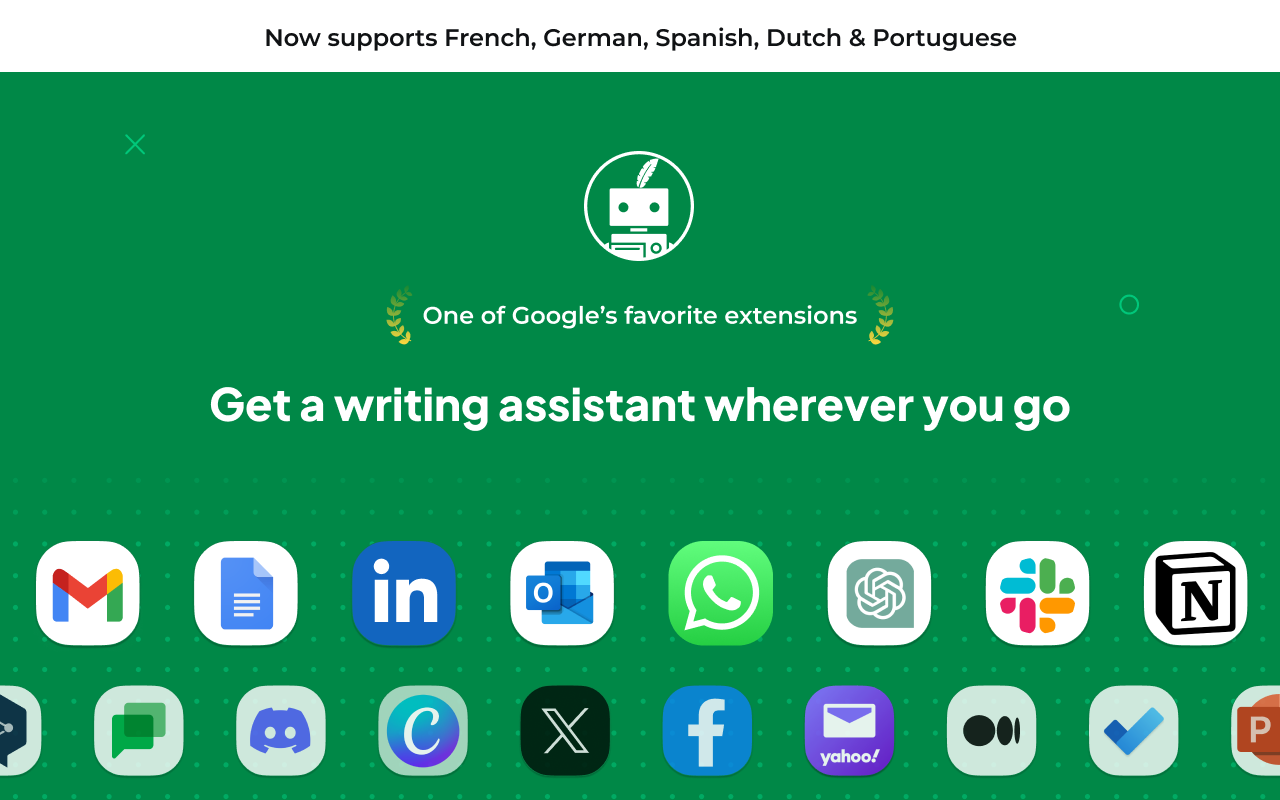
Unlike the three multi-purpose AI tools above, QuillBot focuses specifically on writing assistance. The Chrome extension adds grammar checking and paraphrasing capabilities across any website where you type — Gmail, Google Docs, LinkedIn, Slack, Facebook, Notion, Outlook, WhatsApp, and others.
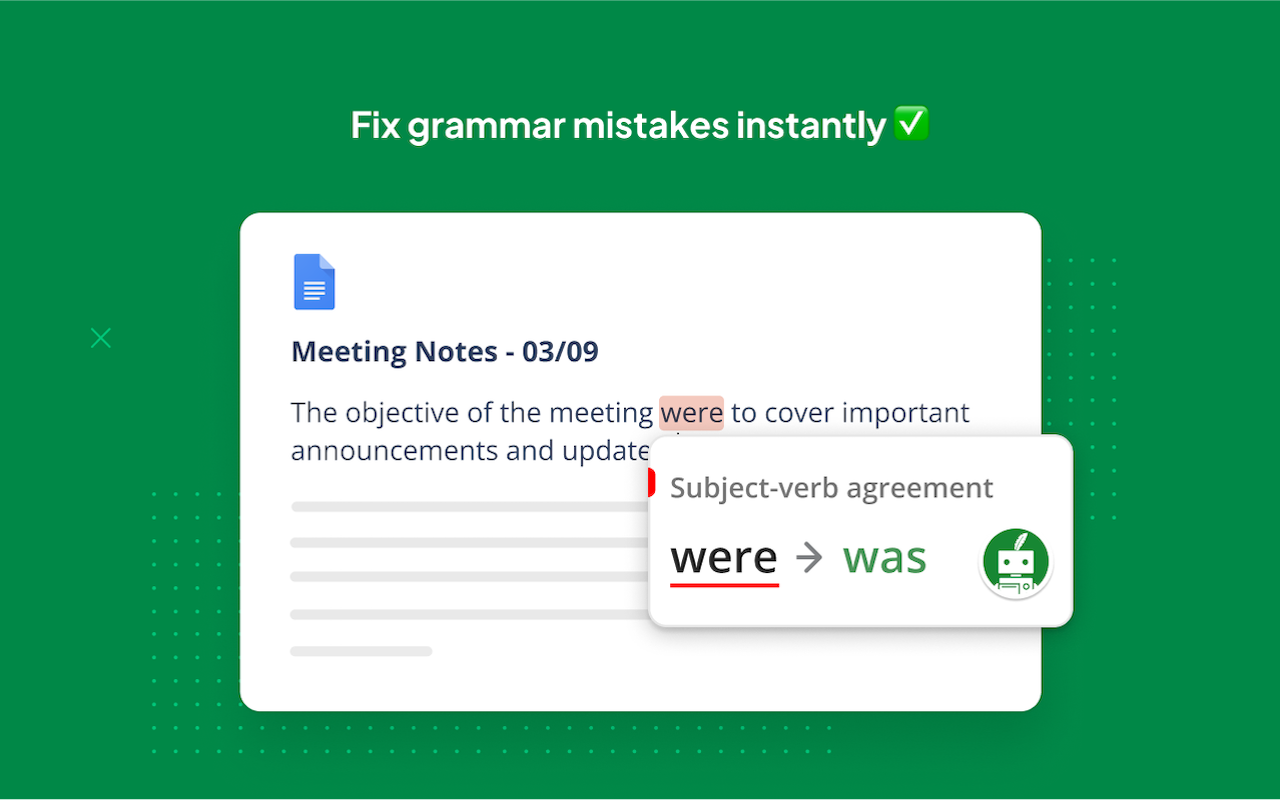
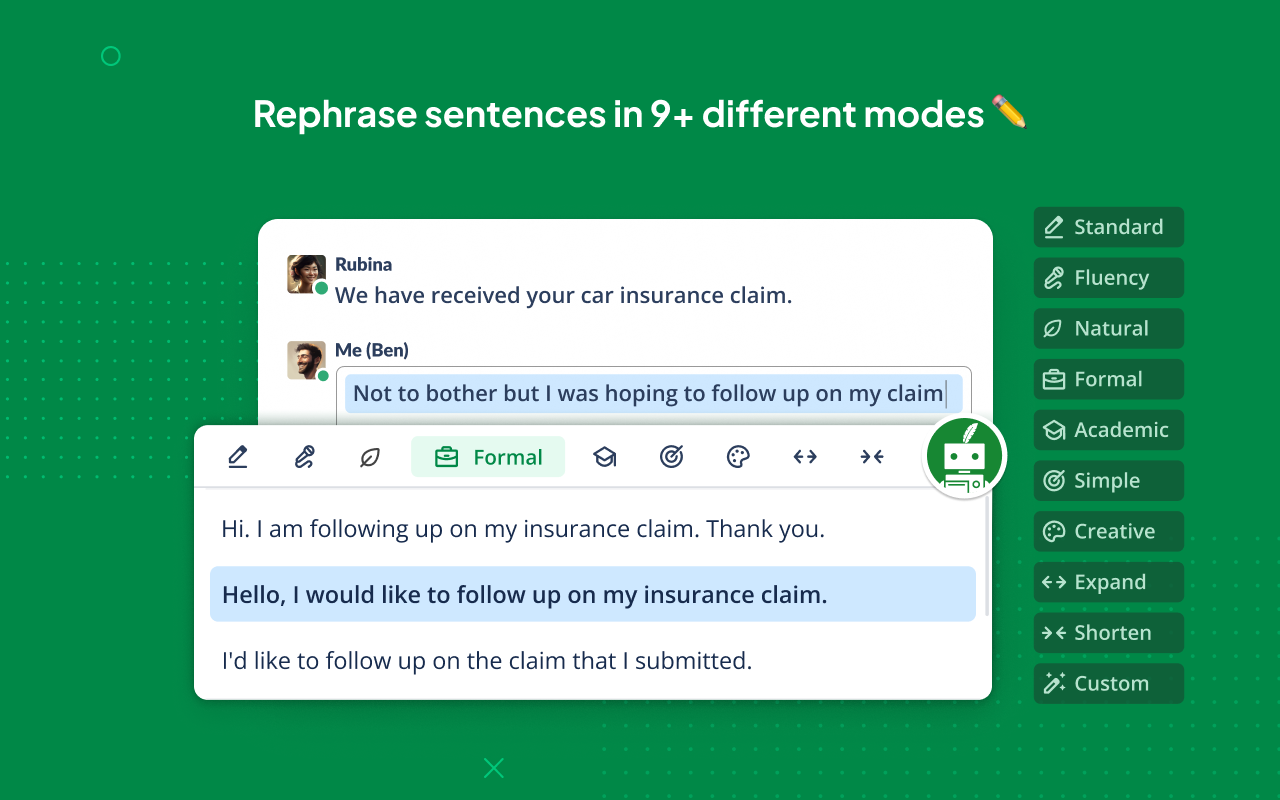
The core functionality centers on two tools: a Grammar Checker that catches spelling, punctuation, and grammatical errors in real time, and a Paraphraser that rewrites sentences while preserving meaning.
Pricing: QuillBot's free plan includes two paraphrasing modes (Standard and Fluency) plus basic grammar and spell checking, with support for six languages.
Premium plans start at $8.33/month when billed annually ($99.95/year), which is competitively priced compared to Grammarly's $144/year. You can also pay monthly ($19.95) or quarterly ($13.31/month).
Premium unlocks 11+ paraphrasing modes (including Formal, Creative, and Custom), advanced grammar suggestions, tone insights, readability analysis, and a plagiarism checker with 25,000 words/month.
What I Actually Think:
QuillBot has been around longer than most AI writing tools, and that maturity shows. The Chrome extension works reliably across different websites without constant compatibility issues.
The paraphrasing modes are genuinely useful for specific situations. Need to make an email more formal? There's a mode for that. Want to simplify complex language? Done. The "Creative" mode helps when you're stuck on phrasing, though I'd caution against using it for important communications without reviewing the output.
The grammar checker works well for everyday errors, though power users might find Grammarly's suggestions more nuanced. QuillBot excels at catching basic mistakes quickly; Grammarly offers deeper stylistic guidance.
One thing non-native English speakers consistently praise: QuillBot helps them sound more natural without requiring them to understand exactly what was wrong with their original phrasing. You paste awkward text, and you get smooth text back. For many users, that's exactly what they need.
The Chrome Web Store shows a 4.7-star rating across millions of users. Common complaints include the aggressive premium upsell in the free version and occasional robotic-sounding outputs that require manual editing.
Best For: Non-native English speakers, students writing papers, professionals who need quick grammar checking across multiple platforms, and content creators producing high volumes of text.
Skip If: You primarily need conversational AI assistance rather than writing-specific tools, or you already subscribe to a comprehensive writing tool like Grammarly.
Category 2: Work & Learning Tools
Google's second category focuses on productivity tools for professional and educational contexts. These extensions are designed to capture information you'd otherwise lose and help you learn more effectively.
Fireflies.ai — The Meeting Transcription Standard
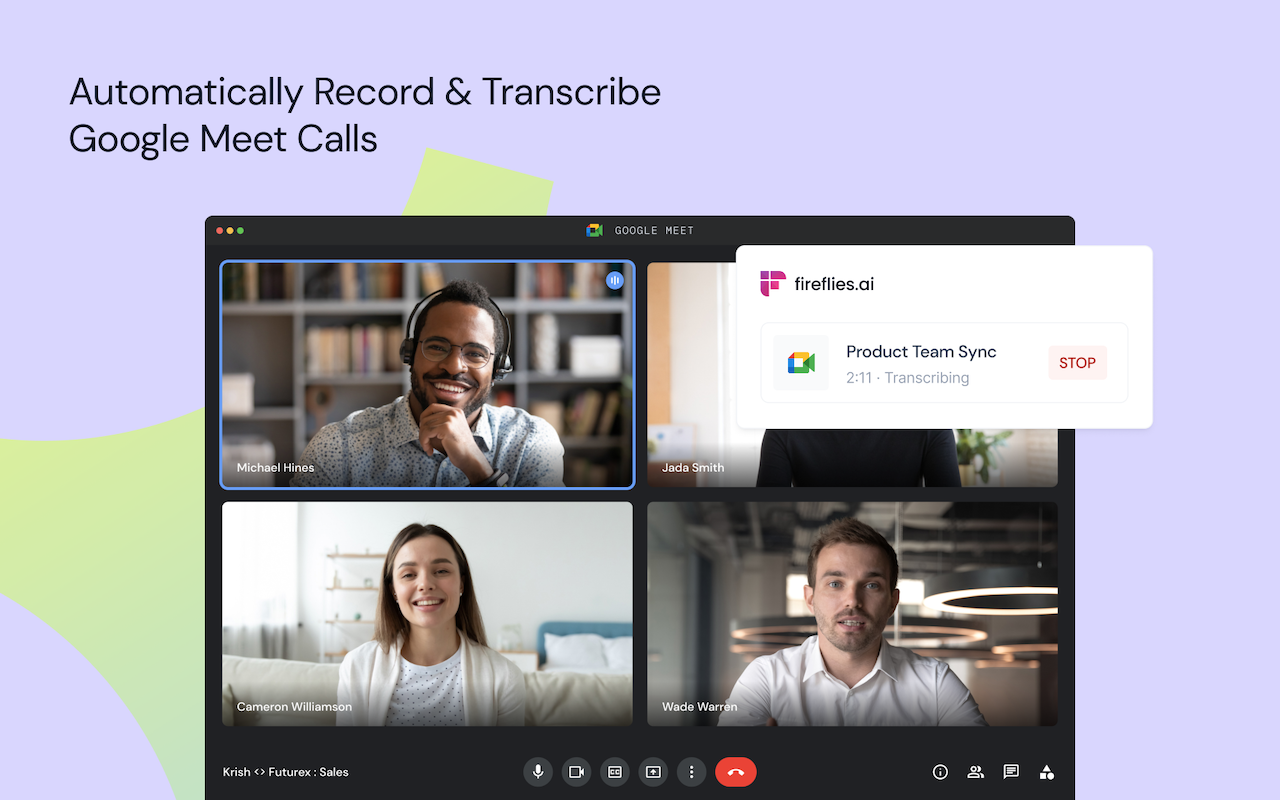
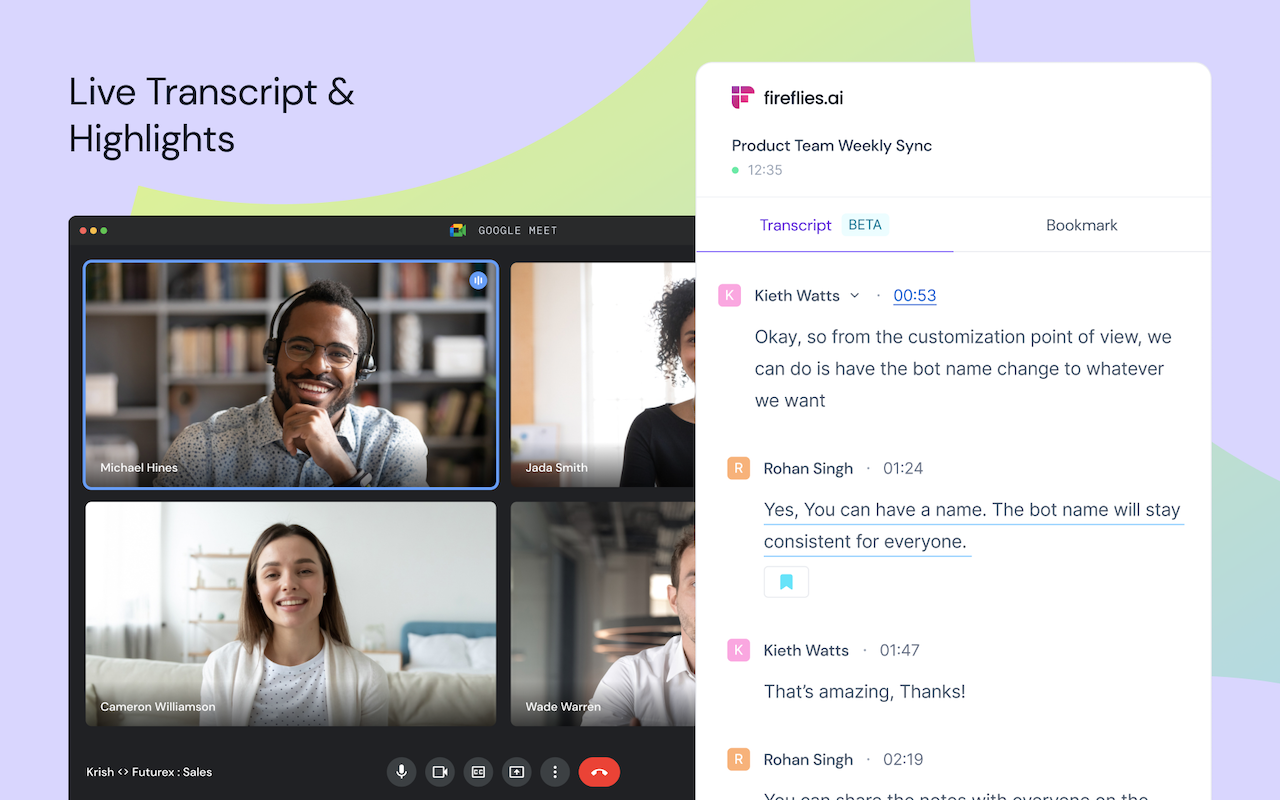
Fireflies.ai automatically joins your video meetings on Zoom, Google Meet, and Microsoft Teams to record, transcribe, and summarize conversations. After each meeting, you receive a searchable transcript with speaker identification, AI-generated summaries, action items, and highlights.
The extension essentially replaces the need for a dedicated note-taker in meetings, letting participants focus on the actual conversation.
Pricing: The Free plan includes unlimited transcription of meetings, limited AI summaries, 800 minutes of storage per seat, and basic features. However, you only get 3 transcription credits (10 if you sign up via mobile).
The Pro Plan costs $18/month per user and unlocks unlimited transcription credits, 8,000 minutes of storage, AI-generated summaries, action items detection, talk-time analytics, and CRM integrations (Slack, Zapier).
The Business Plan runs $29/month per user and adds unlimited storage, advanced integrations (Salesforce, HubSpot), admin console, and premium support.
Enterprise pricing is custom.
What I Actually Think:
Fireflies has become one of the most popular meeting transcription tools for a reason — it works reliably across platforms and delivers reasonably accurate transcripts (around 90-95% in clear audio conditions).
I particularly appreciate the searchability feature. After accumulating dozens of recorded meetings, being able to search "budget projections" and instantly jump to the exact moment someone discussed pricing is incredibly useful for reference.
The sentiment analysis feature deserves mention too. Fireflies can identify positive, negative, and neutral portions of meetings, which helps when reviewing sales calls or client conversations.
But here's where things get complicated: the free plan's limitations can catch you off guard. The 3 transcription credit limit means you'll burn through your allocation quickly, and the 800-minute storage cap fills up faster than expected if you have regular meetings.
Multiple G2 reviewers mention that the default settings are aggressive about automatically joining meetings and emailing notes to all participants — useful for some teams, annoying for others. You can disable this, but the opt-out nature rather than opt-in has irritated users.
Accuracy also drops noticeably with background noise, heavy accents, or overlapping speakers. For critical meetings, you'll want to proofread transcripts before sharing.
Best For: Remote teams with frequent video meetings, sales professionals who need searchable call records, project managers tracking decisions across multiple stakeholders.
Skip If: You only have occasional meetings (the free tier will feel restrictive), or you need guaranteed accuracy for legal/compliance purposes.
Bluedot — The Bot-Free Alternative
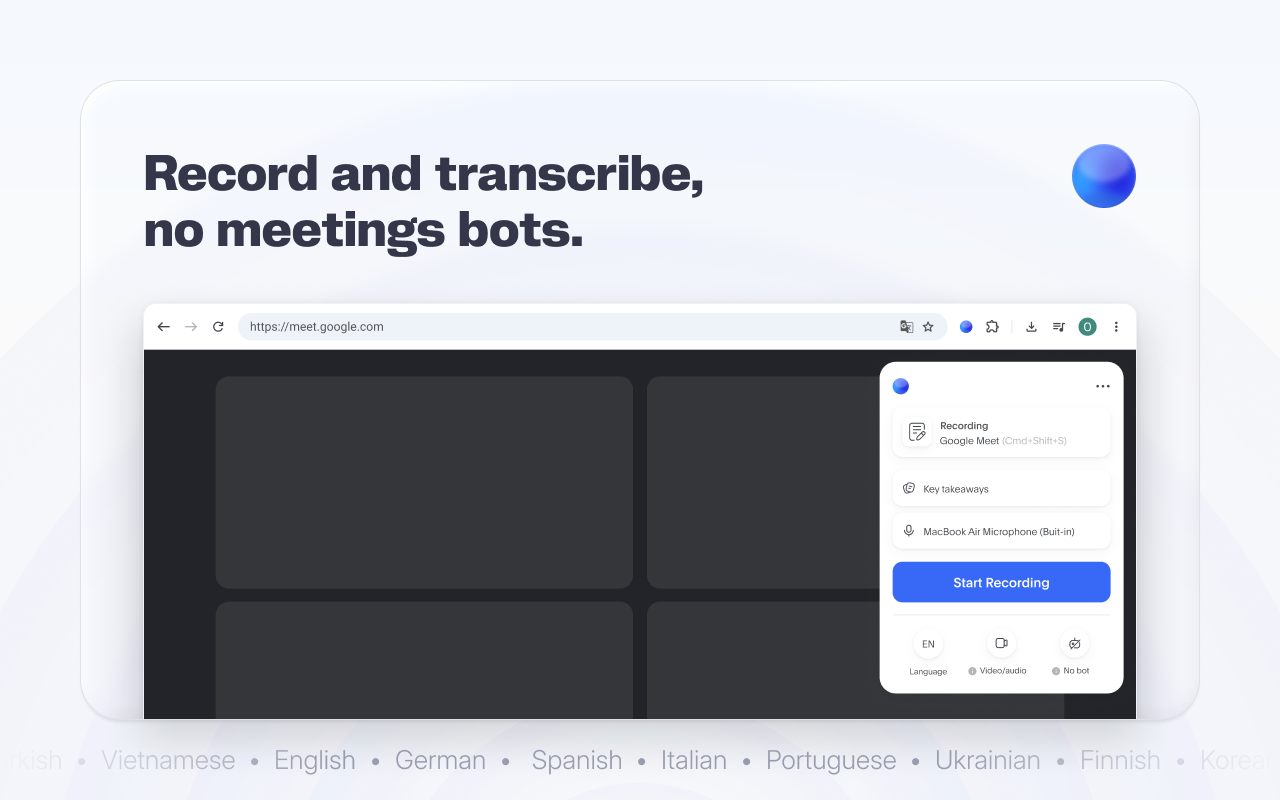
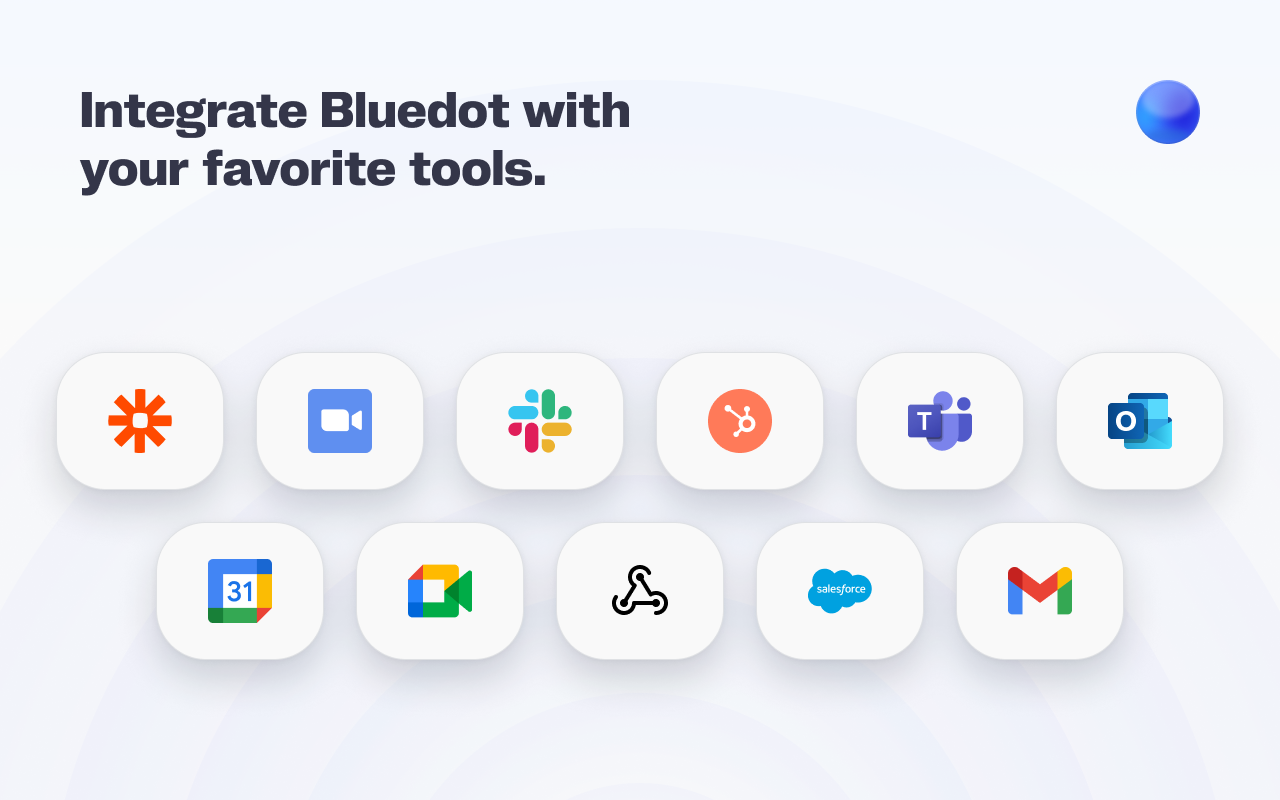
Bluedot fills a similar space as Fireflies — meeting recording, transcription, and AI-generated notes — but with one key differentiator: it doesn't send a visible bot to join your meetings. Instead, the Chrome extension records directly from your browser, making the process invisible to other participants.
The extension works primarily with Google Meet, Zoom, and Microsoft Teams, and offers features like video editing through transcript manipulation, CRM syncing, and customizable note templates.
Pricing: Bluedot's free plan allows 10 meeting recordings plus unlimited screen recordings (up to 5 minutes each).
Paid plans unlock unlimited meeting recordings, integrations with CRM systems like Salesforce and HubSpot, and advanced features. Specific pricing varies, so I'd recommend checking their site for current rates.
What I Actually Think:
Bluedot's bot-free approach solves a real problem. When Fireflies' bot joins a meeting, everyone sees "Fireflies.ai Notetaker" in the participant list. Some clients find this intrusive or distracting. Bluedot avoids that by recording locally through your browser.
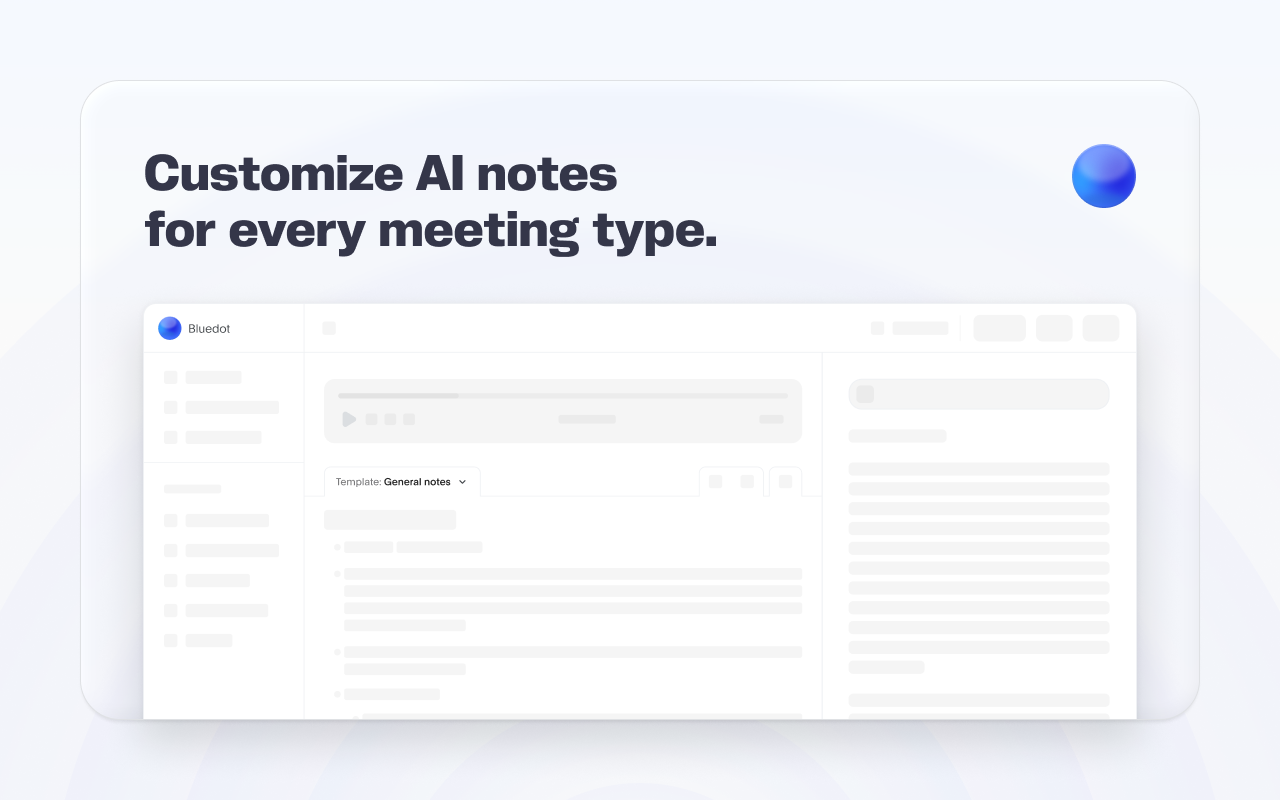
The transcription accuracy is comparable to Fireflies — around 98% in ideal conditions according to Bluedot's claims, though real-world accuracy depends heavily on audio quality. The AI summaries are structured well, and you can customize templates based on meeting type (sales calls, interviews, team check-ins).
The Chrome extension has earned a 4.7-star rating with consistent praise for the non-intrusive recording approach. Users specifically mention appreciating that they can record sensitive meetings without alerting other participants.
Downsides? Bluedot is most polished for Google Meet. While it supports Zoom and Teams, the browser-based recording approach can be less reliable on those platforms. You also need a consistent internet connection — unlike some alternatives, there's no offline mode.
The free tier's 10-meeting limit essentially functions as a trial. If you have regular meetings, you'll need to upgrade fairly quickly.
Best For: Professionals who frequently meet with external clients and want discrete recording, recruiters conducting interviews, sales teams who want meeting documentation without visible bots.
Skip If: You primarily use platforms other than Google Meet, or you need offline recording capabilities.
QuestionAI — The Homework Helper
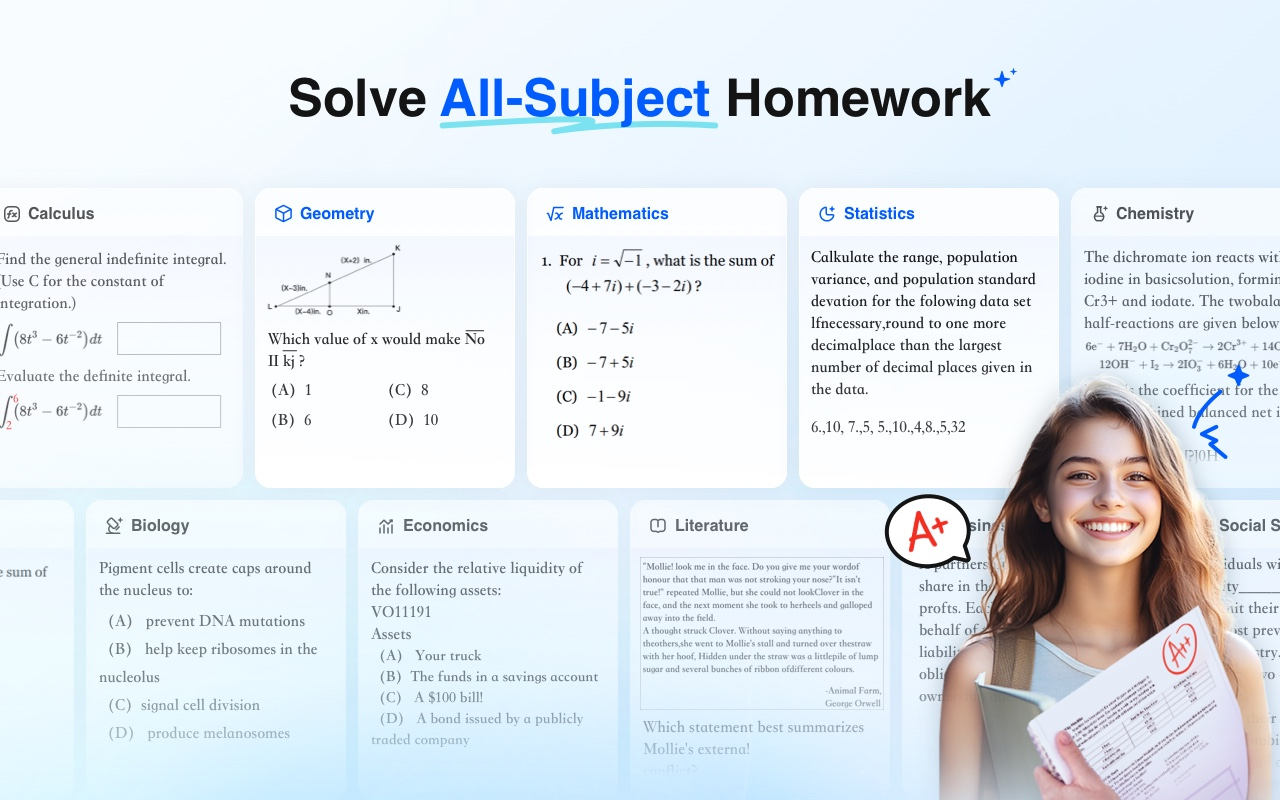
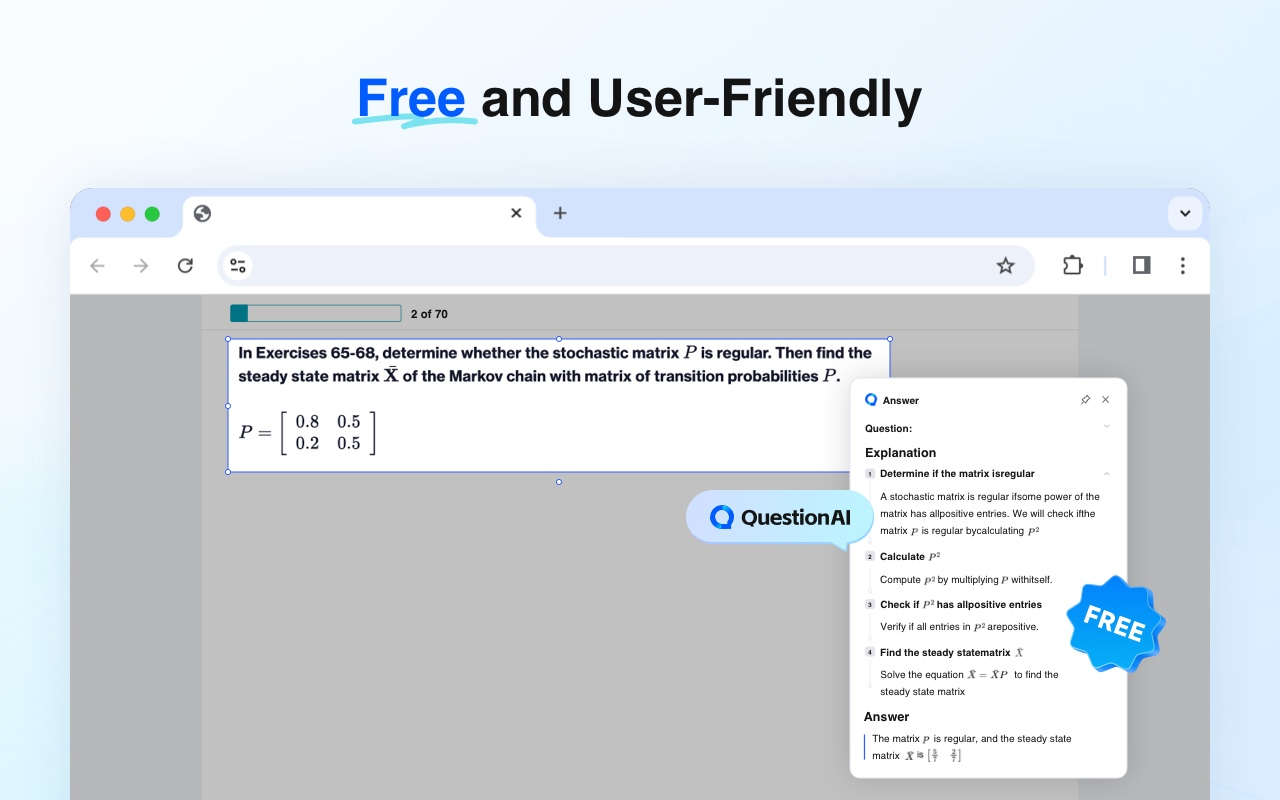
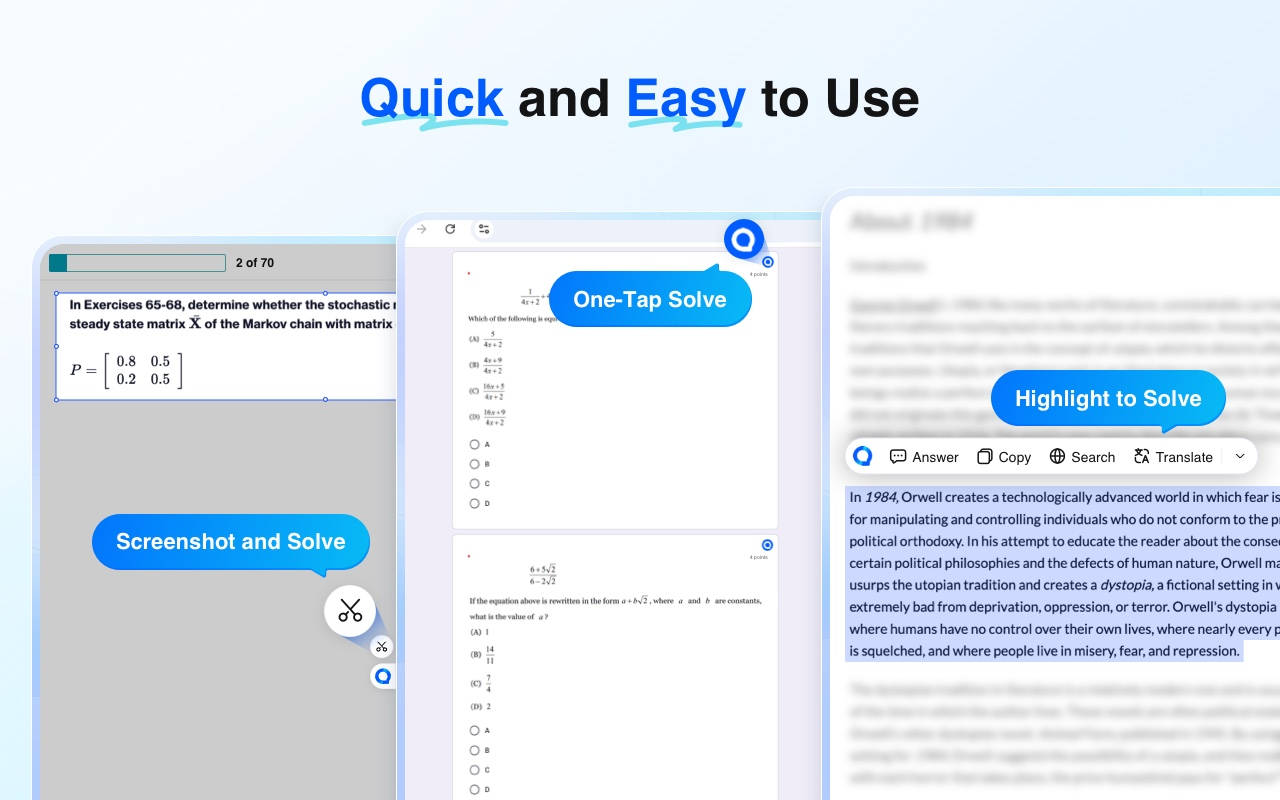
QuestionAI is designed specifically for students. The extension lets you screenshot any question — whether from a digital textbook, online assignment, or PDF — and receive AI-generated explanations and step-by-step solutions.
It supports multiple subjects including math, science, history, and language arts, with special functionality for recognizing LaTeX equations (the mathematical notation common in academic materials).
Pricing: QuestionAI offers a free version with limited usage. Premium subscriptions start around $8.99/month for full access to advanced features and unlimited questions.
What I Actually Think:
I'll be direct about something: QuestionAI walks an ethical line that makes me uncomfortable. While it positions itself as a "tutoring" tool, the practical use case for many students is getting answers to homework assignments without doing the actual learning.
That said, when used appropriately as a study aid, the tool has merit. The step-by-step explanations can help students understand where their reasoning went wrong, and the "virtual tutor" mode (for premium users) breaks down problems with voice explanations that mimic human teaching.
The Chrome Web Store rating of 4.8 stars reflects genuine utility. Users consistently praise fast, accurate answers that help with studying. The screenshot-based input is particularly convenient for math problems that contain symbols you can't easily type.
Real concerns worth noting: some reviewers mention hitting free-use limits quickly and feeling pushed toward premium upgrades. There's also the accuracy question — while QuestionAI performs well on standard academic problems, highly specialized or niche topics can produce shallow or incorrect explanations.
From a privacy perspective, extensions like QuestionAI require access to your browser tabs and activity, which some users find concerning.
Best For: Students genuinely using it as a study supplement, particularly for STEM subjects where seeing worked solutions helps learning. Also useful for parents helping children with homework they've forgotten how to do.
Skip If: You're primarily looking to shortcut homework rather than understand material, or you're concerned about academic integrity policies at your institution.
eJOY — Language Learning in Context
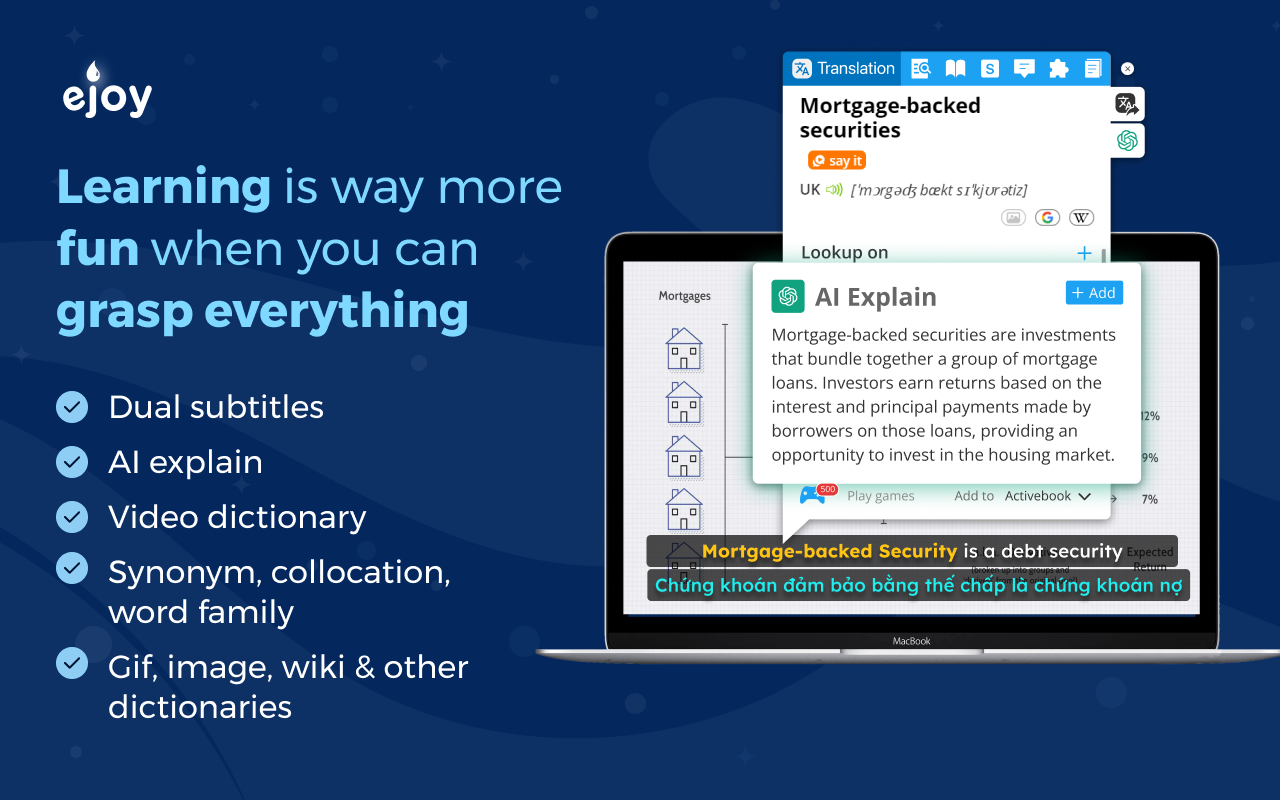
eJOY takes a completely different approach to language learning. Instead of standalone lessons or flashcard drills, it integrates vocabulary acquisition into content you're already consuming — Netflix shows, YouTube videos, Coursera courses, news articles, and PDFs.
When you encounter an unfamiliar word or phrase, you click it for instant translation, definitions, pronunciation, examples, and context. Words you look up get saved to a personal vocabulary bank, and the extension uses spaced repetition algorithms to help you review and retain what you've learned.
Pricing: eJOY offers a generous free tier with core lookup and vocabulary saving features.
Pro accounts unlock additional features including cross-device sync, advanced games, and premium content access.
What I Actually Think:
eJOY won a startup competition in Vietnam and has earned over 100,000 active users for good reason — the core concept of learning vocabulary in context rather than isolation is pedagogically sound.
What I appreciate most: the extension works across video platforms (Netflix, YouTube, Amazon Prime, Coursera) with dual subtitle support. You can watch content in your target language while simultaneously seeing translations, and clicking any word pauses playback for a definition popup.
The vocabulary review system uses scientifically-backed spaced repetition, timing review prompts to optimize long-term memory retention. Multiple game modes (fill-in-the-blank, listening exercises, pronunciation practice) keep review sessions from feeling monotonous.
The Chrome Web Store shows a 4.8-star rating with users praising the integration into daily browsing habits. Common praise focuses on how naturally it fits into existing entertainment consumption.
Criticisms include occasional lag when loading definitions, inconsistent performance across different browsers, and some reliability issues with subtitles on certain video platforms. The mobile app integration is helpful but not perfect — syncing sometimes takes longer than expected.
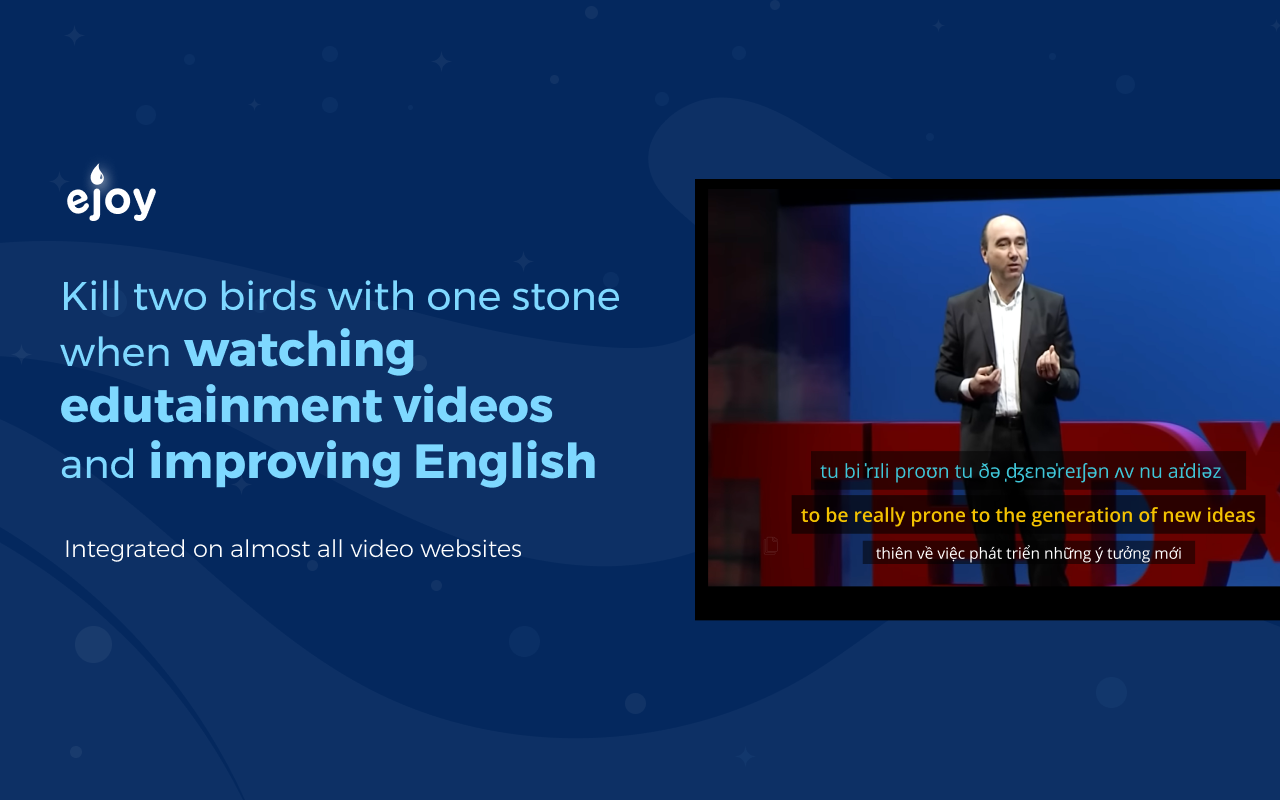
Best For: Anyone learning a second language who consumes significant English-language content anyway. Particularly effective for visual learners and people who learn better through context than memorization.
Skip If: You prefer structured lesson-based learning, or you need offline capabilities for language study.
Category 3: Creativity & Analysis
Google's third category includes tools for visual creativity and practical shopping decisions.
Adobe Photoshop (Chrome Extension) — Professional Editing in Your Browser
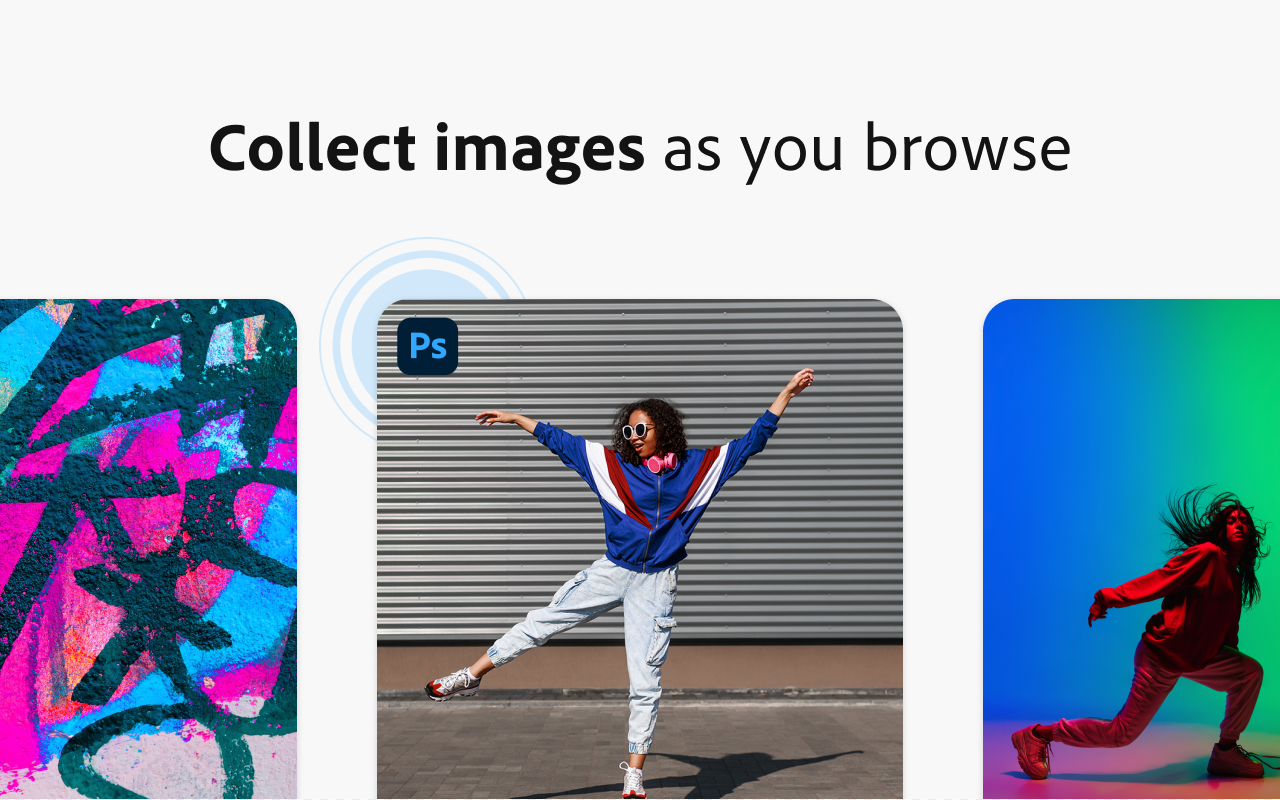
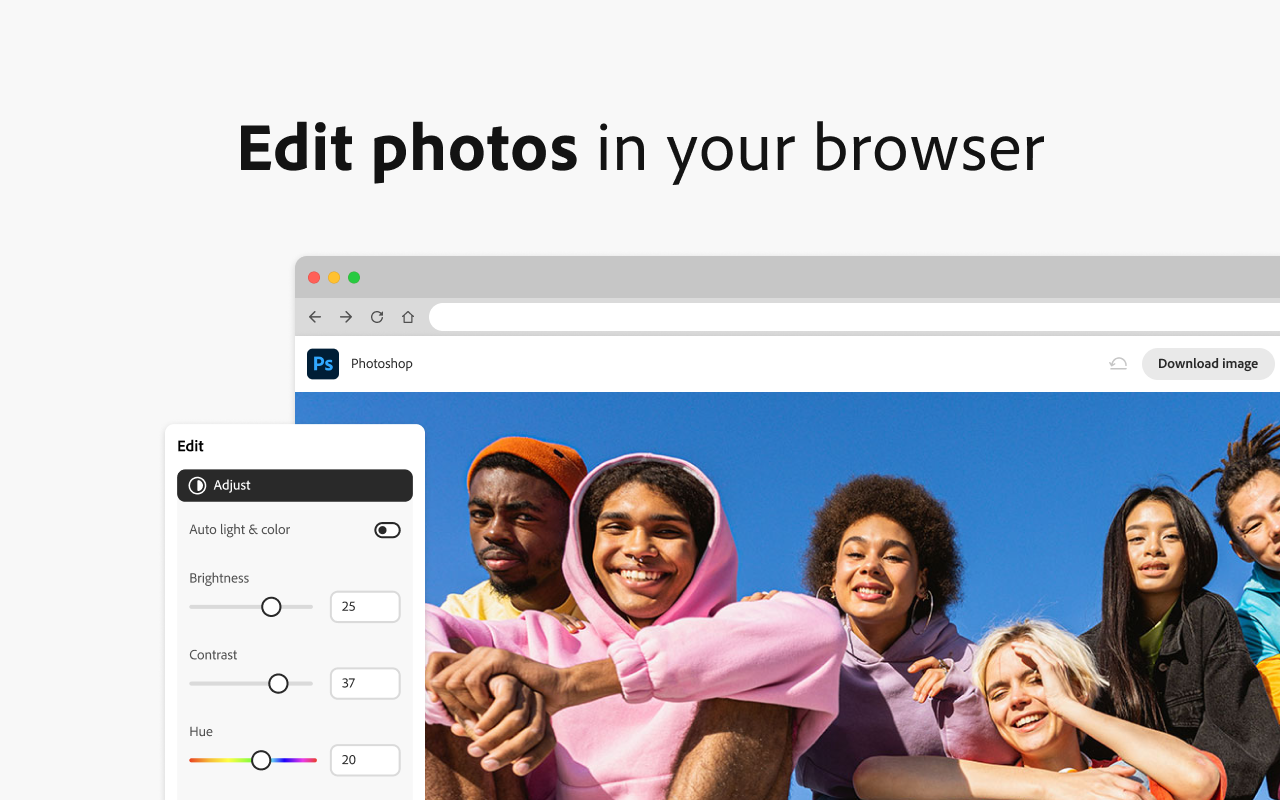
Adobe's new Photoshop Chrome extension brings essential photo-editing capabilities directly into your browser without requiring the desktop application. You can right-click images online to send them to Photoshop Web for editing, where you have access to background removal, color adjustment, brightness/contrast/saturation controls, and social media crop presets.
Pricing: Here's the headline: Adobe is currently offering 12 months of free Photoshop Web access to anyone who installs the Chrome extension before December 8, 2025. After that promotional period, you'll need a paid Creative Cloud subscription to continue.
Standard Adobe Creative Cloud pricing applies after the promotional year: individual Photoshop subscriptions run approximately $22.99/month.

What I Actually Think:
This is probably the most straightforward recommendation on the entire list. If you do any photo editing and use Chrome, install this extension before the deadline.
The browser-based version doesn't include every desktop Photoshop feature — advanced neural filters, complex layer effects, and heavy compositing still require the full application. But for quick edits (background removal, color correction, cropping for social media), the web version handles everything most users need.
What makes this particularly valuable: you don't need a powerful computer. Since processing happens in the cloud, even modest Chromebooks can run Photoshop Web smoothly. That democratizes access to professional editing tools in a meaningful way.
The one-click background removal alone is worth the install. It uses Adobe's AI and handles complex edges (hair, transparent objects) better than most free alternatives.
After the free year ends, you'll be automatically enrolled in a paid subscription if you have a payment method on file. Set a calendar reminder for month 11 to decide whether you want to continue paying.
Best For: Content creators, social media managers, marketers, anyone who frequently needs quick image edits without the overhead of desktop software.
Skip If: You need advanced Photoshop features that haven't been ported to the web version. Check Adobe's feature comparison before relying on it for professional work.
Phia — The Smart Fashion Shopping Assistant

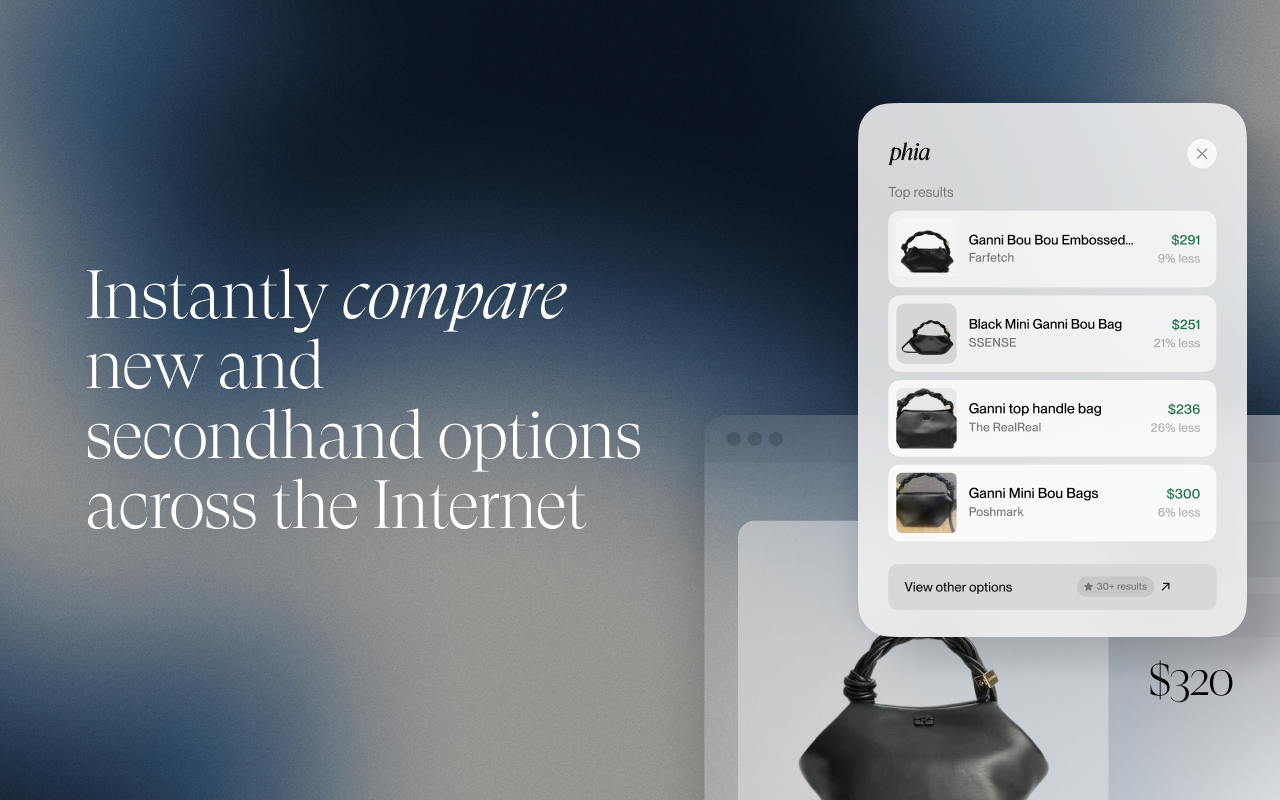
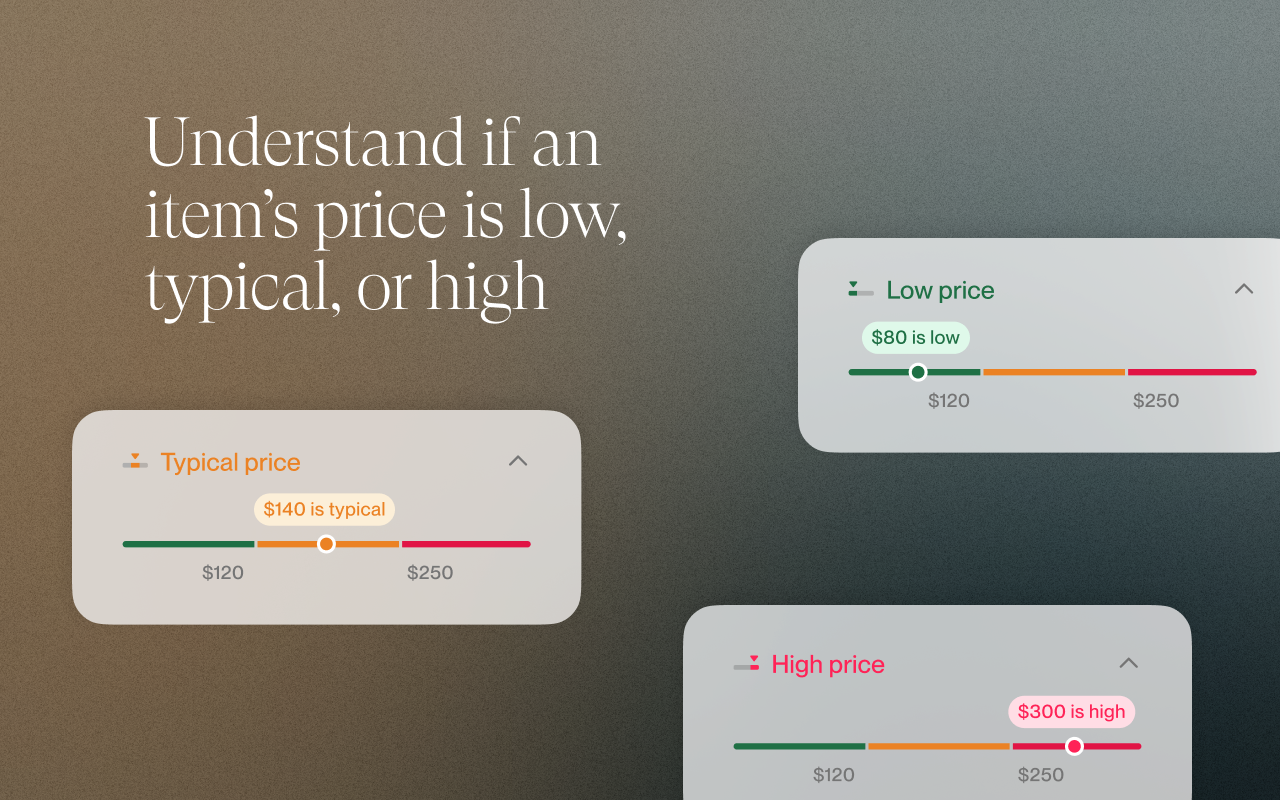
Phia helps you find better prices on fashion items by automatically comparing what you're looking at against retail and secondhand marketplaces. When you're browsing a product page, click "Should I Buy This?" and Phia searches across 40,000+ retail and resale sites — including The RealReal, Vestiaire Collective, ThredUp, StockX, eBay, and Poshmark — to show you whether you're getting a good deal.
The extension was founded by Phoebe Gates and Sophia Kianni (yes, that Phoebe Gates — Bill Gates' daughter) while they were roommates at Stanford University.
Pricing: Phia is completely free. The company uses an affiliate model, earning commissions when users click through to purchase from partner sites.
What I Actually Think:
Phia fills a genuine gap in online shopping. If you've ever spent 45 minutes opening tabs across six different resale platforms trying to find a better price on a specific item, you understand the problem this solves.
The AI analyzes pricing trends and resale values in real time, drawing from a database of over 250 million secondhand items. Beyond just finding cheaper options, it provides insights on how well specific brands hold their value — useful information if you're deciding whether buying secondhand makes financial sense for particular items.
For fashion enthusiasts who care about sustainability, Phia effectively surfaces pre-owned alternatives you might not have known existed. That Louis Vuitton bag you're eyeing at retail? Phia might find the same model in excellent condition on The RealReal for 60% less.
The Chrome extension is relatively new, so it doesn't have the same volume of reviews as more established tools. Early feedback is positive, with users praising the time savings and interface design.
Limitations: Phia focuses specifically on fashion. If you're shopping for electronics, furniture, or other categories, this won't help. The extension also requires broad permissions to monitor your browsing across shopping sites, which privacy-conscious users should consider.
Best For: Fashion shoppers who value both deals and sustainability, luxury resale enthusiasts, anyone tired of manually comparing prices across multiple secondhand platforms.
Skip If: You don't shop for fashion online, or you're uncomfortable with extensions that monitor your browsing activity.
My Overall Take on Google's 2025 Picks
After testing all 10 extensions, a few observations stand out.
First, the AI integration is real and useful, not just marketing hype. These tools genuinely help with tasks that would have taken significantly longer even two years ago. Summarizing a 30-page PDF, transcribing an hour-long meeting, removing image backgrounds — these used to require specialized software or manual effort. Now they're one-click operations.
Second, pricing complexity is becoming a problem in this space. Nearly every extension operates on a freemium model with credit systems, token limits, usage caps, and tiered features that require careful evaluation. Understanding what you actually get for free versus what requires payment takes more research than it should.
Third, privacy trade-offs deserve serious consideration. Most of these extensions require access to what you browse, what you type, and what you watch. For many users, the productivity gains justify that exchange. But if you work with sensitive information, think carefully about which tools you enable and when.
If I had to pick a "starter pack" from this list for someone completely new to AI browser extensions, I'd suggest: Monica or Sider for general AI assistance (pick based on whether you prefer popup or sidebar interfaces), QuillBot for writing help, and the Adobe Photoshop extension for image editing (especially while the free year is available).
For students, add QuestionAI cautiously (use it for learning, not just answers) and eJOY if you're learning a second language.
For professionals with heavy meeting schedules, Fireflies or Bluedot are worthwhile additions — pick Bluedot if you need discrete recording, Fireflies if you want more integrations.
For online shoppers, Phia is a no-brainer free addition to your browser.
What's Missing From Google's List
Finally, it's worth acknowledging what Google didn't include.
Ad blockers — uBlock Origin and similar tools — used to be essential recommendations. Their absence from an official Google list isn't surprising given Google's advertising business model, but they remain valuable tools regardless.
Privacy-focused extensions like Privacy Badger, HTTPS Everywhere, and VPN clients didn't make the cut either. Again, understandable given the source, but worth installing independently.
Password managers like Bitwarden and 1Password weren't highlighted. They're not AI-powered, but they remain critical security tools.
And while Google highlighted AI meeting assistants, dedicated project management and note-taking tools like Notion, Obsidian, and Roam Research have their own extensions that many knowledge workers find indispensable.
Google's list represents one perspective on browser extension excellence in 2025 — a perspective heavily weighted toward AI innovation. Your actual browser extension stack should probably include a few picks from this list alongside security and productivity tools that serve your specific needs.
The browser really has become an operating system of its own. Choosing your extensions thoughtfully is as important as choosing the apps on your phone. Take the time to evaluate what actually helps your workflow rather than installing everything that sounds impressive.
And hey — if you try any of these and have a different experience than I described, drop feedback to the developers. The Chrome extension ecosystem evolves based on how real people actually use these tools. Your input matters.
Related Articles
 Mark
Mark
 Mark
Mark