Remember the last time you spent fifteen minutes explaining your project context to an AI assistant? The copy-pasting, the screenshots, the constant "as I mentioned earlier" moments that made you wonder if AI was actually saving you time?
That frustration is exactly what Claude connectors solve.
Instead of treating Claude as an isolated chatbot that knows nothing about your work, connectors turn it into an assistant that can actually see your projects, read your documents, search your emails, and take actions inside the tools you already use. One click, and Claude can access your Asana tasks, draft messages in Slack, pull files from Google Drive, or create designs in Canva.
This is not a minor feature update. It fundamentally changes how you work with AI.
This guide walks through everything you need to know about Claude connectors: what they are, how to set them up, which integrations are available, and how to build workflows that save real time. Whether you are a solo professional looking to streamline your day or a team leader evaluating enterprise AI tools, this is the practical starting point.
What Are Claude Connectors and How Do They Work?
Claude connectors are direct integrations that let Claude access your actual work tools and data. Think of them as secure bridges between Claude and the apps you use every day.
The technical foundation is something called the Model Context Protocol, or MCP. Anthropic released MCP as an open-source standard in late 2024, and it has since become the industry standard for connecting AI assistants to external tools. In December 2025, Anthropic donated MCP to the Linux Foundation's Agentic AI Foundation, with co-founders including OpenAI, Google, Microsoft, AWS, and Block. This means the protocol powering Claude's integrations is not proprietary. It is an open standard that the entire industry is adopting.
In practical terms, MCP lets Claude do three things with connected apps:
- Read information. Claude can search your Notion workspace, find emails in Gmail, or look up tasks in Asana without you copying and pasting anything.
- Understand context. Because Claude can see your actual files and projects, it understands your work environment. No more explaining your company structure or project background every single conversation.
- Take actions. With proper permissions, Claude can draft Slack messages, create tasks in project management tools, generate designs in Canva, and update documents. You always approve before anything happens.
The Connectors Directory, which launched in July 2025, now includes over 50 integrations spanning productivity, communication, design, engineering, finance, and healthcare. New connectors are added regularly, with recent additions including WordPress.com, Salesforce components, and expanded Slack functionality.
Why Connecting Claude to Your Tools Matters
The gap between "AI that gives advice" and "AI that actually helps" often comes down to context. When Claude can see your real work, the quality of its assistance improves dramatically.
Eliminate Context Overhead
Every time you start a new conversation with an AI assistant, you lose continuity. You have to re-explain your project, re-upload documents, re-describe your goals. With connectors, Claude maintains access to your workspace. Ask about a project, and Claude can pull the relevant Notion pages, check your task list, and reference recent communications without you providing any additional context.
Work Across Tools Seamlessly
Modern knowledge work happens across dozens of applications. A single project might involve Slack conversations, Google Docs, Asana tasks, and Figma designs. Without connectors, using AI means constantly switching between apps, copying information, and losing time to context switching. With connectors, you can ask Claude to "summarize the Q2 marketing project" and it will pull information from wherever that project lives.
Take Action, Not Just Advice
Most AI assistants stop at recommendations. They tell you what to do but leave the doing to you. Claude with connectors can actually execute. It can draft that Slack message, create that Asana task, or update that Notion page. You approve the action, but Claude handles the mechanics.
Maintain Real-Time Information
Traditional AI assistants only know what was in their training data. Connected Claude can access live information from your tools. It can check your current calendar, see today's tasks, or review the latest version of a document.
Step-by-Step: Setting Up Your First Connector
Getting started with Claude connectors takes about 30 seconds per tool. Here is exactly how to do it.
Access the Connectors Directory
You have three ways to get to the connector settings:
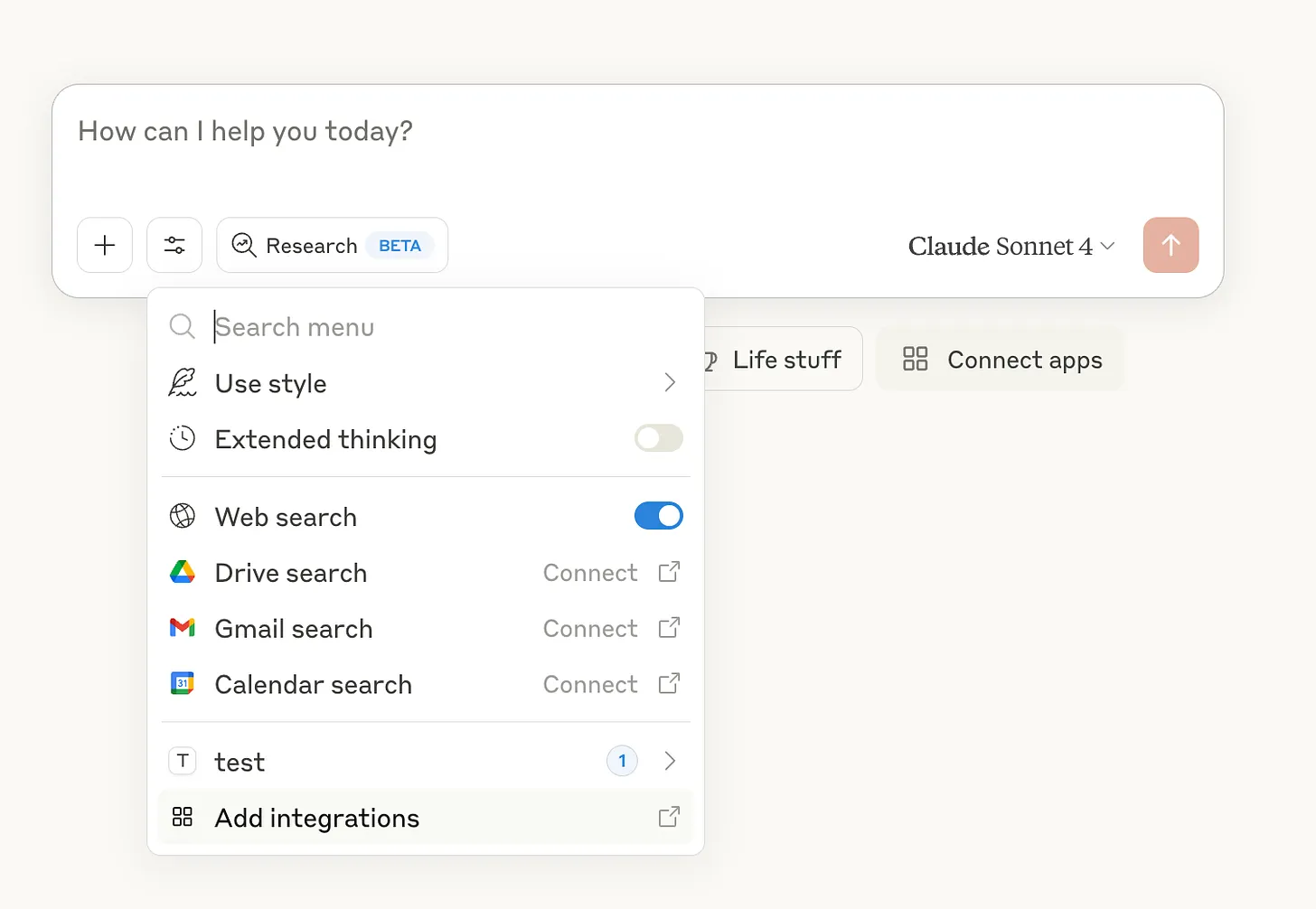
Open Claude and click the "Search and tools" button at the lower left of your chat interface. You will see options to browse available connectors.
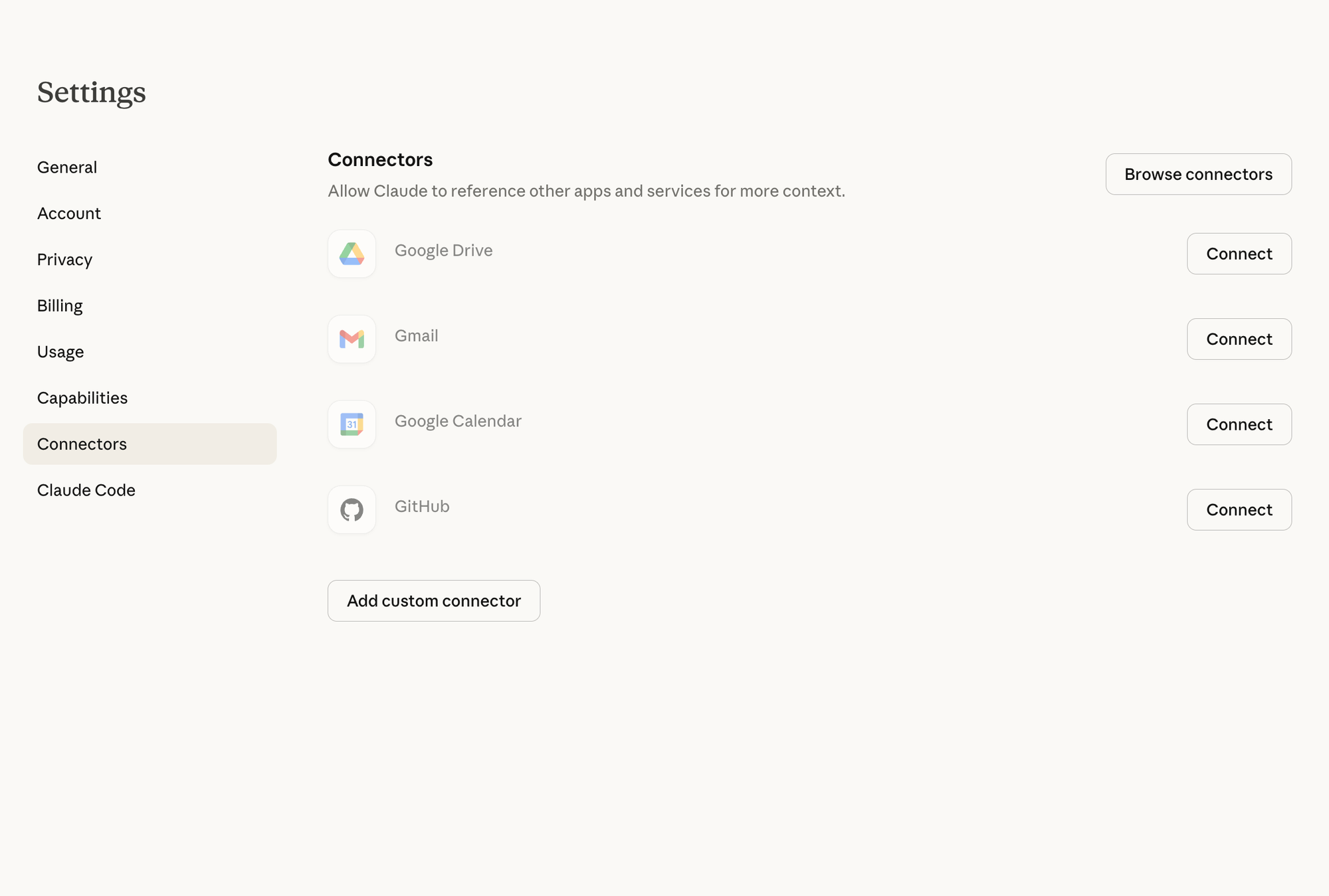
Alternatively, click your profile icon, navigate to Settings, then select Connectors from the menu. You can also go directly to claude.ai/settings/connectors in your browser.
Browse and Select a Connector
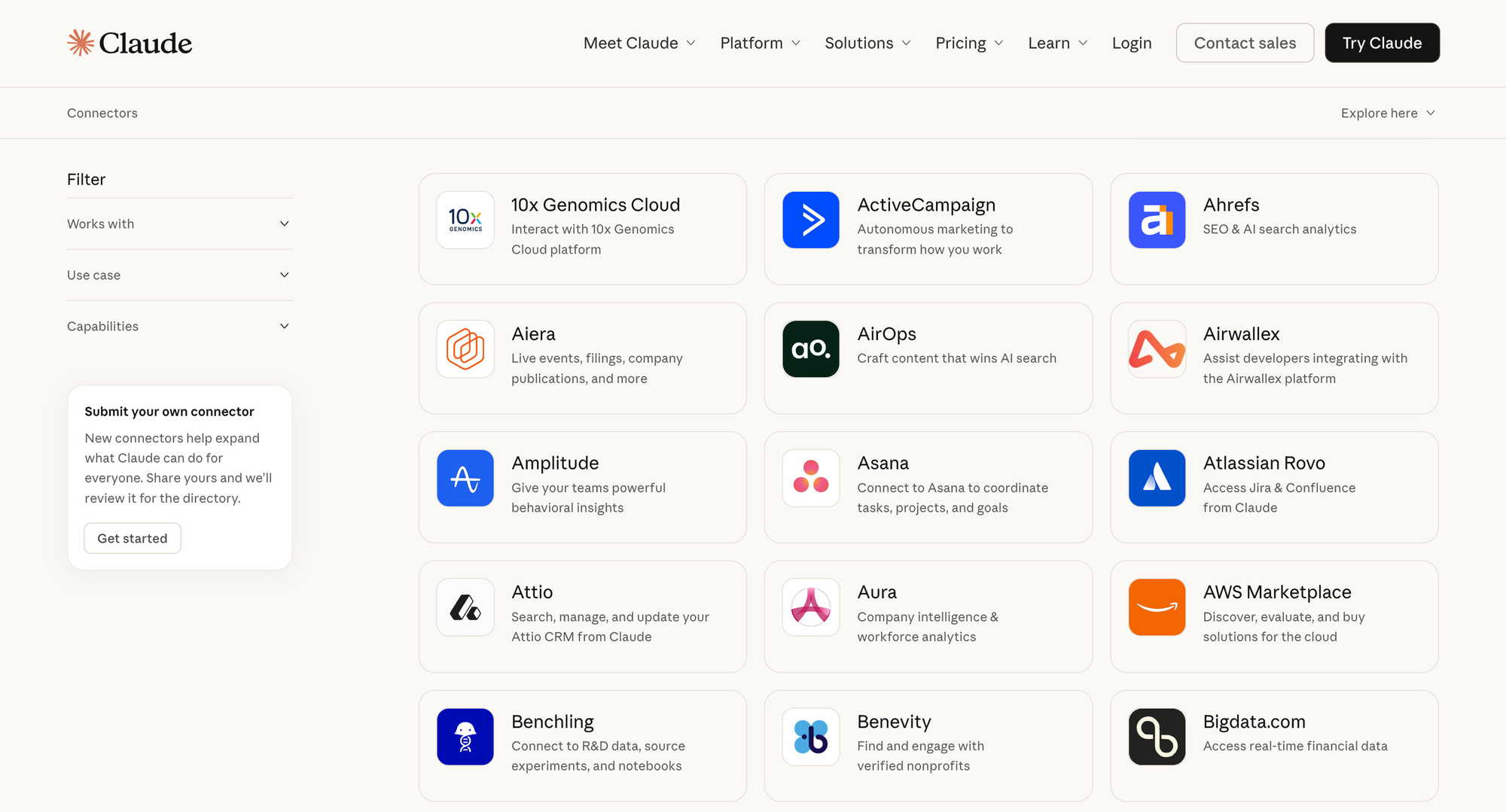
The directory organizes connectors by category: communication, project management, content, design, engineering, finance, and more. You can scroll through the complete list or filter by category.
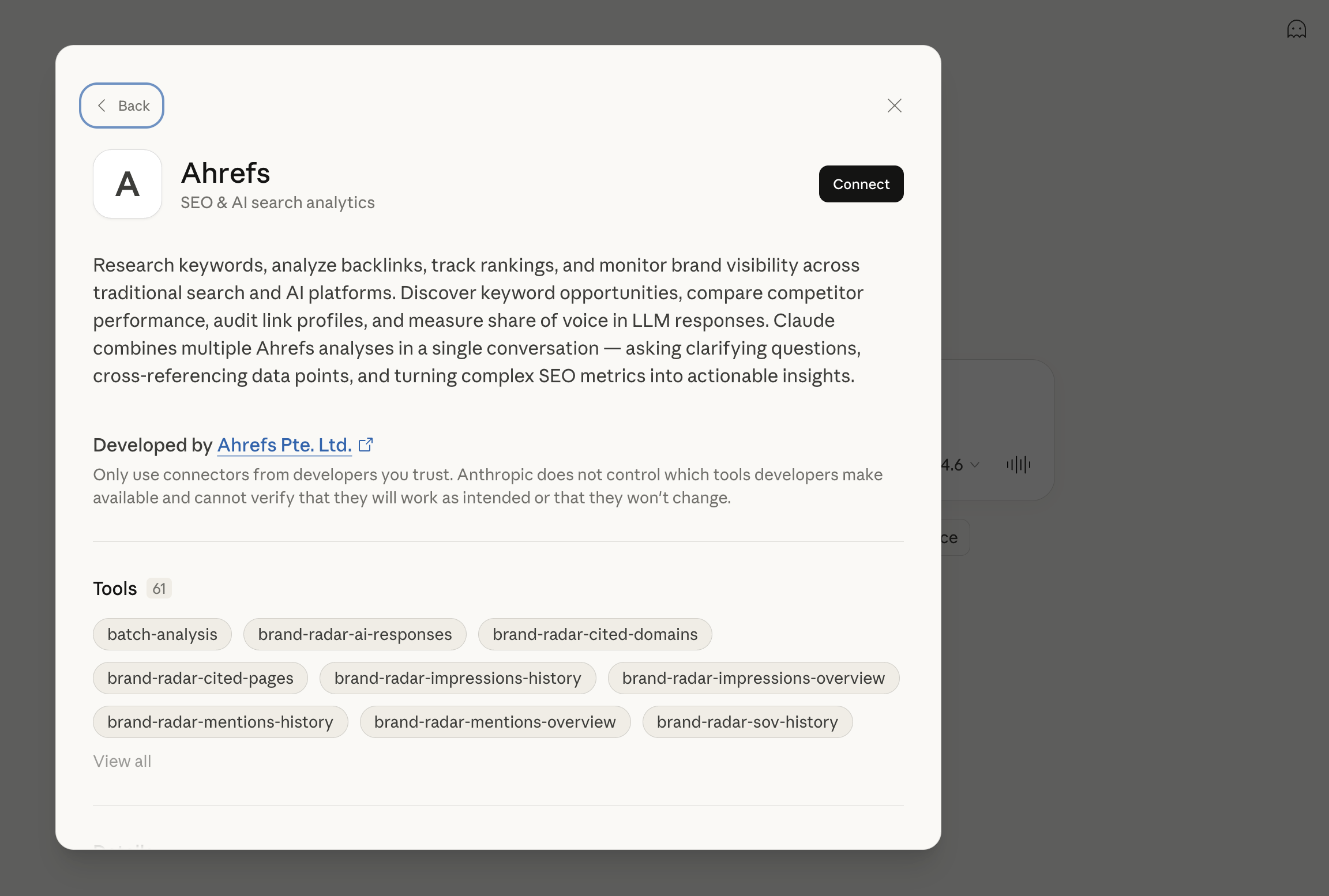
Each connector has a detail page showing what it can do, what permissions it requires, and which Claude plans support it. Start with the tool you use most frequently. For most people, that is Gmail, Slack, Google Drive, or Notion.
Authenticate and Connect
Click "Connect" on your chosen integration. Most connectors use OAuth, which means you will be redirected to the app's login page to authorize Claude's access. You are granting Claude permission to interact with your account on that platform.
The authentication flow typically takes a few seconds. Once complete, you return to Claude with the connector active.
Verify the Connection
Back in Claude, you can confirm the connector is working by asking a simple question that requires access to that tool. If you connected Gmail, try "Do I have any emails from [specific person] this week?" If you connected Notion, ask "What pages do I have in my workspace about [topic]?"
Claude will indicate when it is using a connector by showing which tool it is accessing. This transparency lets you understand where information is coming from.
Available Connectors: The Complete List
As of February 2026, the Connectors Directory features over 50 curated integrations with new ones added regularly. Here are the major categories and key connectors in each.
Communication
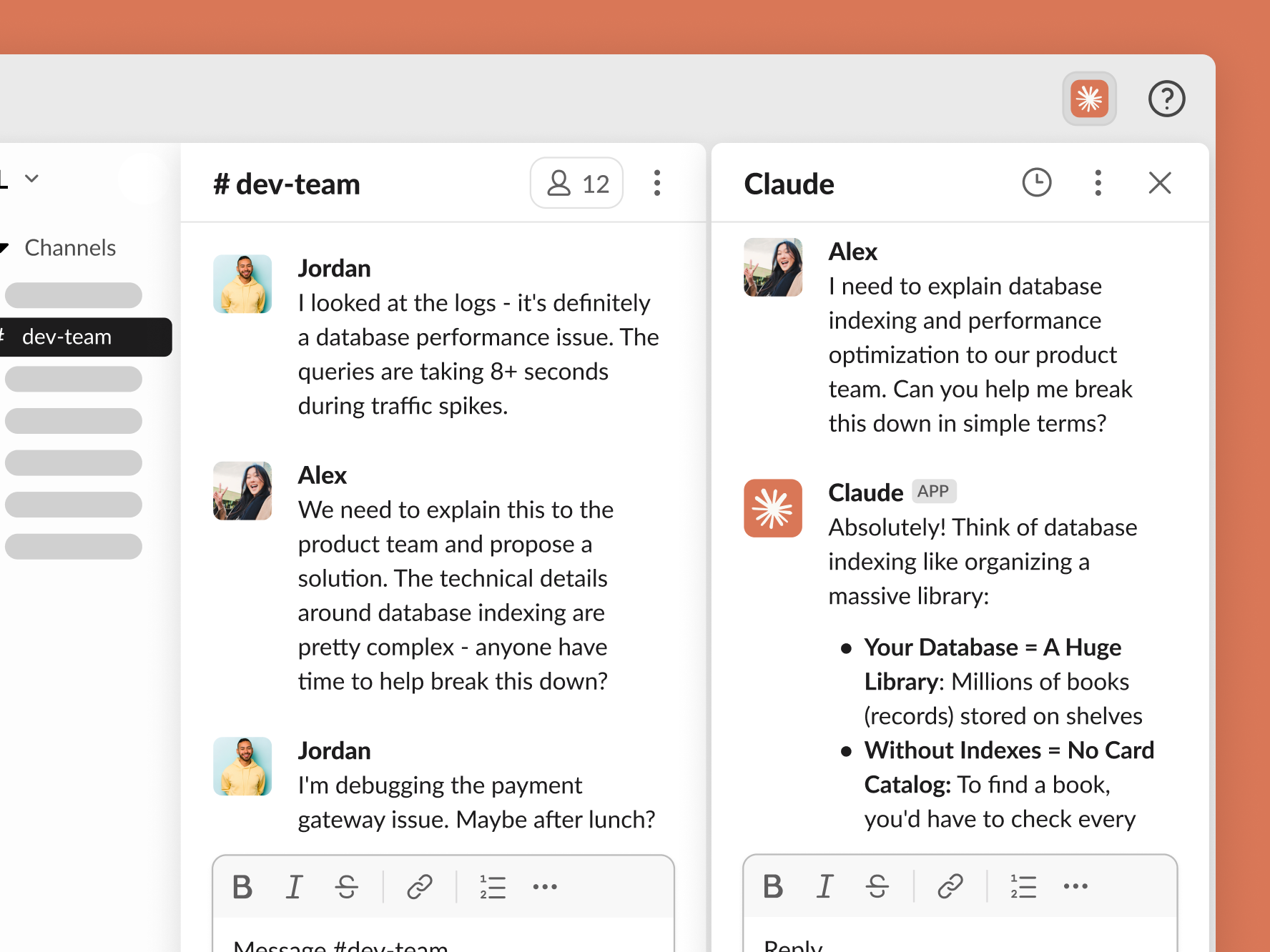
- Slack provides full two-way integration. You can use Claude directly within Slack via DMs or thread mentions, and you can connect Slack to Claude so it searches your workspace channels, messages, and files during conversations.
- Gmail lets Claude search your inbox, draft messages, and find specific emails without you copying text manually.
- Microsoft 365 connects Outlook, Teams, and other Microsoft productivity tools.
Project Management
- Asana turns Claude conversations into projects, tasks, and timelines that your team can see and execute.
- Linear provides issue tracking and project management for engineering teams.
- Jira and Confluence connect development workflows and documentation.
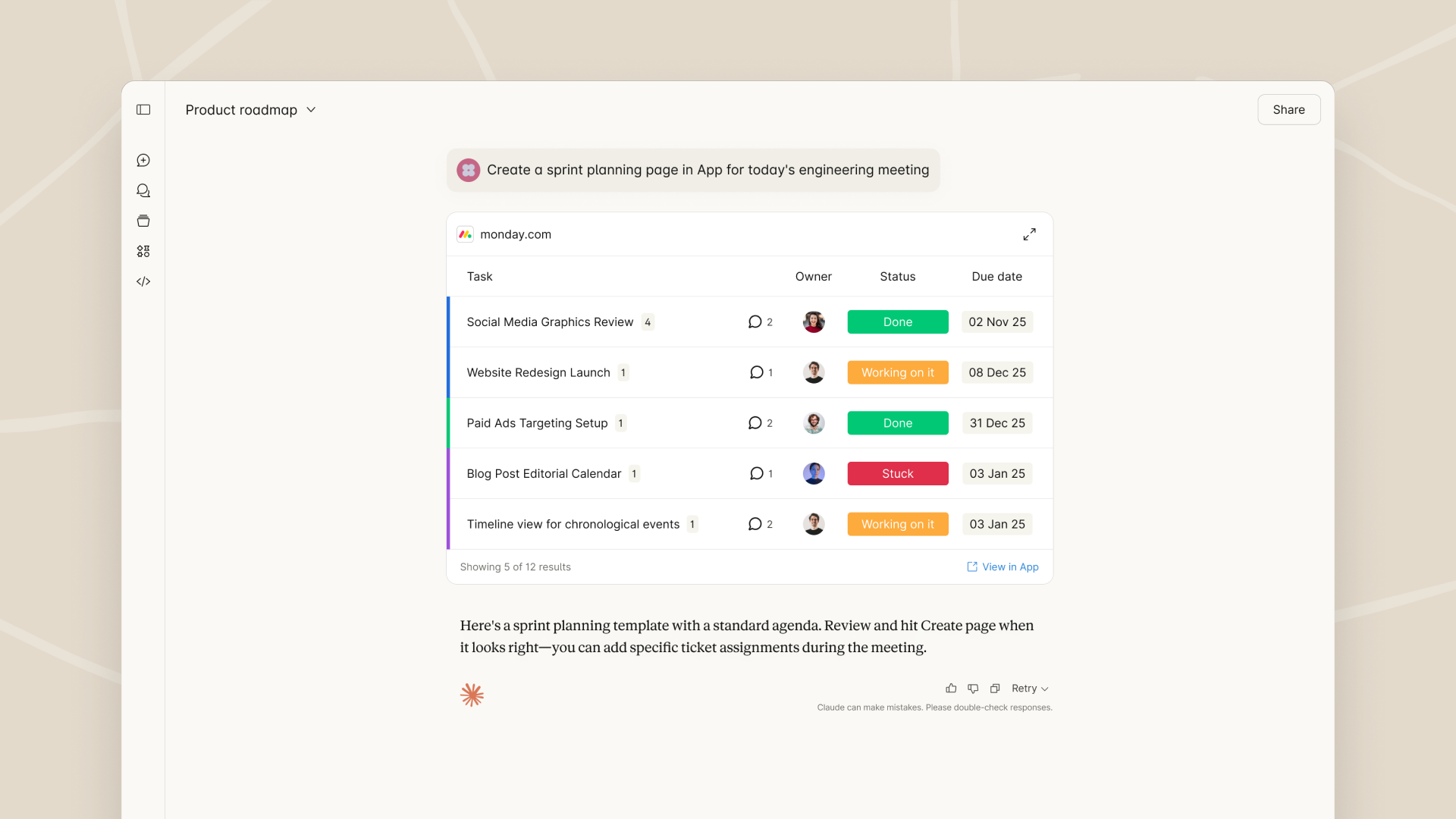
- Monday.com offers work management and team collaboration features.
Content and Knowledge
- Notion gives Claude read and write access to your workspace, allowing natural language commands to search, create, and update pages and databases.
- Google Drive lets Claude access your documents, spreadsheets, and files for analysis and reference.
- WordPress.com became the first major CMS to launch an official Claude connector in early 2026.
Design
- Figma converts text and images into flow charts, Gantt charts, and visual diagrams in FigJam directly from chat.
- Canva enables creating presentation outlines and customizing designs in real-time to produce client-ready materials.
Engineering and Data
- Amplitude builds analytics charts and explores trends interactively.
- Hex answers data questions with interactive charts, tables, and citations.
Finance
- Stripe provides payment and financial data access for business intelligence.
Healthcare and Research
- Apple Health connects health and fitness data for personal analytics.
- PubMed provides access to medical research literature.
Custom Connectors
Paid plan users can add unlimited custom connectors by providing MCP server URLs. This allows connection to internal tools, proprietary systems, or any service with an MCP implementation.
Real-World Workflows That Actually Save Time
Understanding connectors conceptually is one thing. Seeing how they work in practice is another. Here are workflows that deliver real productivity gains.
Cross-Tool Project Summaries
You are preparing for a project review meeting. Instead of opening five different apps and manually compiling information, you ask Claude: "Summarize the current status of Project Alpha, including recent Slack discussions, open Asana tasks, and the latest updates in our Notion documentation."
Claude searches across all connected tools, synthesizes the information, and presents a coherent summary. What would have taken 20 minutes of context switching takes 30 seconds.
Email Research and Response Drafting
A vendor emails asking about your company's requirements for an upcoming project. You ask Claude: "Find the email from [vendor name] about the platform requirements, check our Notion project specs, and draft a response that addresses their questions."
Claude locates the email, pulls relevant information from your documentation, and drafts a response that you can review and send. The research and writing happen simultaneously rather than sequentially.
Meeting Preparation from Calendar Context
Before a client call, you ask: "What do I need to know for my 2pm meeting with Acme Corp? Check recent emails, any Slack discussions, and our shared documents."
Claude pulls everything relevant based on your calendar entry, giving you a briefing document without you having to remember where all the context lives.
Task Creation from Conversations
During a brainstorming session in Claude, you develop a project plan. Instead of manually creating tasks afterward, you say: "Create Asana tasks for each of these action items and assign them based on our previous project structure."
Claude creates the tasks directly in Asana, maintaining the structure and assignments you have established in previous projects.
Design Iteration with Feedback
You are refining a presentation. You ask Claude: "Take the feedback from Sarah's Slack message about the Q3 deck and update the Canva presentation to address her concerns."
Claude reads the feedback, understands the context, and makes the design adjustments you approve.
Tips, Best Practices, and Common Mistakes
After working with connectors extensively, certain patterns emerge for getting the most value while avoiding frustration.
- Start with One Connector. The temptation is to connect everything immediately. Resist it. Start with the single tool you use most frequently, learn how Claude interacts with it, and then expand. This approach helps you understand the interaction patterns before adding complexity.
- Be Specific in Your Requests. Claude can access your tools, but it still benefits from clear direction. "Check my emails" is less useful than "Find emails from the marketing team about the product launch in the last two weeks." Specificity helps Claude know where to look and what to prioritize.
- Use Connectors for Context, Not Just Actions. Many users focus on the action capabilities of connectors. Equally valuable is using them for context. Even if you do not want Claude to create a task, having it read your Asana projects helps it understand your work environment and give better advice.
- Review Before Approving Actions. Claude shows you what it plans to do before taking action. Actually read those summaries. A misunderstood request could result in an embarrassing Slack message or incorrect task assignments. The approval step exists for a reason.
- Keep Connections Current. If you change passwords, revoke access, or modify permissions in connected apps, your Claude connectors may need re-authentication. Periodically check that your connections are still working, especially for tools you use less frequently.
Common Mistakes to Avoid
- Granting excessive permissions. Only connect what you actually need. You can always add more later.
- Expecting perfect understanding. Claude is powerful but not omniscient. If it misunderstands your project structure, provide clarification rather than assuming it should have known.
- Ignoring the connector indicators. Claude shows when it is using a connector. Pay attention to these indicators to understand where your information is coming from.
Pricing and Availability
Connector availability varies by Claude plan.
| Plan | Price | Features | Best For |
|---|---|---|---|
| Free Plan | Free | Browse the connector directory and use basic integrations. Premium connectors are restricted. | Individuals exploring Claude connectors |
| Pro Plan | $20/month | Full access to directory connectors plus the ability to add custom connectors via MCP server URLs. | Power users and professionals who need advanced integrations |
| Max Plan | $100–$200/month | Includes all Pro features with significantly higher usage limits. | Heavy connector usage and automation workflows |
| Team Plan | $25–$30/user/month | Admin controls for managing which connectors are available to team members. | Teams needing shared access and governance |
| Enterprise | Custom pricing | Advanced security, compliance, and administrative features with enterprise-level support. | Large organizations with strict security and compliance needs |
There is no additional charge for connectors beyond your existing plan subscription. The integrations are included as part of your Claude access.
Getting Started Today
If you have read this far, you are ready to actually use connectors. Here is a practical path forward.
This week: Connect one tool you use daily. Gmail, Slack, or Google Drive are good starting points. Spend a few days asking Claude questions that require accessing that tool. Learn how the interaction works.
Next week: Add a second connector and experiment with cross-tool workflows. Calendar plus Notion, or Gmail plus Asana, are natural combinations that demonstrate the power of integrated context.
Ongoing: As you identify repetitive tasks that involve multiple tools, consider how connectors might streamline them. The goal is not to connect everything but to connect what actually makes your work faster and better.
Claude connectors represent a meaningful shift in how AI assistants work. Instead of isolated tools that know nothing about your actual work, you get an assistant that operates within your real environment. The setup takes minutes. The productivity gains compound over time.
The question is not whether to try connectors. It is which tool you will connect first.
FAQ
What are Claude connectors and how do they work?
Claude connectors are integrations that let Claude access your work tools like Gmail, Slack, Notion, and Asana directly. Built on the Model Context Protocol (MCP), they create secure bridges between Claude and your apps. Once connected, Claude can search your information, understand your project context, and take actions within those tools with your approval.
Are Claude connectors free to use?
Basic connectors are available on all Claude plans including the free tier. Full connector access, including custom MCP server connections, requires a paid plan starting at $20/month for Pro. There are no additional charges for connectors beyond your subscription.
Which apps can I connect to Claude?
As of February 2026, the Connectors Directory includes over 50 integrations spanning communication (Slack, Gmail, Microsoft 365), project management (Asana, Jira, Linear, Monday.com), content (Notion, Google Drive, WordPress), design (Figma, Canva), engineering (GitHub, Amplitude, Hex), finance (Stripe), and healthcare (Apple Health, PubMed). New connectors are added regularly.
Is my data safe when using Claude connectors?
Claude uses encryption for all data transfers and enforces access permissions at the user level. Data accessed through connectors is used to respond to your requests but is not used to train models without explicit consent. Before taking any action, Claude shows you what it plans to do and waits for your approval.
Can Claude send messages or take actions through connectors?
Yes, with your permission. Claude can draft Slack messages, create Asana tasks, update Notion pages, and more. However, it always shows you what action it will take and waits for your explicit approval before executing. You maintain control over what actually happens.
How do I set up a Claude connector?
Go to Settings > Connectors in Claude, or navigate directly to claude.ai/settings/connectors. Browse the directory, select the tool you want to connect, click "Connect," and complete the OAuth authentication flow. Most connections take less than a minute to set up.
Can my team share Claude connectors?
On Team and Enterprise plans, administrators can enable connectors for their organization. Once enabled by an admin, individual team members can authenticate and use those connectors. This allows organizations to control which tools are available while letting users connect their individual accounts.
What is the difference between Claude connectors and plugins?
Connectors link Claude to external cloud services like Gmail, Slack, and Notion. Plugins extend Claude's capabilities with additional functionality, often running locally or providing specialized tools. Both use the Model Context Protocol but serve different purposes. Connectors focus on accessing your existing work tools.
Related Articles
 Dani
Dani
 Dani
Dani
 Dani
Dani