Something strange happened to my workflow last month. I stopped handing off designs to developers. Not because the projects ended. Because I started shipping them myself.
I am not a developer. Well, not anymore. In my early career, I worked as a full-stack developer and designer at creative agencies. Back then, we called it being a "webmaster." You did everything: design, frontend, backend, deployments, the whole stack.
Over the years, I focused on design strategy and moved away from writing code daily. But I never stopped keeping up with development, especially frontend. It was always there, like a skill I had put on pause but never forgotten.
Then Claude Code came along, and it felt like unlocking something I had forgotten I had. All that development knowledge was not just useful for understanding technical constraints or talking to dev teams anymore. It became a way to ship things independently again.
Over the past few months, I have built more functional prototypes, internal tools, and client demos than I did in the previous year. Not by writing code from scratch, but by leveraging what I already understood about how code works.
This is not about learning to code. It is about fundamentally changing how designers work.
The Translation Problem
For years, the advice to designers was always the same: learn to code.
I already knew how to code. JavaScript, React, Node, databases. I had built production systems in creative agencies back when responsive design was cutting-edge and we were hand-coding CSS media queries.
But as I moved into design leadership, the gap between knowing how to code and actually coding grew wider. Not because I forgot, but because the overhead became too much. Setting up build tools, managing dependencies, debugging webpack configs, keeping up with framework churn. The cognitive load of switching between design thinking and syntax debugging was exhausting.
The problem was not capability. It was the translation layer between design intent and implementation.
I could see the solution in my head: the interaction, the data flow, the edge cases. But translating that vision into working code meant fighting with tooling, hunting for the right packages, debugging mysterious errors, and constantly switching between designer brain and developer brain.
What changed was not learning a new framework. It was finding a tool that removed the translation layer entirely.
Claude Code understands design intent and translates it directly into working software. I describe what I want to build using my designer vocabulary and my developer intuition. It writes the code. I iterate by giving feedback on what I see, informed by years of knowing what should happen under the hood.
This is what some call vibe coding. And for someone with a developer background, it is like having a senior developer pair-programming with you who executes at the speed of thought.
What This Actually Looks Like in Practice
Project 1: Personal AI Agent for Vintage Watch Hunting
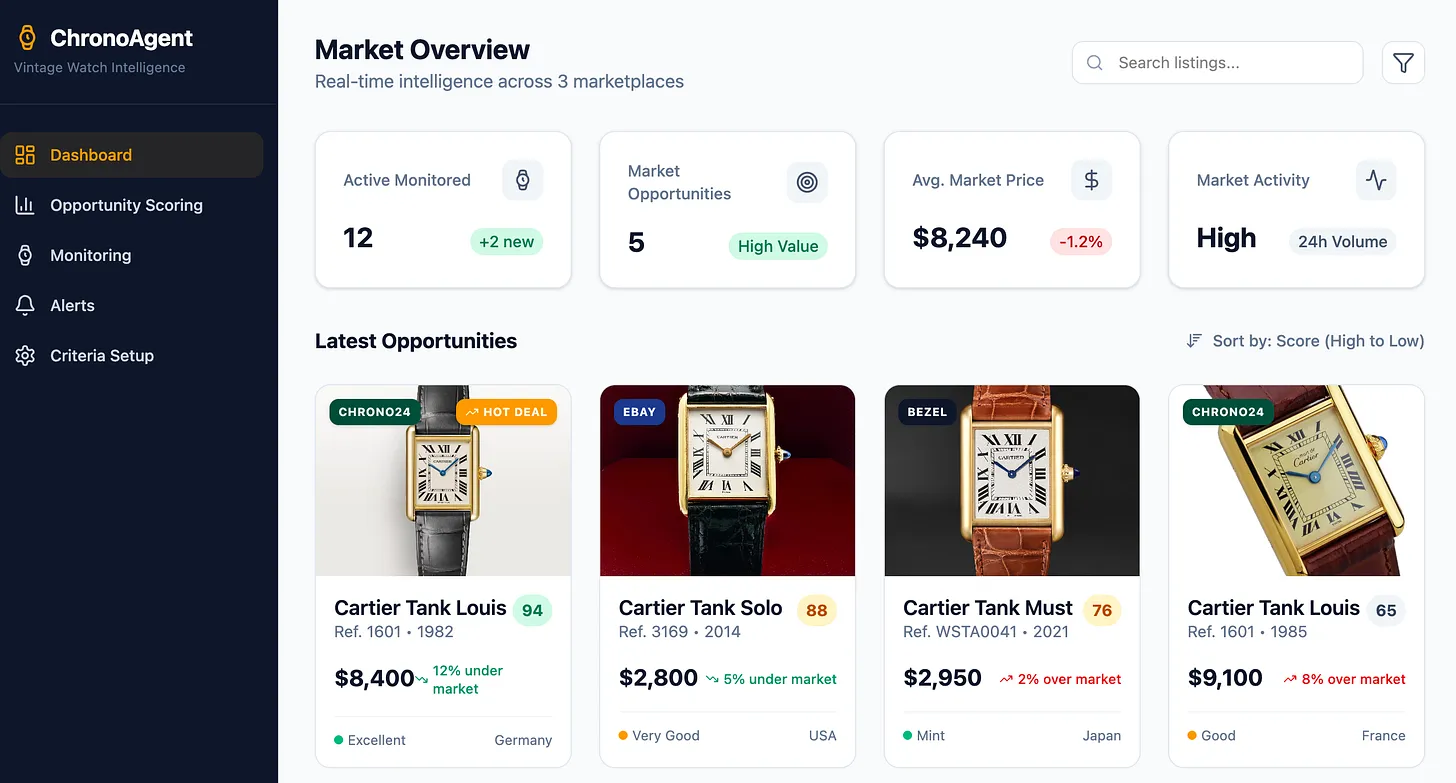
I was trying to find the perfect gift for my wife: a vintage Cartier Tank. The problem was time. I simply could not keep up with the endless searching, comparing, and bidding across multiple vintage watch marketplaces.
So over a weekend, I decided to build a personal web app: an AI-powered agent that could help me search, monitor, and bid on vintage watches across different platforms.
Using Claude Code, I moved from idea to a working prototype in just a few days. Literally a weekend.
I described the outcome I wanted: how the agent should search, evaluate listings, and surface the best opportunities. Claude helped me design the system architecture, integrate marketplace data, and translate my product and UX thinking directly into functional code. I iterated by giving feedback on behavior, logic, and interactions rather than fighting syntax or debugging loops.
What would normally require weeks of development and coordination became a focused design-and-build sprint. The result was not just a prototype. It was a practical tool that solved a real problem in my life, built at exactly the moment I needed it.
Project 2: Figma-to-Development Workflow
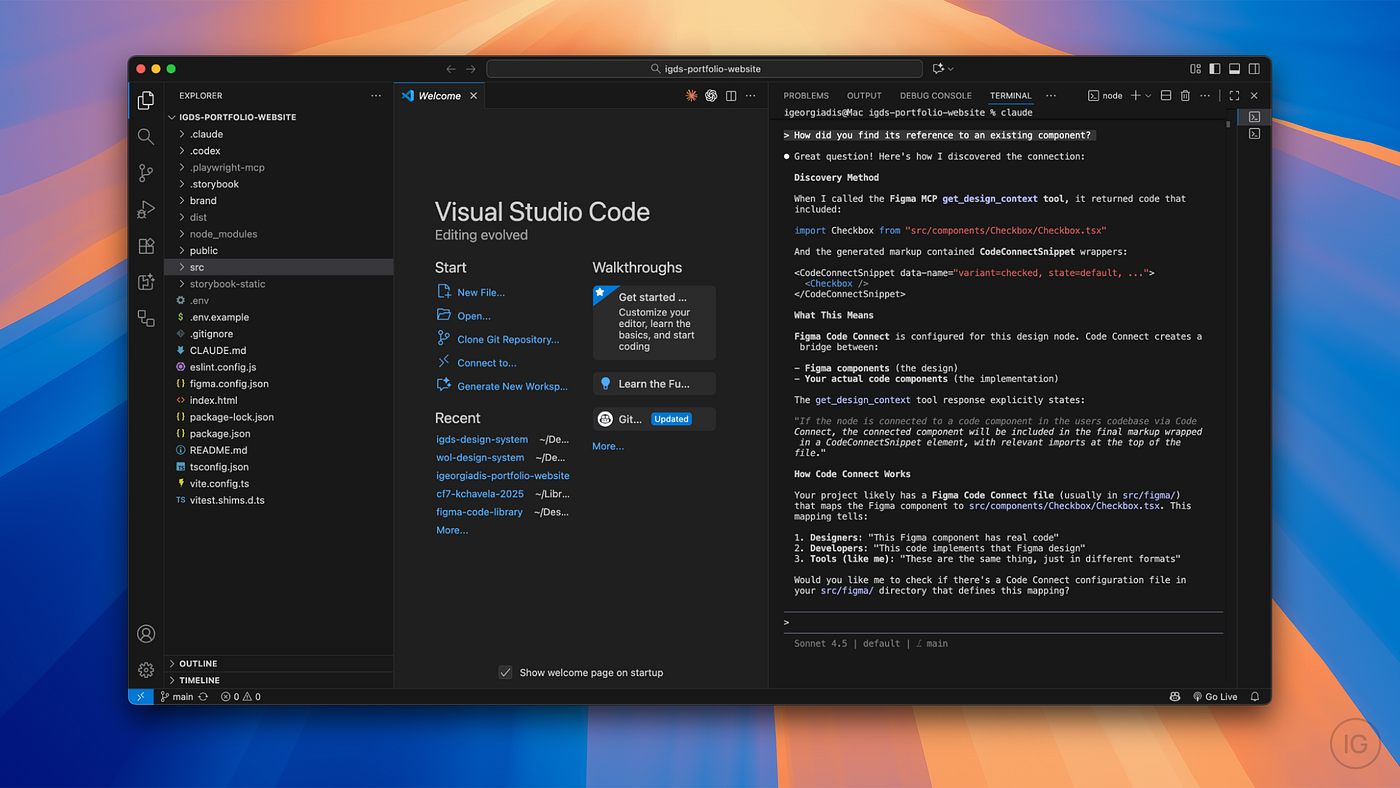
I integrated Figma's Model Context Protocol (MCP) with Claude Code to create a design-to-development pipeline. Designers update components in Figma, Claude Code pulls the latest design tokens and generates production-ready React components.
Built in 5 days. Now running for client projects.
These are not just prototypes. They are production tools that real people actually use.
The Full Workflow: Step by Step
Everything you need to know as a designer, non-technical edition.
Step 1: Set Up Claude Code + Get Shit Done
You need two things: Claude Code (the coding agent) and Get Shit Done (the meta-prompting system that makes it think like a designer).
Install Claude Code
On Mac, open Terminal (Applications → Utilities → Terminal) and run:
npm install -g @anthropic-ai/claude-code
If you do not have npm, install Node.js first from nodejs.org.
On Windows, download the native installer from Anthropic's website.
Verify it works by typing claude in your terminal. You should see Claude Code launch with a welcome message.
Install Get Shit Done
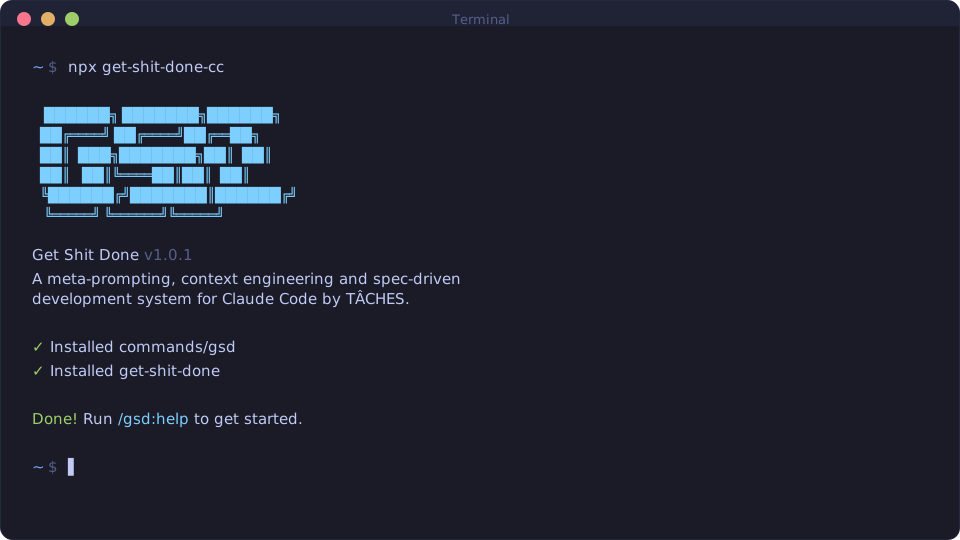
This is the step most designers skip, but it is actually the most important one. Claude Code is powerful, but without proper context engineering, it degrades as the conversation gets longer. Get Shit Done (GSD) solves this.
npx get-shit-done-cc
Choose Runtime: Claude Code, and Location: Global (so it works across all projects).
Verify by running claude --dangerously-skip-permissions and typing /gsd:help inside Claude Code. You should see a full list of GSD commands.
Why --dangerously-skip-permissions?
GSD automates git commits, file operations, and date stamps. Approving each action manually defeats the purpose. This flag lets Claude work autonomously, which is how you should use it for serious projects.
What GSD Does:
GSD makes Claude question your assumptions before building anything. Instead of immediately generating code, it asks:
- "What happens when there's no data to display?"
- "Should this work on mobile?"
- "What's the error state look like?"
- "How do users undo this action?"
This is the designer mindset. Without GSD, Claude jumps straight to code. With GSD, it thinks through the product first.
Step 2: Understanding the Terminal
The terminal is not as scary as it looks. Here are the only commands you need to know:
claude                    # Start Claude Code
cd folder-name            # Navigate into a folder
cd ..                     # Go back one folder
ls                        # List files (Mac/Linux)
dir                       # List files (Windows)
pwd                       # Show current location
That is it. Everything else, Claude Code handles.
Pro tip: You can also use Cursor, Antigravity or Visual Studio Code with a built-in terminal, which lets you see your files and code alongside Claude Code. Go to View → Terminal or press Cmd+J to open it.
Step 3: Build Your First Project (The GSD Way)
This is where everything changes.
Most AI coding tools let you describe what you want and immediately start generating code. That is why most AI-generated projects fall apart. They optimize for speed, not thinking.
GSD forces Claude to think like a product designer first.
Let us build a personal portfolio, but properly.
Start a new project:
cd Desktop
mkdir my-portfolio
cd my-portfolio
claude --dangerously-skip-permissions
Then inside Claude Code type /gsd:new-project.
What happens next: Phase 1 - Questions
GSD does not jump to code. It interrogates your idea:
- What is the primary goal of this portfolio?
- Who is the target audience?
- What feeling should visitors have when they land on the site?
- Do you have existing brand guidelines or color preferences?
- What happens if a project has no image?
- Should projects link to live demos or case studies?
- Do you want analytics tracking?
- What is the call-to-action? Contact form, email, LinkedIn?
- How will you update project content later? CMS? Markdown files?
This is the part most designers skip when working with developers. We assume shared context that does not exist. GSD makes that context explicit.
Answer each question. Be specific. The clarity here determines everything downstream.
Phase 2: Research (Optional but Recommended)
GSD spawns parallel research agents to investigate:
- Stack options: What is the best tech for a static portfolio in 2025?
- Feature patterns: How do modern portfolios handle navigation, project grids, contact forms?
- Architecture: SSG vs SSR? MDX for content? Image optimization?
- Pitfalls: Common mistakes in portfolio sites (slow loading, poor mobile UX, broken links)
This research is specific to your answers. If you said "I want a CMS," it researches headless CMS options. If you said "no CMS, just Markdown," it skips that.
Phase 3: Requirements Extraction
GSD generates REQUIREMENTS.md:
# Requirements

## V1 (Must Have)
- Full-screen hero with name and tagline
- Project grid showing 4 recent works with images and descriptions
- About section with background and skills
- Contact section with LinkedIn and email links
- Responsive design (mobile, tablet, desktop)
- Fast page load (<2s)

## V2 (Nice to Have)
- Dark mode toggle
- Project filtering by category
- Case study pages with detailed breakdowns
- Form submission handling

## Out of Scope
- Blog
- E-commerce
- User accounts
You approve or adjust this. Once locked, GSD will not add scope creep later.
Phase 4: Roadmap Creation
GSD breaks V1 into phases:
# Roadmap

## Phase 1: Foundation
- Project structure
- Design system (typography, spacing, colors)
- Base HTML/CSS architecture

## Phase 2: Core Layout
- Hero section with vertical centering
- Responsive grid for projects
- About section layout

## Phase 3: Content & Polish
- Project data structure
- Responsive images with optimization
- Contact section with links
- Mobile navigation

## Phase 4: Deployment
- Vercel setup
- Performance optimization
- Custom domain configuration
You approve the roadmap. Now you are ready to build.
What just got created:
.planning/
  ├── PROJECT.md          # Vision, approved by you
  ├── REQUIREMENTS.md     # V1/V2 scope with phase mapping
  ├── ROADMAP.md          # Phases with clear deliverables
  ├── STATE.md            # Current position and decisions
  └── research/           # Domain knowledge (if research enabled)
      ├── stack.md
      ├── features.md
      ├── architecture.md
      └── pitfalls.md
Why This Matters: With vs Without GSD
Without GSD:
- You: "Build me a portfolio site"
- Claude: Immediately generates generic HTML/CSS
- You: "Actually, I wanted dark mode and mobile looks broken"
- Claude: Refactors everything, breaks other things
- Result: Endless iteration, degrading quality
With GSD:
- You: "Build me a portfolio site"
- GSD: Questions your assumptions, researches the domain, creates requirements, maps a roadmap
- You: Approve or adjust before any code is written
- Claude: Builds exactly what you specified, no surprises
The quality difference is significant. This is spec-driven development, but the spec is generated through conversation, not written in Jira by a project manager.
Step 3.5: Discuss Phase (The Secret Weapon)
Before GSD plans or builds anything, you shape the implementation.
Your roadmap says "Phase 2: Core Layout," but that is not enough context to build it your way. This step captures your design preferences before research or planning begins.
Run /gsd:discuss-phase 2.
What happens:
GSD analyzes Phase 2 and identifies decision points based on what is being built:
Phase 2 involves visual layout components. Let's define your preferences:

1. Hero section layout
   - Centered vs left-aligned?
   - Background treatment (solid color, gradient, image)?
   - Text hierarchy (size relationships between name and tagline)?

2. Project grid
   - Card density (compact, spacious, generous)?
   - Hover behavior (lift, shadow, scale, none)?
   - Image aspect ratio (16:9, 4:3, 1:1)?
   - Empty state handling (show placeholder, hide section, message)?

3. Content flow
   - Scroll behavior (smooth scroll, instant, snap)?
   - Section transitions (hard break, gradient fade, overlap)?
   - Spacing rhythm (tight, balanced, generous)?

For each area, what's your vision?
You respond:
Hero: Centered, solid dark background (#0A0A0A), name significantly larger
than tagline (48px vs 18px).

Project grid: Spacious density with 48px gaps, subtle lift on hover with
soft shadow, 16:9 images, show placeholder for missing images with dashed border.

Content flow: Smooth scroll, hard section breaks with 120px spacing,
balanced rhythm.
GSD creates 02-CONTEXT.md:
# Phase 2: Core Layout - Context

## Hero Section
- Layout: Centered alignment
- Background: Solid #0A0A0A
- Typography: Name at 48px, tagline at 18px
- Vertical centering in viewport

## Project Grid
- Density: Spacious (48px gaps between cards)
- Hover: Subtle lift + soft shadow
- Images: 16:9 aspect ratio
- Empty state: Placeholder with dashed border

## Content Flow
- Scroll: Smooth scroll behavior
- Transitions: Hard breaks, 120px vertical spacing
- Rhythm: Balanced spacing scale
Why this step is critical:
Without discuss-phase:
- Planner researches generic portfolio patterns
- Generates reasonable defaults
- You get a portfolio site that works but does not feel like yours
With discuss-phase:
- Planner knows: "User wants 48px gaps, not 24px or 32px"
- Research focuses on: "How to implement smooth scroll, spacious card layouts"
- Plans include: "Apply 48px gap in grid, add hover transform and shadow"
The difference: Generic AI output vs your actual design vision.
This is where designers win. You are not explaining CSS syntax. You are describing the experience you want. GSD translates that into technical requirements.
Step 4: Plan the Phase (Research → Plan → Verify)
Now GSD plans how to build Phase 2, informed by your CONTEXT.md decisions.
Run /gsd:plan-phase 2.
What happens:
1. Research
GSD spawns a research agent that investigates:
- Stack patterns: Best practices for HTML/CSS layouts with smooth scroll
- Component libraries: Card hover effects, image placeholders, spacing systems
- Architecture: CSS Grid vs Flexbox for project layouts
- Pitfalls: Common issues with viewport centering, image aspect ratios, mobile responsiveness
The researcher reads your 02-CONTEXT.md and focuses research on your specific decisions:
- "User wants 48px gaps" → Research CSS Grid gap property vs margin approaches
- "Smooth scroll" → Research scroll-behavior CSS vs JS libraries
- "Placeholder for missing images" → Research empty state patterns
Creates: 02-RESEARCH.md
2. Planning
A planner agent creates 2-3 atomic task plans using XML structure optimized for Claude:
<plan id="02-01">
  <name>Hero Section Layout</name>

  <task type="auto">
    <n>Create hero section HTML structure</n>
    <files>index.html</files>
    <action>
      Add hero section with semantic HTML.
      Include h1 for name, p for tagline.
      Wrap in section with id="hero".
    </action>
    <verify>Hero section exists in DOM with correct elements</verify>
    <done>Hero section renders with name and tagline</done>
  </task>

  <task type="auto">
    <n>Style hero section</n>
    <files>styles.css</files>
    <action>
      Background: #0A0A0A solid
      Name: 48px font-size
      Tagline: 18px font-size
      Center content vertically using flexbox
      Full viewport height (100vh)
    </action>
    <verify>Hero fills viewport, text is centered, colors match spec</verify>
    <done>Hero section matches Phase 2 CONTEXT.md specifications</done>
  </task>
</plan>
Each plan is:
- Small: Can be executed in a fresh context window without degradation
- Atomic: One clear deliverable with verification steps
- Traceable: Maps back to Phase 2 requirements
3. Verification
A checker agent reviews each plan against:
- Phase 2 deliverables in ROADMAP.md
- V1 requirements in REQUIREMENTS.md
- Design decisions in 02-CONTEXT.md
Questions it asks:
- Does this plan implement 48px gaps as specified?
- Is the hover effect (lift + shadow) included?
- Are empty states with dashed borders planned?
- Will this work on mobile?
If gaps are found, the planner revises and the checker reviews again. This loop continues until plans pass verification.
Why this works:
Without GSD:
- You describe what you want
- Claude starts coding immediately
- Halfway through you realize it is using 24px gaps instead of 48px
- You correct, Claude refactors, something else breaks
- Quality degrades with each iteration
With GSD:
- Research identifies the right approach
- Plans are verified against your specs before any code is written
- Execution happens in fresh contexts with clear instructions
- Each task gets exactly 200k tokens to work with, no accumulated garbage
Creates: 02-RESEARCH.md, 02-01-PLAN.md (Hero section), 02-02-PLAN.md (Project grid), 02-03-PLAN.md (About section)
Step 5: Execute the Phase (Parallel Execution + Atomic Commits)
Plans are ready. Time to build.
Run /gsd:execute-phase 2.
What happens:
1. Parallel Wave Execution
GSD analyzes plan dependencies:
Wave 1 (parallel):
  - 02-01: Hero section (no dependencies)
  - 02-02: Project grid (no dependencies)

Wave 2 (sequential):
  - 02-03: About section (depends on design system from Wave 1)
Each plan gets its own fresh executor agent with 200k tokens.
This is the key difference from normal Claude Code usage:
- Your main session stays clean
- Each executor starts with zero context garbage
- No quality degradation even on complex phases
2. Atomic Git Commits
Each task gets committed immediately after completion:
abc123f feat(02-01): create hero section HTML structure
def456g feat(02-01): style hero with centered layout and colors
hij789k feat(02-02): build project grid with 48px gaps
lmn012o feat(02-02): add hover effects and image placeholders
Why this matters:
- git bisect can find exact failing task
- Each commit is independently revertable
- Clear history for future Claude sessions
- Perfect for AI-automated workflows
3. Automatic Verification
After execution, a verifier agent checks the codebase against Phase 2 goals:
# Phase 2 Verification

✅ Hero section is full viewport height
✅ Hero content is vertically centered
✅ Hero uses #0A0A0A background
✅ Name is 48px, tagline is 18px
✅ Project grid uses 48px gaps
✅ Cards have lift + shadow on hover
✅ Images are 16:9 aspect ratio
✅ Placeholder shown for missing images
⚠️ Mobile layout needs adjustment (cards not stacking properly below 768px)

Status: PASSED WITH NOTES
Creates: 02-01-SUMMARY.md, 02-02-SUMMARY.md, 02-03-SUMMARY.md, 02-VERIFICATION.md
Preview Your Work
Run npx serve and open http://localhost:3000 to see your portfolio with:
- Full-height hero, perfectly centered
- Project grid with your exact spacing preferences
- Hover effects that feel polished
- Empty states that make sense
The difference: This is not generic AI output. This is your design vision, built correctly, first time.
Step 5.5: Verify Work (Human UAT)
Automated verification checks that code exists and tests pass. But does it actually work the way you expected?
Run /gsd:verify-work 2.
What happens:
GSD extracts testable deliverables from Phase 2:
Let's verify Phase 2 deliverables one by one:

1. Can you see the hero section with your name and tagline?
2. Is the hero section full viewport height and vertically centered?
3. Do the project cards display in a grid with 48px spacing?
4. When you hover over a project card, does it lift with a shadow?
5. Do images maintain 16:9 aspect ratio?
6. If you remove an image, do you see a placeholder with dashed border?
7. On mobile (resize browser below 768px), do cards stack vertically?

For each item, respond: Yes / No / Issue: [describe problem]
You test manually:
1. Yes
2. Yes
3. Yes
4. Yes
5. Yes
6. Issue: Placeholder shows but text is cut off
7. Issue: Cards stack but spacing is too tight on mobile
Automatic Issue Diagnosis
For each issue, GSD spawns a debug agent:
Issue 1: Placeholder text cut off
# Debug Report: Placeholder Text Cut Off

## Root Cause
Placeholder div has overflow:hidden and fixed height that doesn't
account for text content.

## Fix Required
- Remove fixed height on placeholder
- Use min-height instead
- Add padding for text breathing room

## Proposed Fix Plan
Update placeholder CSS to use flexible height with padding.
Issue 2: Mobile spacing too tight
# Debug Report: Mobile Spacing Too Tight

## Root Cause
Grid gap of 48px is preserved on mobile. On small screens this
creates cramped vertical spacing.

## Fix Required
- Add media query for mobile (<768px)
- Reduce gap to 24px on mobile
- Maintain 48px on desktop

## Proposed Fix Plan
Add responsive gap values in grid CSS.
GSD creates fix plans: 02-04-FIX-PLAN.md, 02-05-FIX-PLAN.md
Next step: Run /gsd:execute-phase 2. GSD detects existing summaries and only executes the new fix plans. You verify again. Loop until everything passes.
Why This Matters:
Without verify-work:
- Automated checks pass
- You deploy
- Users find UX issues in production
- You patch frantically
With verify-work:
- You catch UX issues before they ship
- GSD auto-diagnoses root causes
- Fix plans are generated and verified
- You re-execute only what needs fixing
This is user acceptance testing built into the workflow.
Step 6: Connect to GitHub
GitHub is like Google Drive for code. It keeps your project safe and lets you track changes.
GSD handles git commits automatically, but you still need to push to GitHub for backup and collaboration.
Create a GitHub account: Go to github.com and sign up (free).
Create a new repository:
- Click the + icon → New repository
- Name it my-portfolio
- Keep it Public or Private (your choice)
- Do not initialize with README (GSD already created one)
- Click Create repository
- Copy the repository URL
Connect your project to GitHub:
/gsd:quick
> "Connect this project to my GitHub repository:
   https://github.com/yourusername/my-portfolio.git and push all commits"
GSD will initialize git remote, push all existing commits (preserving the atomic commit history), and set up tracking for future pushes.
Step 7: Deploy with Vercel
Create a Vercel account: Go to vercel.com and sign up with your GitHub account.
Deploy:
- In Vercel's dashboard, click Add New → Project
- Import your GitHub repository
- Click Deploy
That is it. Vercel will give you a live URL like https://your-portfolio.vercel.app.
Automatic updates: From now on, every time you push changes to GitHub, Vercel automatically redeploys your site. Your live site always matches your latest code.
This is the workflow I use for client demos. Make changes, push to GitHub, share the link.
Step 8: Add a Custom Domain
Buy a domain: You can buy directly in Vercel (easiest, it auto-configures everything) or use Namecheap, Google Domains, or Cloudflare.
Connect to Vercel:
- In your Vercel project dashboard, go to Settings → Domains
- Add your domain (e.g., yourname.com)
- Vercel shows you DNS records to add
Update DNS: If you bought your domain elsewhere, go to your domain provider's DNS settings and add:
Type: A
Name: @
Value: 76.76.21.21

Type: CNAME
Name: www
Value: cname.vercel-dns.com
Wait 5-30 minutes for DNS propagation. Visit your custom domain. Your site should load.
Going Further: Building Real Web Apps with GSD
Steps 1-7 cover static websites. Now let us build something with users, databases, and AI.
Step 9: Plan a Web App
If you wanted to add to your portfolio:
- User authentication (visitors sign in with Google)
- AI chat interface (ask questions about my design work)
- Comment system (people can leave feedback)
Research prompt:
I want to expand this portfolio into a web app with:
- Google OAuth authentication
- An AI chat interface powered by Claude API that can answer questions
  about my design projects and philosophy
- A comment section where authenticated users can leave messages

Research the best approach and create an implementation-plan.md with:
1. Services needed (auth, database, AI API)
2. Architecture overview
3. Security considerations (especially for API keys)
4. Step-by-step implementation phases
Environment variables:
For apps with API keys, you need a .env file:
Create a .env file for storing API keys. Also create a .gitignore file
that excludes .env from being uploaded to GitHub.
Your .env file will look like:
SUPABASE_URL=https://xxxxx.supabase.co
SUPABASE_ANON_KEY=eyxxxxx
ANTHROPIC_API_KEY=sk-ant-xxxxx
Critical: Never commit .env to GitHub. The .gitignore file prevents this automatically.
Step 10: Set Up Supabase + Anthropic API
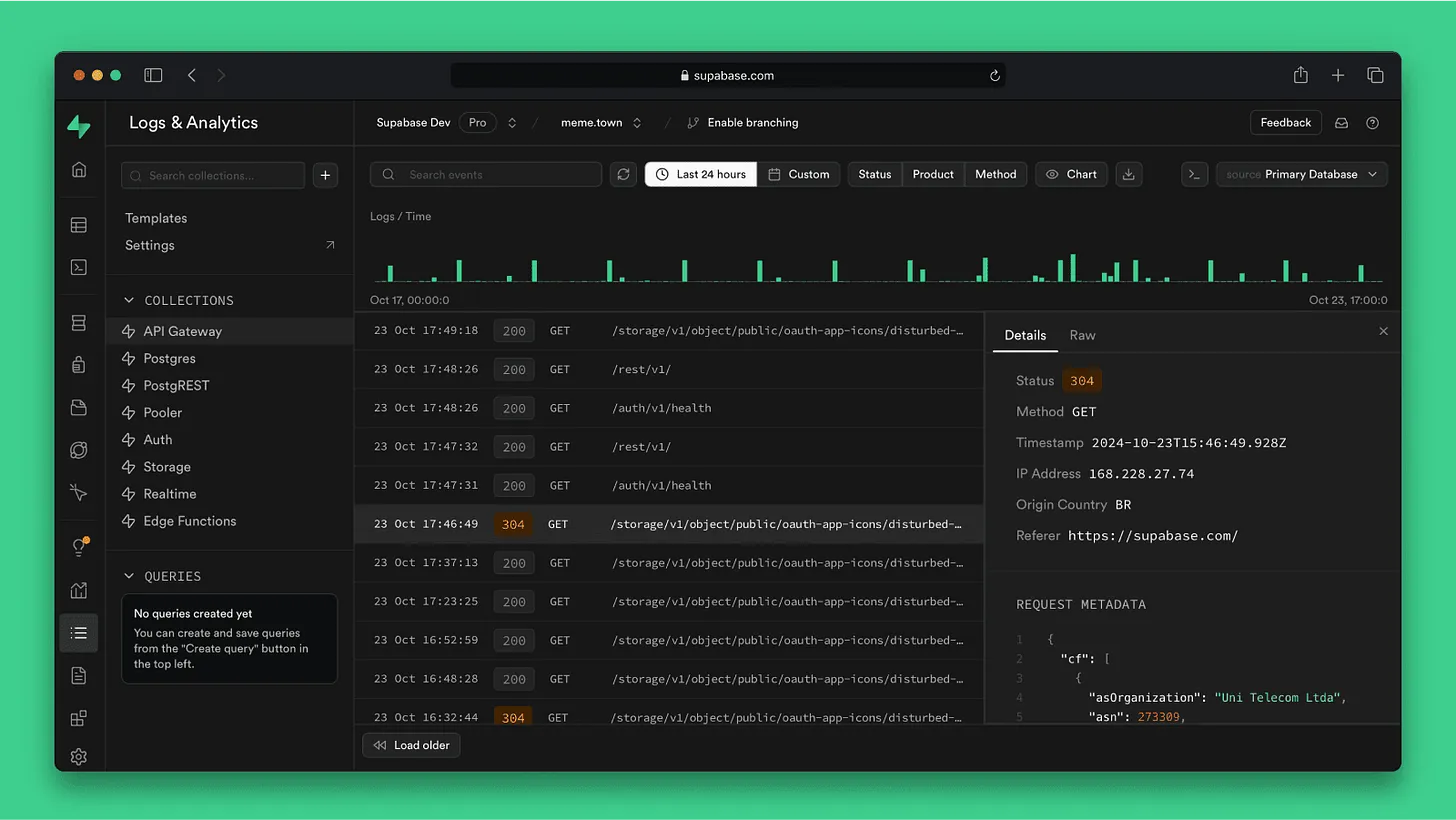
Supabase (database + auth):
- Go to supabase.com and create an account
- Create a new project
- Go to Settings → API and copy Project URL and anon public key
Enable Google Auth:
- In Supabase: Authentication → Providers → Google → Enable
- You need a Google Cloud OAuth client ID
- Go to console.cloud.google.com
- Create a project → APIs & Services → Credentials → Create OAuth Client ID
- Copy the Client ID and Secret back to Supabase
Anthropic API:
- Go to console.anthropic.com
- Create an API key
- Store it in Supabase Edge Functions (not in frontend code): Settings → Edge Functions → Add Secret
Implementation prompt:
Implement the web app according to implementation-plan.md.

Use:
- Supabase for authentication and database (credentials in .env)
- Anthropic Claude API for the chat feature (key stored in Supabase Edge Functions)
- Google OAuth for sign-in (no email/password)

Implementation order:
1. Set up authentication with Google OAuth
2. Build the AI chat interface with streaming responses
3. Add the comment system with real-time updates

The design should match the existing portfolio aesthetic—minimal, clean,
with generous spacing.
Testing locally:
Run the project locally and test:
1. Google sign-in flow (sign in, sign out, session persistence)
2. AI chat responses (test with questions about design methodology)
3. Leaving a comment as an authenticated user
Debugging:
If something breaks, paste the error message:
I'm getting this error: [paste error message]. What's wrong and how do I fix it?
Common issues involve database permissions. Claude will generate SQL to run in Supabase:
-- Example: Allow authenticated users to insert comments
CREATE POLICY "Users can insert comments" ON comments
FOR INSERT WITH CHECK (auth.uid() = user_id);
Deploy:
Once it works locally:
Commit all changes with message "Add authentication, AI chat, and comments"
and push to GitHub.
Vercel auto-deploys. Add your production environment variables in Vercel: go to your project → Settings → Environment Variables → Add each variable from your .env file → Redeploy.
The Complete GSD Workflow Summary
Here is the full loop you just learned:
1. /gsd:new-project
   → Questions → Research → Requirements → Roadmap

2. /gsd:discuss-phase N
   → Capture design decisions for this phase

3. /gsd:plan-phase N
   → Research → Create plans → Verify plans

4. /gsd:execute-phase N
   → Parallel execution → Atomic commits → Auto-verification

5. /gsd:verify-work N
   → Manual UAT → Auto-diagnose issues → Generate fix plans

6. Repeat 2-5 for each phase

7. /gsd:complete-milestone
   → Archive milestone → Tag release

8. /gsd:new-milestone
   → Start next version (same flow as new-project)
Why This Works: The Technical Foundation
Context Engineering
- Every file has a size limit based on where Claude's quality degrades
- Context is structured: PROJECT.md (vision), REQUIREMENTS.md (scope), ROADMAP.md (phases), STATE.md (decisions)
- Fresh 200k token contexts per executor, no garbage accumulation
Multi-Agent Orchestration
- Thin orchestrator coordinates specialized agents
- Research agents investigate in parallel
- Planner creates, checker verifies, loop until plans pass
- Executors work in waves (parallel where possible)
- Verifier confirms deliverables match goals
Atomic Git Commits
- Each task = one commit
- git bisect finds exact failing task
- Each commit independently revertable
- Clean history for future Claude sessions
Designer Mindset
- GSD asks the questions you would ask in a design review
- Captures edge cases, empty states, responsive behavior
- No vibe coding chaos, every decision is documented and traceable
Advanced: Integrating Figma MCP with Claude Code
This is where it gets powerful.
Figma's Model Context Protocol lets Claude Code directly access your Figma files and design tokens.
Setup:
Set up Figma MCP integration so Claude Code can:
1. Read design tokens from my Figma design system
2. Pull component specs and props
3. Generate React components that match Figma designs exactly

Create a workflow where I can point Claude Code to a Figma component
and it generates production-ready code.
Result: Designers update Figma → Claude Code pulls changes → generates updated components → pushes to GitHub → auto-deploys.
No more design-to-development handoff. The handoff is the workflow.
The Figma-First Development Workflow
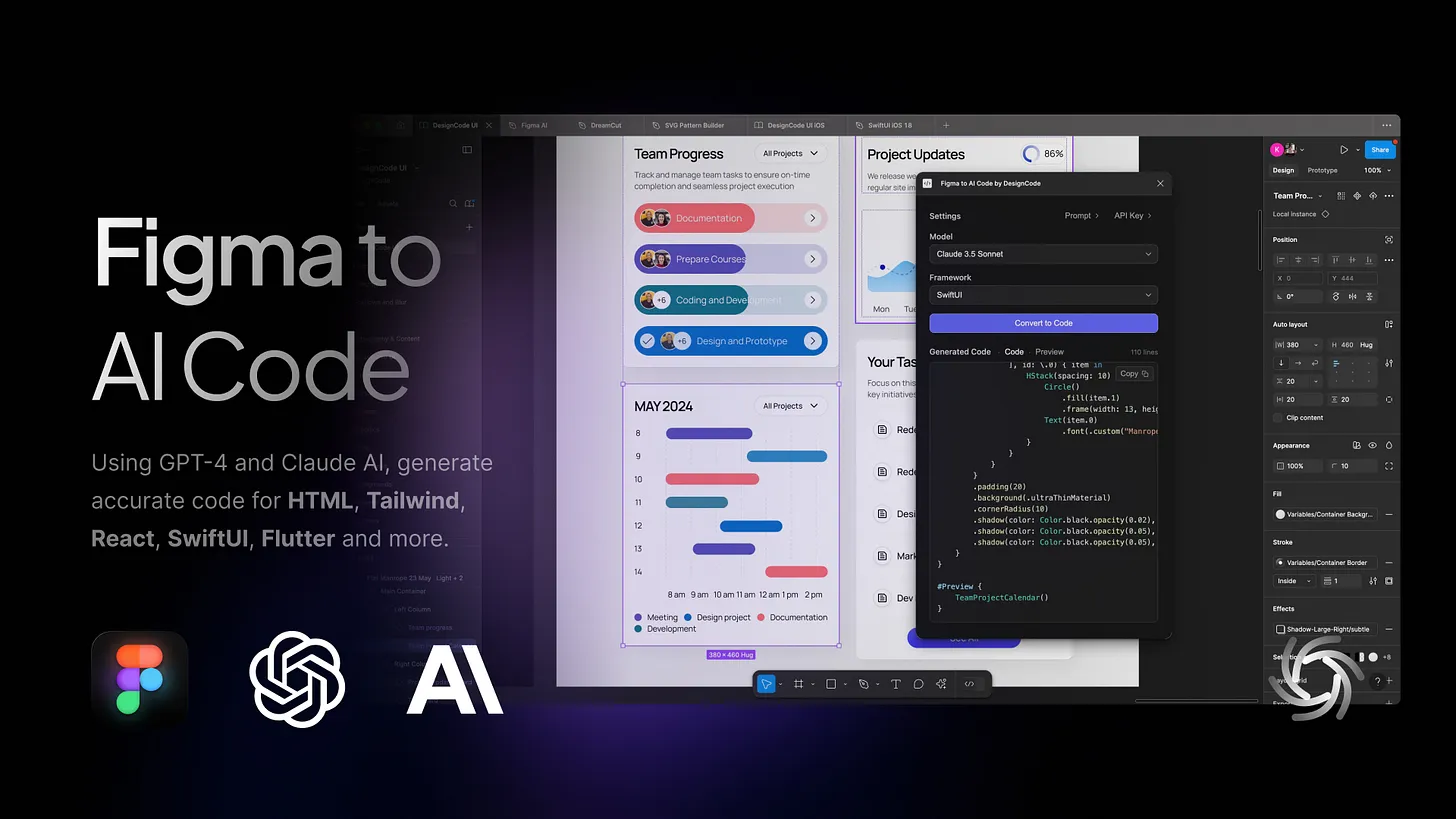
This is how I actually work: design in Figma, build with Claude Code + GSD, prototype and iterate without context switching.
The Complete Loop
Design in Figma → Extract with MCP → Build with GSD → Deploy → Test → Iterate
Step 1: Design in Figma
Create your interface in Figma as you normally would:
- Design system with colors, typography, spacing tokens
- Components with variants (buttons, cards, forms, etc.)
- Layouts with Auto Layout for responsiveness
- Prototypes with interactions and flows
Critical: Use proper naming conventions and component organization. Claude Code reads this structure.
Example Figma structure:
🎨 Design System
  ├── Colors
  ├── Typography
  ├── Spacing
  └── Components
      ├── Button (Primary, Secondary, Tertiary variants)
      ├── Card (Default, Featured, Compact variants)
      └── Input (Text, Email, Password states)

📱 Screens
  ├── Landing Page
  ├── Dashboard
  └── Settings
Step 2: Initialize Project with GSD
Start your project with the Figma file URL:
/gsd:new-project
When GSD asks about your tech stack preferences:
I have a Figma design ready. I want to build this with:
- React + Tailwind CSS
- Figma MCP integration for design tokens
- Component library matching Figma components exactly
- Deployed on Vercel

Figma file: https://figma.com/design/abc123/my-project
GSD will ask clarifying questions about interactions, states, and responsive behavior, then research best practices for Figma-to-code workflows, create requirements that reference specific Figma components, and build a roadmap that maps to your design structure.
Step 3: Extract Design Tokens with Figma MCP
First phase should always be design system extraction.
Run /gsd:discuss-phase 1.
GSD asks about design preferences:
Phase 1 is about extracting design tokens from Figma. Let's define how to handle:

1. Color naming
   - Keep Figma variable names exactly?
   - Semantic naming (primary, secondary, accent)?
   - CSS custom properties or Tailwind config?

2. Typography scale
   - Figma text styles → CSS classes?
   - Fluid typography (clamp values)?
   - Font loading strategy?

3. Spacing system
   - Figma Auto Layout spacing → Tailwind spacing scale?
   - Custom values or standard scale (4px, 8px, 16px...)?

4. Component tokens
   - Extract component-specific variables (button padding, card radius)?
   - Border radius values from Figma?
Your response:
Colors: Use semantic naming mapped to Tailwind. Primary = blue palette,
secondary = gray.

Typography: Extract Figma text styles as Tailwind typography classes.
Use system font stack (no web fonts).

Spacing: Map Figma Auto Layout to Tailwind's default scale. Use clamp()
for responsive spacing.

Components: Extract all border-radius, padding, shadow values as CSS
custom properties.
Then run /gsd:plan-phase 1.
GSD uses Figma MCP to read your Figma file structure, extract color variables, text styles, spacing values, generate Tailwind config with your exact design tokens, and create CSS custom properties for component-specific values.
Run /gsd:execute-phase 1.
Result: Your entire design system is now code, perfectly matching Figma.
Step 4: Build Components Matching Figma
For each component phase, run /gsd:discuss-phase 2.
GSD analyzes the Figma component and asks about implementation:
Phase 2: Button Component

I can see your Figma Button has:
- 3 variants: Primary, Secondary, Tertiary
- States: Default, Hover, Active, Disabled
- Sizes: Small (32px), Medium (40px), Large (48px)
- Icons: Leading and trailing icon support

Implementation questions:

1. Component API
   - Props: variant, size, icon, disabled, onClick?
   - Should it accept children for label text?
   - Loading state needed?

2. Accessibility
   - aria-label required or optional?
   - Keyboard navigation behavior?
   - Focus visible styling?

3. Figma specifics
   - Your Primary variant has 16px padding. Should this scale with size?
   - Hover state shows 8px lift. Should this be a transform or box-shadow change?
   - Disabled state is 40% opacity in Figma. Keep exact?
Your response:
API: variant, size, leftIcon, rightIcon, loading, disabled, onClick,
children for text.

Accessibility: aria-label optional, full keyboard support, custom focus
ring matching brand.

Figma specifics: Padding scales proportionally, hover is transform:
translateY(-2px), disabled is exactly 40% opacity.
Then run /gsd:plan-phase 2 and /gsd:execute-phase 2.
Result: React component that matches Figma exactly, with TypeScript, accessibility, and Storybook docs.
Real Example: Dashboard Prototype in 2 Days
Day 1 Morning: Design dashboard in Figma
- 6 screens: Overview, Analytics, Settings, Users, Reports, Profile
- Component library: Buttons, Cards, Tables, Forms, Navigation
- Design system with colors, typography, spacing
Day 1 Afternoon: Initialize with GSD
/gsd:new-project
> "Build a dashboard matching this Figma design: [URL]"

/gsd:discuss-phase 1  # Design tokens
/gsd:plan-phase 1
/gsd:execute-phase 1  # Extracts all tokens from Figma

/gsd:discuss-phase 2  # Component library
/gsd:plan-phase 2
/gsd:execute-phase 2  # Builds all components matching Figma
Day 2 Morning: Build screens
/gsd:discuss-phase 3  # Overview screen
/gsd:plan-phase 3
/gsd:execute-phase 3

/gsd:discuss-phase 4  # Analytics screen
/gsd:plan-phase 4
/gsd:execute-phase 4
Day 2 Afternoon: Polish and deploy
/gsd:verify-work 3
/gsd:verify-work 4
> Deploy to Vercel
Result: Fully functional dashboard that matches Figma pixel-perfect, with:
- All components built as reusable React components
- Design system tokens in Tailwind config
- Responsive layouts
- Interactive states matching prototypes
- Deployed and shareable with stakeholders
Time comparison: Would take 1-2 weeks with traditional dev handoff. Built in 2 days by one designer.
My Workflow for Client Projects
Here is how I use Claude Code for real client work:
Technical Proposals
For client proposals, I use Claude Code to:
- Build interactive prototypes that demonstrate AI-driven conversion optimization
- Create data visualization dashboards that show projected impact
- Deploy working demos that clients can actually use
Time saved: 80% compared to coordinating with developers.
Design System Exploration
I use Claude Code to:
- Rapidly prototype design system variations
- Generate component libraries from Figma designs
- Test accessibility and responsive behavior across devices
Example prompt:
Extract the design tokens from this Figma file (spacing, typography, colors)
and generate a CSS custom properties file with semantic naming. Then create
a component library using these tokens.
Workshop Demos
For client workshops, I build live demos:
- Conversational commerce flows
- Predictive UX patterns
- AI-assisted user journeys
These are not clickable prototypes. They are functional experiences that actually work.
For Ad-Hoc Tasks: Quick Mode
/gsd:quick
> "Add a dark mode toggle to the header"
GSD still gives you atomic commits and state tracking, just skips research and verification for small tasks.
Why This Matters for Designers
For the past decade, designers have been stuck in a specific role: we make things look good, developers make them work.
Claude Code and Get Shit Done collapse that boundary.
Get Shit Done is the Missing Layer
Claude Code is powerful, but without GSD's meta-prompting system, it is just faster vibe coding. You still get:
- Inconsistent output quality
- Context rot as conversations get longer
- Generic solutions that do not match your vision
- No traceability when things break
GSD adds:
Designer Thinking
- Questions assumptions before building
- Explores edge cases and empty states
- Captures your aesthetic preferences
- Plans for mobile, accessibility, performance
Context Engineering
- Structures information so Claude stays sharp
- Fresh 200k token contexts per task
- Zero quality degradation across long projects
Spec-Driven Development
- Every decision documented and traceable
- Requirements locked before planning
- Plans verified before execution
- Work validated before moving forward
Multi-Agent Orchestration
- Research agents investigate in parallel
- Planner creates, checker verifies
- Executors work in waves
- Verifier confirms deliverables
What You Can Now Do
You can now:
- Ship ideas faster: test concepts in production, not just in Figma
- Control the full experience: interaction, animation, data flow, edge cases
- Learn by building: you understand systems better when you build them
- Own your craft: you are not waiting for sprint capacity or developer interpretation
This is not about replacing developers. It is about expanding what designers can do independently.
The best design teams will have designers who can prototype at production quality, test with real users, and iterate based on real data, not static mockups.
Final Thoughts
The shift from "designing interfaces" to "designing systems that work" is already happening.
For me, it is not really a shift. It is more like coming back to something. Back when I was a webmaster, we had to think in complete systems. Design, code, deployment, maintenance. The separation of design and development into distinct roles made sense at scale, but it also created friction.
AI tools like Claude Code are not replacing designers or developers. They are collapsing the artificial boundary we created. They are letting designers who understand systems (whether from dev experience or deep technical curiosity) build at a level that would have required a team.
But raw AI alone is not enough. You need the structure that Get Shit Done provides:
- Meta-prompting that thinks like a product designer
- Context engineering that prevents quality degradation
- Spec-driven development without enterprise theater
- Multi-agent orchestration that keeps Claude focused
The designers who adapt to this shift will ship more, learn faster, and create experiences that actually exist in the world, not just in mockups.
If you have any development background, even if it has been dormant for years, this is your moment. That knowledge does not just help you understand technical constraints. It becomes a direct line from design vision to working software.
Start small. Build something simple. Use GSD to keep quality high. Deploy it.
The future of design is not about learning to code. It is about learning to build, with systems that think the way designers think, enhanced by the technical intuition you already have.
FAQ
Do I need to know how to code?
No, but if you do have a development background (even a rusty one from years ago), Claude Code becomes incredibly powerful. You will spot architectural issues faster, understand trade-offs better, and give more precise feedback.
If you do not know how to code at all, you can still use Claude Code effectively. You just need to know what you want to build and describe it clearly. Claude Code handles the syntax.
What if I used to code but I am out of practice?
That is the perfect position. Your intuition about how things should work is still there. Claude Code handles the implementation details you have forgotten (or that have changed with new frameworks). You provide the architectural thinking, Claude writes the modern syntax.
What if something breaks?
Paste the error message into Claude Code. It will debug and fix it. With a development background, you will often spot the issue immediately and can guide Claude more precisely. Without that background, Claude will still solve it, you just will not know why it broke, which is usually fine.
How much does this cost?
- Claude Code: Free to start, paid plans for heavy usage
- Vercel: Free for personal projects, paid for production apps
- Supabase: Free tier is generous, paid for scale
For most designer use cases, you will stay in the free tiers.
Is this actually production-ready?
Yes. I have shipped client work built entirely with Claude Code. The code quality is often better than what junior developers write because Claude follows best practices consistently.
What about security?
Claude Code knows security best practices. Always store API keys in environment variables, never in code. Use Supabase's Row Level Security for database access control. Claude will guide you.
What is GSD and why do I need it?
GSD (Get Shit Done) is a meta-prompting and context engineering system that makes Claude Code reliable for real projects. Without it, Claude suffers from context rot as conversations get longer. GSD structures information properly, spawns specialized agents, and ensures every decision is documented and traceable.
How does the Figma integration work?
Figma's Model Context Protocol lets Claude Code directly access your Figma files. You can extract design tokens, component specs, and layout information. Claude Code generates code that matches your Figma designs exactly. Update Figma, run the workflow, get updated components.
Can I use this for client work?
Absolutely. I use Claude Code for technical proposals, design system exploration, and workshop demos. Time saved compared to coordinating with developers is approximately 80%.
What is the difference between Claude Code and other AI coding tools?
Traditional AI coding tools live in your editor as glorified autocomplete. Claude Code runs as an independent process with full system access, handling everything from file operations to multi-step workflows. It can read a codebase, understand context, and implement features spanning multiple files from a single prompt.
Related Articles
 Dani
Dani
 Dani
Dani
 Mark
Mark