I need to make a confession. For the past three years, I've been wearing one of the best fitness trackers on the market and completely ignoring half of what it can do.
Like most Garmin users, I was obsessed with my daily steps, my running pace, my heart rate during workouts. I'd check my training load religiously after every run. I'd compare my VO2 max estimates month over month. But my sleep data? I'd glance at the sleep score each morning, see a number somewhere between 70 and 85, think "good enough," and move on with my day.
Then I hit a wall. Despite training consistently and eating well, I was waking up exhausted. My runs felt harder than they should. My energy would crash by mid-afternoon. I was sleeping seven to eight hours every night, so why did I feel like I was running on empty?
That's when I finally dove deep into my Garmin's sleep features — really deep — and discovered tools I'd been ignoring for years. What I found didn't just explain why I was tired. It gave me actionable insights that genuinely transformed my sleep quality over the following weeks.
I'm not exaggerating when I say these features changed how I approach sleep entirely. And based on conversations with other Garmin users, I'm far from the only one who's been missing out on these capabilities.
So let me walk you through the five hidden sleep features on your Garmin smartwatch that most people never explore, explain what they actually tell you about your body, and share how I've used them to wake up feeling genuinely rested for the first time in months.
Why Your Sleep Score Doesn't Tell the Whole Story
Before I get into the specific features, I want to address something that confused me for a long time. If you're like me, you probably look at your Garmin sleep score each morning and use that number to judge whether you slept well. Score above 80? Good night. Score below 70? Bad night. Simple, right?
The problem is that sleep quality is far more nuanced than a single number can capture. I've had nights with a sleep score of 82 where I woke up feeling terrible, and nights with a score of 71 where I felt surprisingly good. The score is a useful summary, but it's not the whole picture.
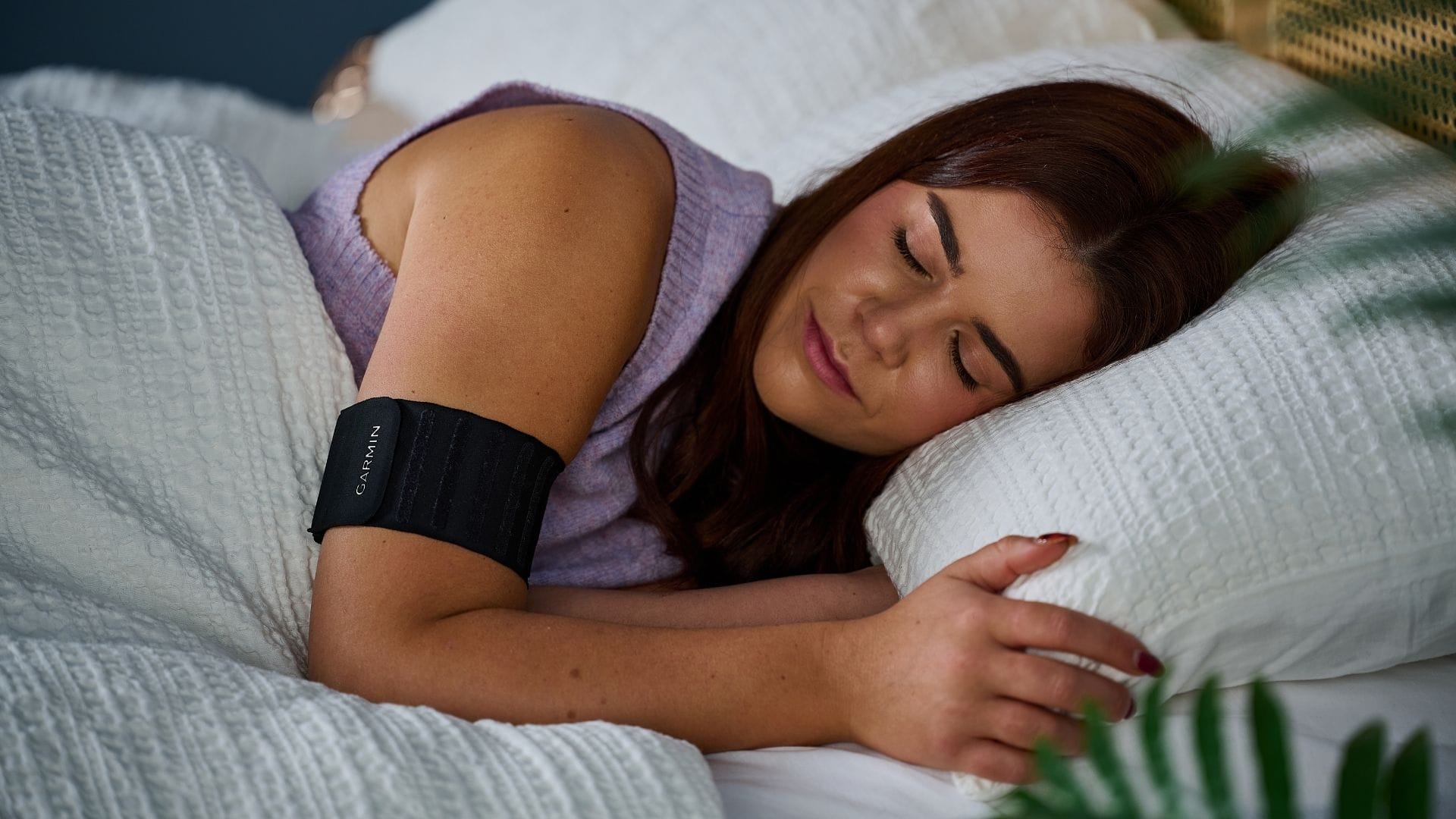
What I discovered is that Garmin collects incredibly detailed data about your sleep that goes far beyond that headline number. Your stress levels throughout the night. Your breathing patterns. Your heart rate variability. Your energy reserves. All of this information is sitting in your Garmin Connect app right now, waiting to be explored.
The sleep score is like looking at a restaurant's overall rating on Yelp. It gives you a general sense of quality, but it doesn't tell you whether the food is great but the service is slow, or the ambiance is perfect but the portions are small. To really understand your sleep, you need to look at the individual components.
That's what these five features allow you to do. They break down your sleep into specific, actionable metrics that explain not just whether you slept well, but why you did or didn't — and what you can do about it.
Feature 1: Overnight Stress Tracking
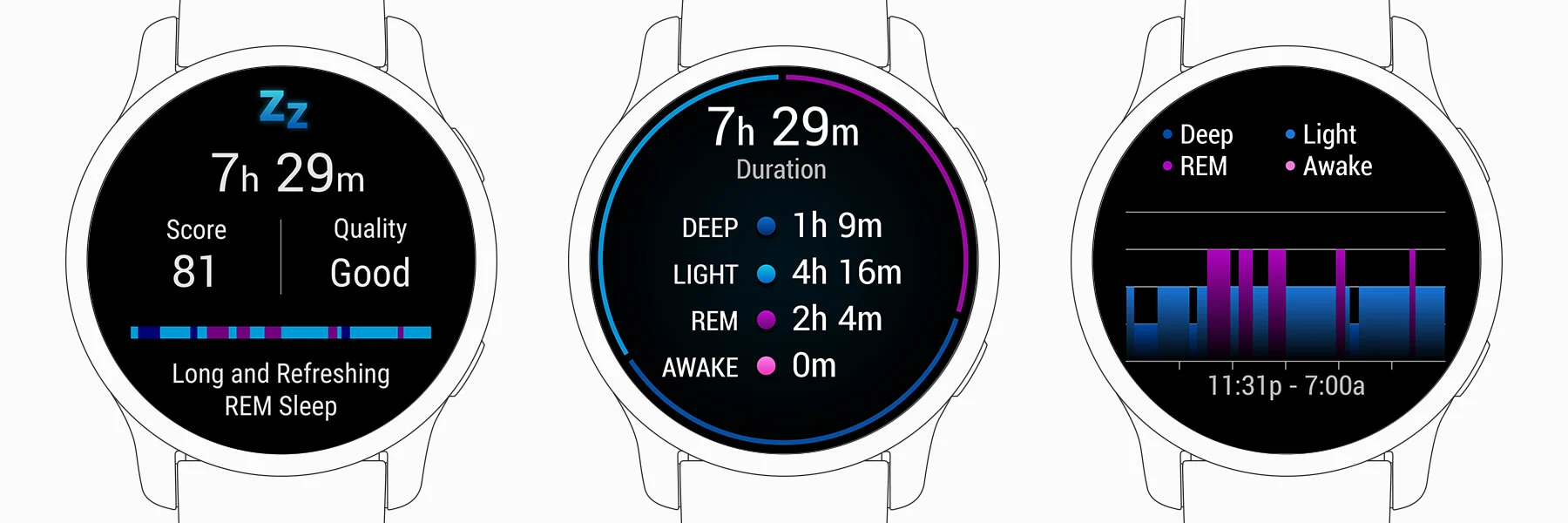
This is the feature that was most eye-opening for me, and it's the one I now check every single morning before anything else.
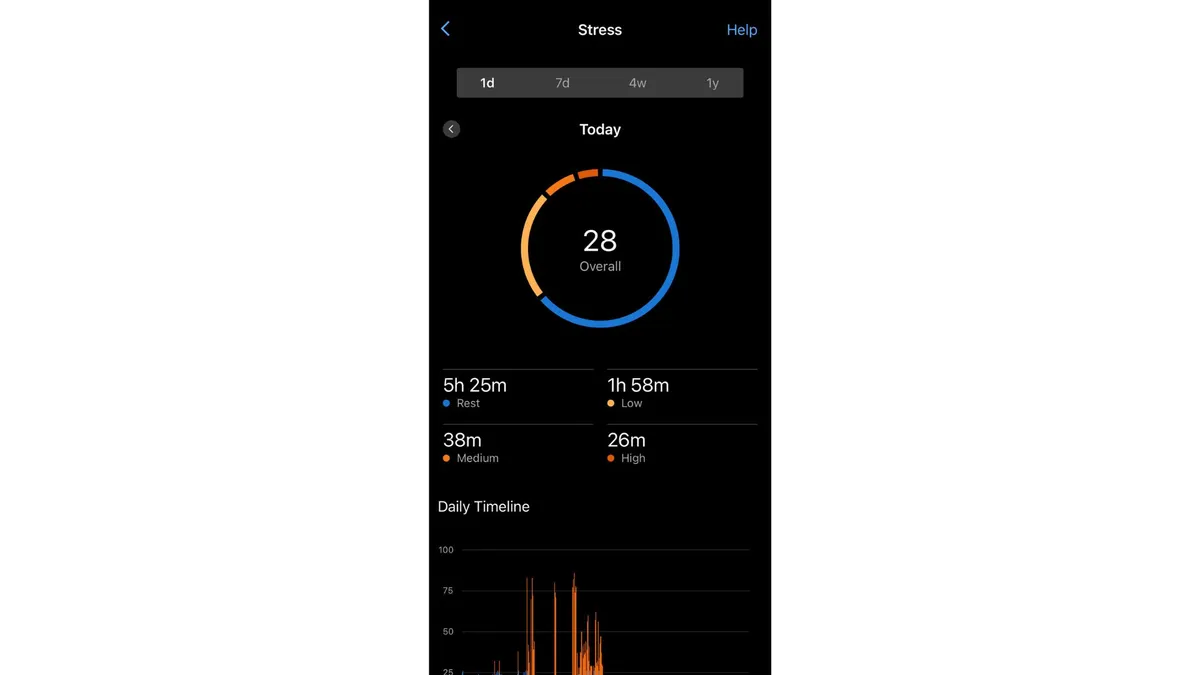
Your Garmin tracks your stress levels continuously, including while you sleep. In a healthy night of sleep, your stress should be in the blue "Rest" zone (below 25 on Garmin's scale) for essentially the entire night. Your body is supposed to be recovering, not working hard.
Here's where things get interesting. When I started actually looking at my overnight stress data, I noticed patterns I'd completely missed. On nights after I had a couple of glasses of wine with dinner, my stress levels would spike into the orange zone for hours while I slept. On nights when I ate a heavy meal close to bedtime, same thing. On nights when I was fighting off a cold before I even had symptoms, my overnight stress was elevated.
My body was telling me exactly what was disrupting my sleep, and I'd been ignoring the data for years.
The overnight stress chart in Garmin Connect shows your stress levels throughout your entire sleep period. You can see exactly when stress spikes occurred and how long they lasted. If you're seeing consistent orange or red bars during sleep — indicating moderate to high stress — that's a clear sign something is interfering with your body's ability to recover.
Common culprits include alcohol consumption (even moderate amounts), eating too close to bedtime, caffeine later in the day, intense exercise too close to sleep, high emotional stress, and the early stages of illness. The overnight stress data helps you identify which of these factors might be affecting you personally.
For me, the biggest revelation was alcohol. I'm not a heavy drinker, but I'd often have a beer or glass of wine with dinner without thinking about it. When I looked at my overnight stress patterns, the correlation was undeniable. Even one drink would keep my stress elevated for four to five hours into my sleep. No wonder I was waking up tired despite "good" sleep scores.
I didn't quit drinking entirely, but I became much more intentional about when I drink. No alcohol within four hours of bedtime, and I limit it to weekends when I can sleep in a bit longer. The difference in how I feel has been dramatic.
To find your overnight stress data, open the Garmin Connect app, tap on your sleep data for any given night, and scroll down to find the stress chart. Compare nights when you felt great upon waking to nights when you felt terrible, and look for patterns in your stress levels.
Feature 2: Body Battery
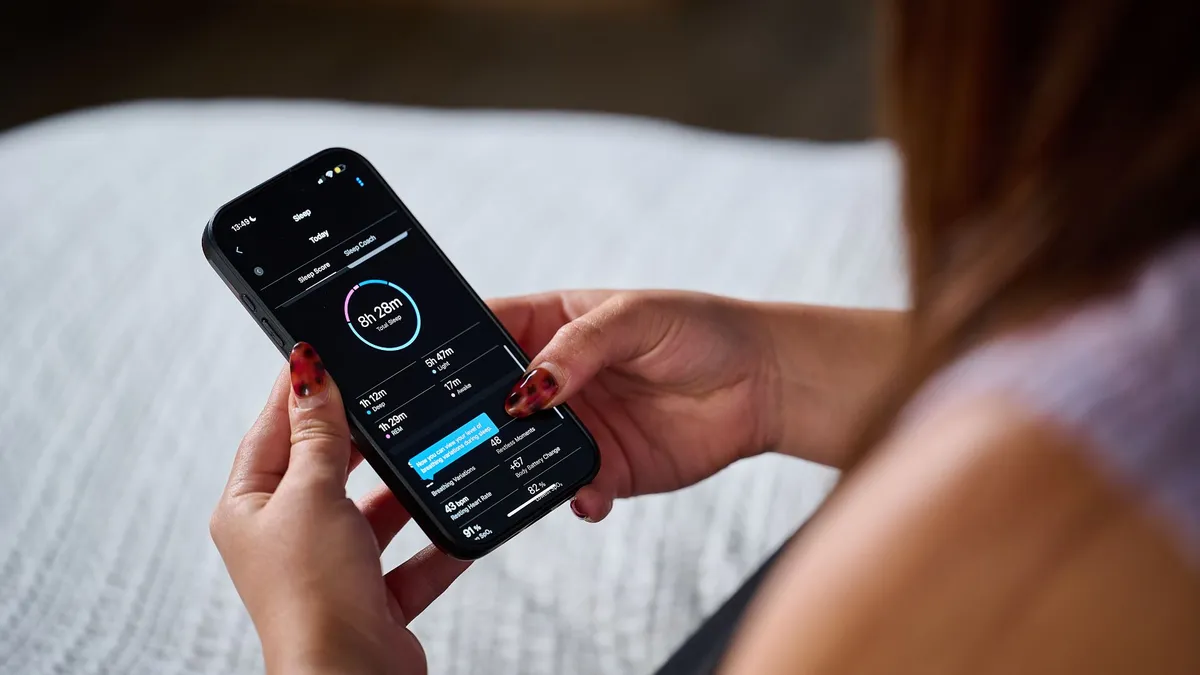
Body Battery might be my favorite Garmin feature overall, and it's transformed how I think about the relationship between sleep, activity, and recovery.
The concept is simple. Body Battery uses your heart rate variability, stress levels, sleep quality, and activity data to estimate your current energy reserves on a scale of 5 to 100. Think of it like a fuel gauge for your body. Good sleep charges it up. Stress and physical activity drain it down.
What makes Body Battery so useful for sleep is that it shows you exactly how much energy you're recovering during the night. A truly restorative night of sleep should charge your Body Battery significantly — ideally bringing you back up to 80 or above by morning. If you're sleeping for eight hours but only gaining 20-30 points of Body Battery, something is interfering with your recovery.
I started paying attention to my overnight Body Battery gain as a measure of sleep quality that was often more meaningful than the sleep score itself. Two nights might have similar sleep scores, but one might show a 50-point Body Battery gain while the other shows only a 25-point gain. That difference tells you something important about how restorative each sleep period actually was.
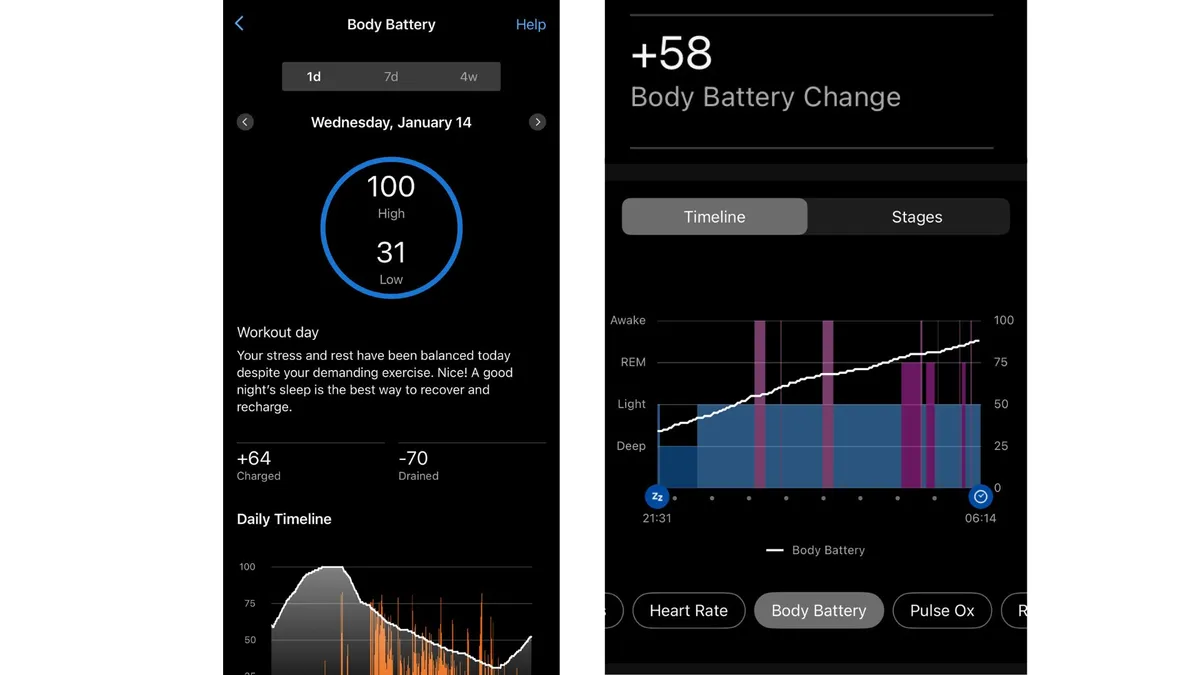
Body Battery also helps you understand when you need to prioritize sleep more aggressively. If you're starting your day with a Body Battery below 50, that's a clear signal your body needs more recovery. You might need to go to bed earlier, skip the morning workout, or find other ways to reduce your energy expenditure until you've recharged.
The trend data is particularly useful here. In Garmin Connect, you can look at your Body Battery patterns over weeks and months. I noticed that during particularly stressful periods at work, my average morning Body Battery was consistently lower — not because I was sleeping fewer hours, but because the quality of my recovery was compromised by stress.
This gave me objective data to justify prioritizing sleep more seriously. It's one thing to feel tired. It's another to see a clear downward trend in your recovery metrics that confirms your body genuinely needs more rest.
To make the most of Body Battery, check it first thing in the morning to see how well you recovered overnight. Note your starting level and compare it to days when you felt great versus days when you felt depleted. Over time, you'll develop intuition for what your body needs based on these numbers.
Feature 3: Respiration Rate During Sleep
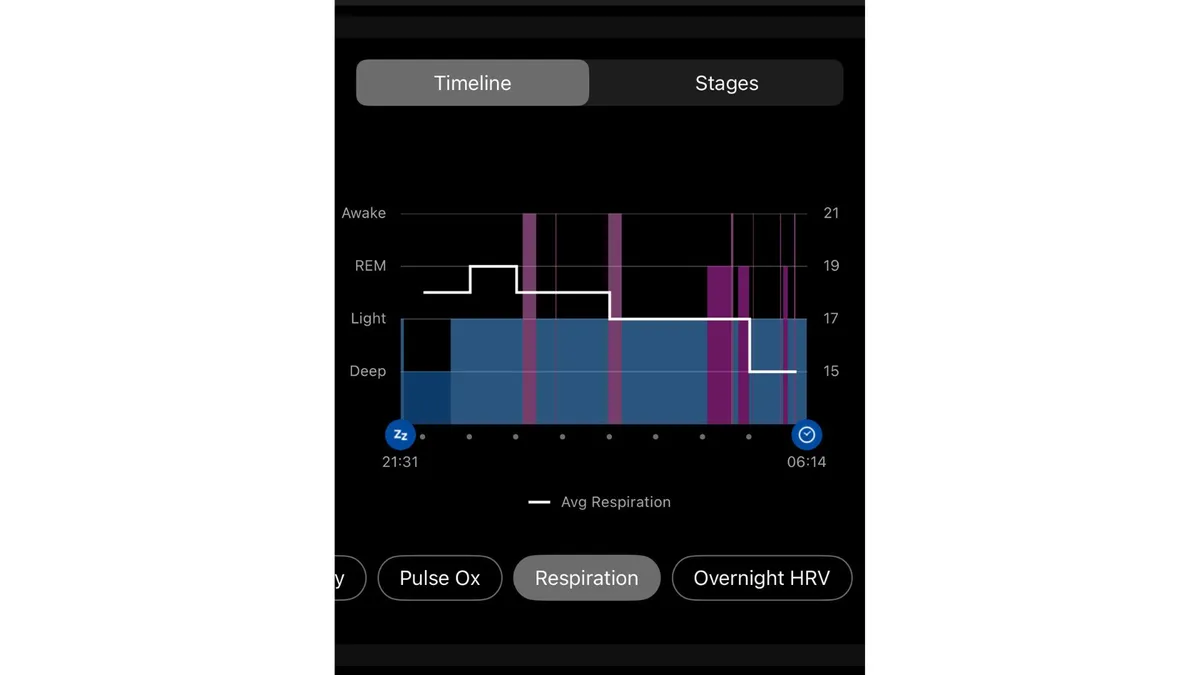
Tucked away in your sleep details is a metric many people never look at: your sleeping respiration rate, measured in breaths per minute.
For most healthy adults, normal sleeping respiration rate falls somewhere between 12 and 20 breaths per minute. Your Garmin tracks this throughout the night and shows you both your average rate and a chart of how it varied during your sleep.
So why does this matter? Changes in your sleeping respiration rate can be early warning signs of several important health factors.
A sudden spike in your sleeping respiration rate often indicates that your body is fighting something off. This might be the earliest sign of a respiratory infection, sometimes appearing before you have any other symptoms. I've noticed my respiration rate climbing a day or two before I came down with a cold on multiple occasions. Seeing this pattern now helps me know when to back off training and prioritize extra rest before I even feel sick.
Elevated respiration can also indicate physical strain from overtraining. If you've been pushing hard in your workouts and your sleeping respiration rate starts climbing above your normal baseline, that's a signal you might need more recovery time.
Some Garmin models also track breathing variations, which can help identify potential sleep-disordered breathing like sleep apnea. Significant irregularities in breathing during sleep are worth discussing with a healthcare provider, and having this data can make that conversation more productive.
I want to be clear here: your Garmin is not a medical device, and this data shouldn't replace professional medical advice. But it can help you spot patterns worth investigating and give you useful information to share with your doctor.
My typical sleeping respiration rate runs around 14-15 breaths per minute. When I see it creep up to 17 or 18, I know something's going on — usually either illness or training stress. That early warning allows me to adjust my plans before I'm forced to by feeling terrible.
To find your respiration rate data, open your sleep details in Garmin Connect and scroll down past the sleep stages and stress information. The respiration data is often further down on the page than people scroll.
Feature 4: Sleep Coach and Sleep Need
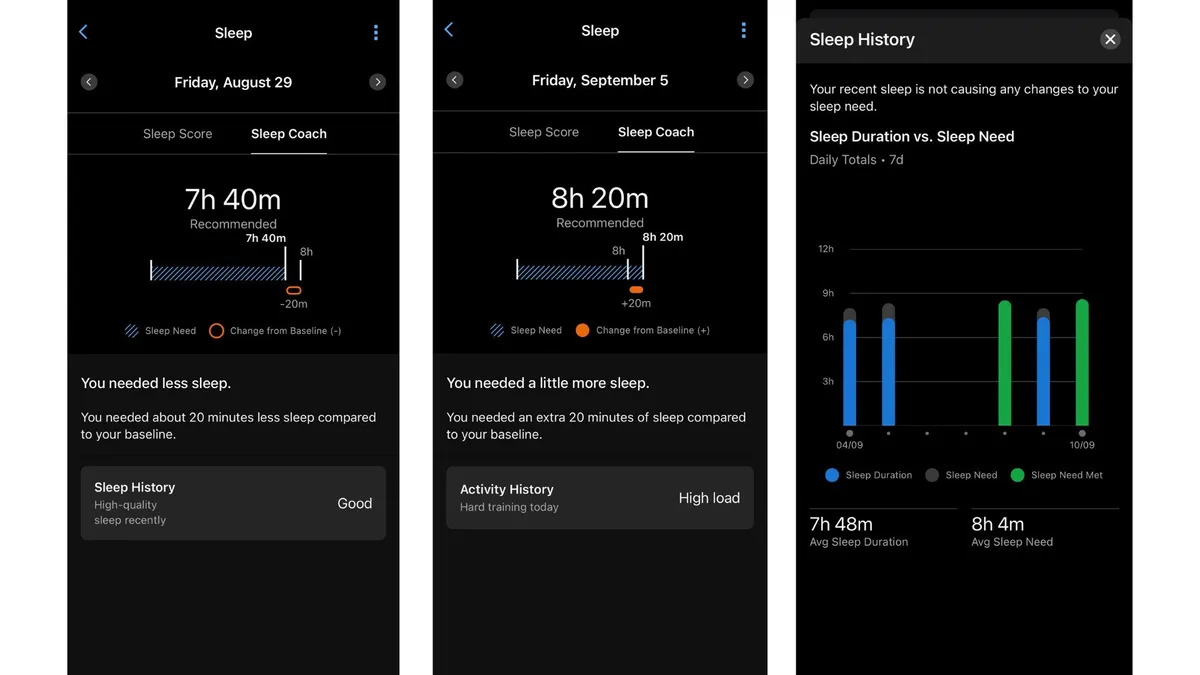
Newer Garmin models — including the Venu 3 and later, Forerunner 255 and later, and Fenix 7 and later — have a feature called Sleep Coach that most users never explore. This is a significant upgrade from basic sleep tracking, and it fundamentally changed how I approach sleep scheduling.
Sleep Coach doesn't just track how much you slept. It calculates your personal "sleep need" in real-time, adjusting your nightly sleep goal based on several factors: your HRV status, your recent activity history, any naps you've taken, and your accumulated sleep debt.
This matters because sleep needs aren't static. After a hard training week, your body genuinely needs more sleep to recover. After a rest day with a long nap, you might not need as much sleep that night. Sleep Coach accounts for these variations and gives you personalized recommendations.
For example, if you take a 20-minute afternoon nap, Sleep Coach will reduce your recommended nightly sleep duration accordingly. This helps prevent oversleeping, which can actually leave you feeling groggy. If you've been training hard, Sleep Coach will recommend longer sleep to support physical recovery.
I found this feature particularly useful because I'd always used a fixed sleep goal — eight hours, no matter what. Sleep Coach showed me that my actual sleep need varies significantly depending on what my body is dealing with. Some nights I genuinely need nine hours. Other nights, seven is plenty. Having personalized guidance helps me plan my schedule more intelligently.
The nap detection feature that works alongside Sleep Coach is also useful. Your Garmin can automatically detect when you nap during the day and factor that into your sleep need calculations. You don't have to manually log naps or remember to start sleep tracking.
To access Sleep Coach, open the Garmin Connect app, go to your sleep data, and look for the Sleep Coach section. You should see your recommended sleep duration for the upcoming night and feedback on whether you're meeting your sleep needs over time.
Feature 5: Sleep Mode and Sleep Schedule
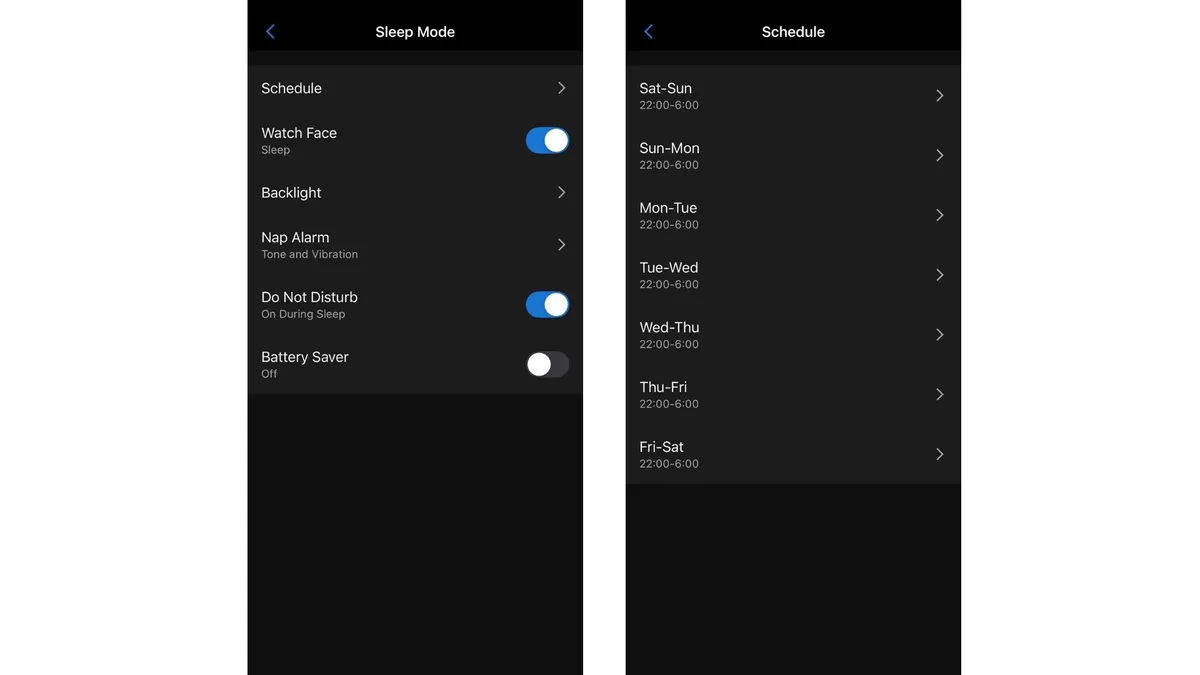
Here's a feature that seems simple but has the most research-backed impact on sleep quality: Sleep Mode and its scheduling capabilities.
Recent research, including a major study by Vitality and the London School of Economics, has shown that sleep regularity — going to bed and waking up at consistent times — is actually a better predictor of sleep quality and health outcomes than sleep duration alone. Astonishingly, maintaining a consistent sleep schedule may add up to four years to your life expectancy.
Your Garmin has built-in tools to help you maintain this consistency, but most people never set them up.
Sleep Mode is a special mode your Garmin can enter during your designated sleep hours. When activated, it minimizes interruptions by adjusting settings like backlight brightness, silencing notifications, and disabling touch on some models. The goal is to reduce anything that might disturb your sleep while still tracking all the important data like movement, heart rate, and sleep stages.
But the real power is in the scheduling. In your Garmin settings, you can set specific sleep and wake times for each day of the week. Your watch will automatically enter Sleep Mode at your designated bedtime and exit at your wake time.
More importantly, setting a consistent schedule creates accountability. Your Garmin will show you whether you're actually going to bed and waking up when you planned to. Over time, you can see how consistent your sleep schedule really is — and consistency, remember, matters more than duration for sleep quality.
I set my sleep schedule for 10:30 PM to 6:30 AM every night, including weekends. Yes, even weekends. The research is clear that varying your sleep schedule on weekends (called "social jet lag") undermines sleep quality during the week. Keeping the same schedule every day has been challenging socially at times, but the improvement in how I feel has been worth it.
When Sleep Mode activates at 10:30, it's become a Pavlovian cue for my body that it's time to wind down. The notifications stop. The watch face dims. My brain has learned to associate these signals with sleep, making it easier to fall asleep quickly.
To set up Sleep Mode scheduling, go to your Garmin Connect app, navigate to Device Settings, then System, then Sleep Mode, and finally Schedule. Set your desired sleep and wake times for each day of the week. For best results based on the research, keep these times consistent across all seven days.
Putting It All Together: My New Sleep Routine
Let me share how I've integrated these five features into a daily routine that has genuinely transformed my sleep quality.
Each morning, before I even get out of bed, I check three things on my Garmin. First, my overnight stress — were there any unexpected spikes? Second, my Body Battery — how much did I recover? Third, my respiration rate — is it in my normal range?
This takes about 30 seconds and gives me crucial information for planning my day. If my recovery was poor, I might scale back my workout or prioritize getting to bed earlier that night. If my respiration rate is elevated, I'll watch for other signs of illness and maybe take a rest day preemptively.
During the day, I keep an eye on my Body Battery to understand how my activities are affecting my energy. If I'm draining fast, I know I need to be extra diligent about sleep that night.
In the evening, I use Sleep Coach's recommendation to guide my bedtime. If my watch says I need 8.5 hours tonight, I make sure I'm in bed with enough time to actually get that much sleep.
At my scheduled bedtime, Sleep Mode activates automatically. This has become my signal to put down my phone, turn off screens, and begin my wind-down routine. The consistency has made falling asleep much faster because my body knows what to expect.
The results have been significant. I'm falling asleep faster — usually within 10-15 minutes instead of the 30+ minutes it used to take. My overnight stress levels have dropped since I've been more careful about evening alcohol and late meals. My morning Body Battery is consistently higher. And most importantly, I actually feel rested when I wake up instead of dragging myself out of bed.
None of this required buying any new devices or downloading any new apps. All of these features were already on my Garmin, waiting to be used. I'd just never bothered to explore beyond the basic sleep score.
Tips for Getting Started
If you're ready to explore these features yourself, here are some practical tips to get the most out of them.
- Start by just observing for a week or two. Don't try to change anything yet. Just look at your overnight stress patterns, your Body Battery recovery, your respiration rate, and your sleep consistency. Get a baseline for what's normal for you before trying to optimize anything.
- Look for patterns and correlations. Does your overnight stress spike when you drink? When you eat late? When you're stressed about work? Does your Body Battery recover better on weekends versus weekdays? Your patterns will be unique to you, and the data will help you identify them.
- Make one change at a time. When you're ready to start improving your sleep, change one thing and observe the impact for a week before changing something else. This helps you understand what actually works for your body rather than changing everything at once and not knowing what helped.
- Use the scheduling features. Setting a consistent sleep schedule and enabling Sleep Mode creates structure that supports good sleep habits. The research is clear that consistency matters more than duration.
- Check your data regularly but don't obsess. A quick morning check of your key metrics is useful. Checking your sleep data every hour throughout the day is counterproductive. Find a balance that keeps you informed without creating anxiety.
Remember these are tools, not rules. Your Garmin provides data and insights, but you know your body best. Use the information as one input into your decisions about sleep, not as absolute commands you must follow.
Which Garmin Models Have These Features
Not all Garmin watches have all five of these features, so here's a quick guide to what's available on different models.
Basic sleep tracking with sleep stages, overnight stress, Body Battery, and respiration rate is available on most recent Garmin wearables including the Venu series, Forerunner series, Fenix series, and Vivoactive series. If your watch is from the last few years, you probably have these features.
Sleep Coach with personalized sleep need recommendations and nap detection is available on newer models including the Venu 3 and later, Forerunner 255 and later, Forerunner 955 and later, and Fenix 7 and later. If you have an older watch, you'll get the basic sleep features but not the dynamic Sleep Coach recommendations.
Sleep Mode with scheduling is available on most Garmin watches with sleep tracking, though the specific features and settings may vary slightly by model.
To find what features your specific watch supports, check the Garmin website for your model's specifications or explore the settings in your Garmin Connect app.
Frequently Asked Questions
How accurate is Garmin sleep tracking?
Garmin sleep tracking uses heart rate variability, movement, and other sensors to estimate sleep stages and quality. Studies have shown that wrist-based sleep trackers like Garmin are reasonably accurate for overall sleep duration and can identify general patterns in sleep stages, though they're not as precise as clinical polysomnography. For most people, Garmin provides useful data for understanding sleep trends and identifying factors that affect sleep quality, even if the exact measurements aren't perfectly accurate.
Why does my Garmin show high stress during sleep?
Overnight stress spikes typically indicate your body is working hard to process something while you sleep. Common causes include alcohol consumption (even moderate amounts), eating heavy meals close to bedtime, caffeine consumed too late in the day, intense exercise close to bedtime, high emotional stress, illness or infection your body is fighting, and sleep disorders like sleep apnea. If you consistently see high overnight stress, examine these factors and consider discussing persistent patterns with a healthcare provider.
What is a good Body Battery score to wake up with?
Ideally, you should wake up with a Body Battery of 80 or higher after a restorative night of sleep. Scores between 60-79 are acceptable but suggest your recovery could be better. Waking up below 60 consistently indicates you're not recovering adequately during sleep and should prioritize rest and investigate what might be interfering with your sleep quality.
How does Garmin Sleep Coach work?
Garmin Sleep Coach calculates your personalized sleep need based on several factors including your HRV status, recent activity levels, any naps you've taken, and accumulated sleep debt. It adjusts your recommended sleep duration dynamically, suggesting more sleep after hard training and less after rest days with naps. Sleep Coach is available on newer Garmin models including Venu 3, Forerunner 255 and later, and Fenix 7 and later.
What is a normal respiration rate during sleep?
Normal sleeping respiration rate for healthy adults typically falls between 12-20 breaths per minute, with most people averaging around 14-16 breaths per minute. Your personal baseline may vary, so it's more useful to track your own patterns and watch for significant deviations. Elevated sleeping respiration can indicate illness, physical strain from overtraining, or potential sleep disorders worth discussing with a healthcare provider.
How do I turn on Sleep Mode on my Garmin?
To enable Sleep Mode and set a schedule, open the Garmin Connect app on your phone, go to Device Settings, select System, then Sleep Mode, and finally Schedule. You can set specific sleep and wake times for each day of the week. When Sleep Mode activates at your scheduled bedtime, your watch will minimize notifications, adjust backlight settings, and optimize for sleep tracking.
Does wearing a Garmin to bed affect sleep quality?
Most people adapt to wearing a watch during sleep within a few nights. Modern Garmin watches are lightweight and comfortable enough that they don't significantly disturb sleep for most users. If you find your watch uncomfortable at night, try adjusting the band tightness or switching to a more comfortable band material. The benefits of sleep tracking data generally outweigh any minor initial adjustment period.
Can Garmin detect sleep apnea?
Garmin watches are not medical devices and cannot diagnose sleep apnea. However, some Garmin models track breathing variations during sleep, which can help identify patterns potentially worth discussing with a healthcare provider. Features like SpO2 tracking and respiration rate monitoring may show irregularities associated with sleep-disordered breathing. If you suspect sleep apnea, consult a doctor for proper diagnosis through a sleep study.
Why is my Garmin sleep score low even though I slept 8 hours?
Sleep duration is only one factor in your sleep score. Garmin also considers sleep stages (how much deep and REM sleep you got), overnight stress levels, movement and restlessness, sleep timing consistency, and respiration patterns. You might sleep for eight hours but have poor sleep quality due to stress, alcohol, late eating, or other factors that prevent restorative deep sleep. Examining the detailed breakdown of your sleep data can reveal what's affecting your score.
How can I improve my Garmin sleep score?
To improve your Garmin sleep score, focus on maintaining a consistent sleep schedule, avoiding alcohol within four hours of bedtime, not eating heavy meals close to sleep time, limiting caffeine after early afternoon, managing stress before bed, keeping your bedroom cool and dark, and getting regular physical activity but not too close to bedtime. Use your Garmin's detailed sleep data to identify which factors most affect your personal sleep quality.
Does Garmin track naps?
Newer Garmin models with Sleep Coach (Venu 3, Forerunner 255 and later, Fenix 7 and later) can automatically detect naps and factor them into your sleep need calculations. The watch recognizes when you nap during the day and adjusts your recommended nightly sleep duration accordingly. This helps prevent oversleeping and grogginess from exceeding your actual sleep needs.
What's the difference between Garmin sleep tracking and dedicated sleep trackers?
Dedicated sleep trackers like the Oura Ring or Whoop may offer more specialized sleep analysis and sometimes use additional sensors. However, Garmin watches provide comprehensive sleep tracking alongside fitness and activity tracking in a single device. For most users, Garmin's sleep features provide sufficient detail for understanding and improving sleep quality. The main advantage of Garmin is the integration of sleep data with training, recovery, and activity metrics in one ecosystem.
Your Garmin is already collecting incredibly detailed data about your sleep every single night. The question is whether you're actually using that information to improve how you feel.
I spent three years wearing my Garmin while barely scratching the surface of its sleep features. Now that I've dug into the details — the overnight stress patterns, the Body Battery recovery, the respiration trends, the Sleep Coach recommendations, the scheduling tools — I understand my sleep in a way I never did before.
And understanding your sleep is the first step to actually improving it.
Take 10 minutes tonight to explore these features in your Garmin Connect app. Look at your overnight stress from the past week. Check your Body Battery recovery patterns. Set up a sleep schedule. The tools are already on your wrist. You just have to use them.
Related Articles
 Dani
Dani
 Dani
Dani